01
Your favourites, front and centre
Give the apps you use most a permanent place in the dock. A clear focus highlight shows exactly where you are, so there is less hunting through recommendations before movie night.
Check your TV ↗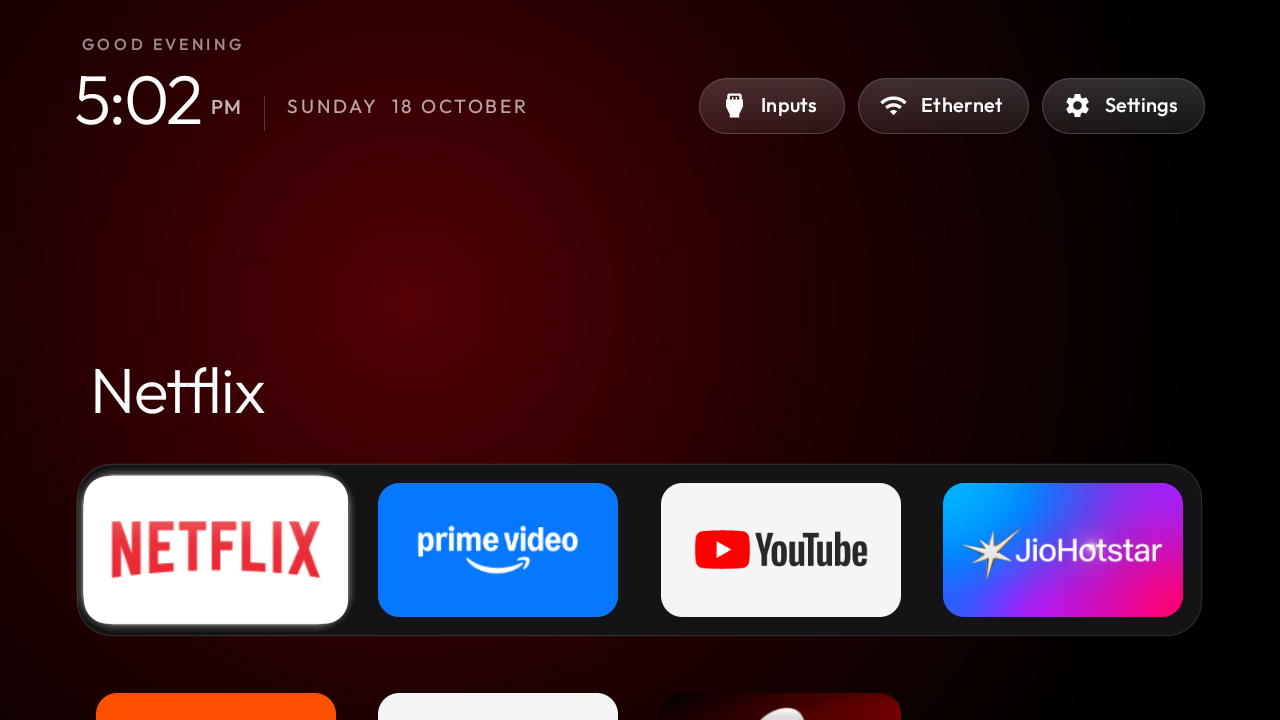
 CleanYourTV.org
A BETTER PLACE TO PRESS HOME
Your favourite apps. A calmer home screen. A TV that feels like yours again. Clean your TV with a beautifully simple home for Android TV and Google TV.
US$19 once: TV launcher, Windows & Mac setup assistants, pictured guides in six languages and restore tools.
No account or payment needed for the connection check. · US$19
Try the setup flow before you buy. →AI guide · Beta · Get help with installation, errors and using your TV home. →
LESS NOISE. MORE YOU.
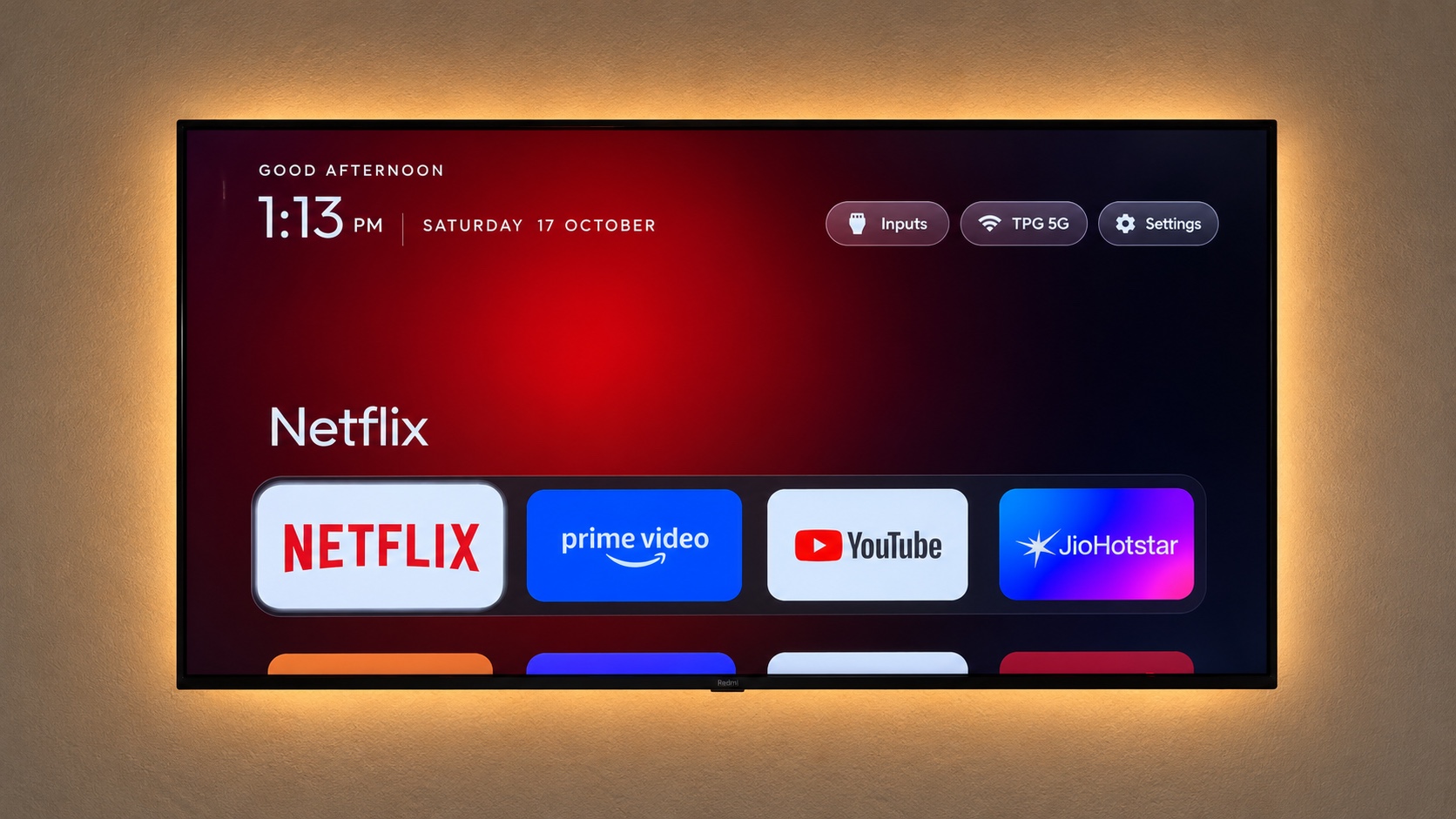
Clean your TV with a home screen built around the things you actually open. Keep the streaming apps you love and put them within easy reach of the remote.
Give the apps you use most a permanent place in the dock. A clear focus highlight shows exactly where you are, so there is less hunting through recommendations before movie night.
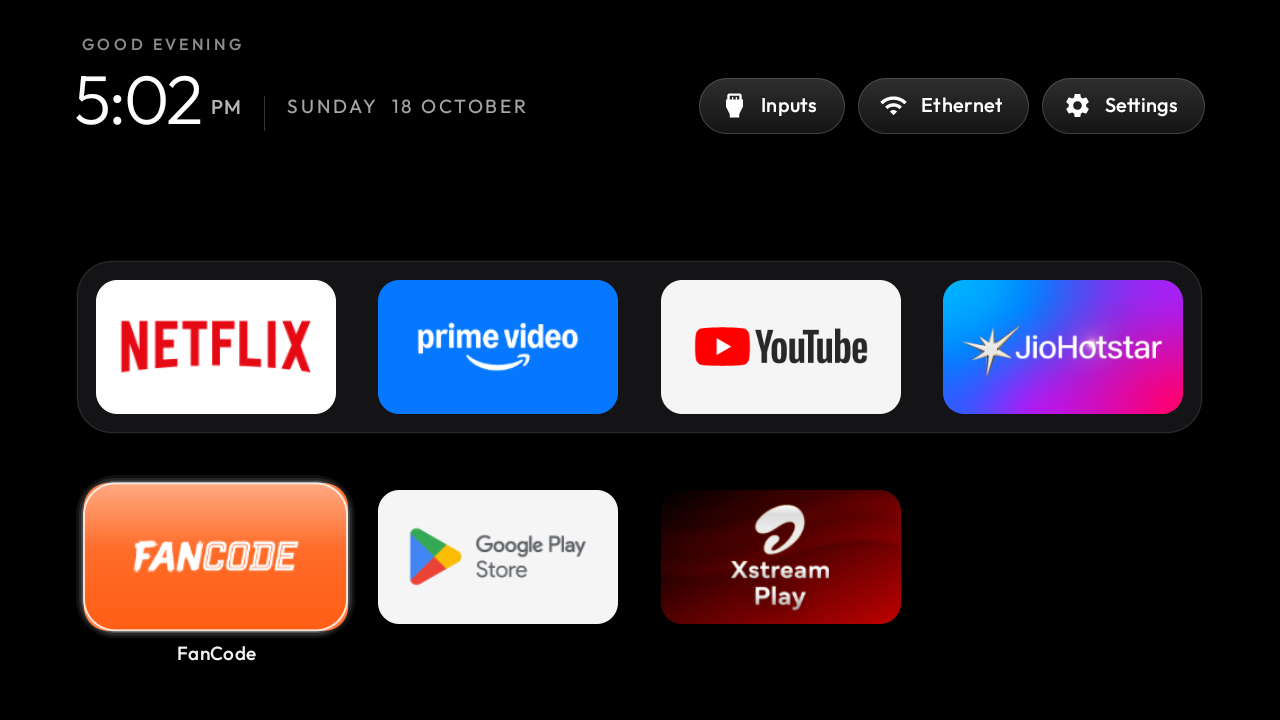
Check your TV ↗Move down from your favourites to browse the rest of your installed applications. Large tiles and familiar directional controls make your home screen easy to explore from the sofa.
Choose a quiet black background or an atmospheric theme. Adjust the layout to suit your screen, and let the ambient colour follow the app in focus.
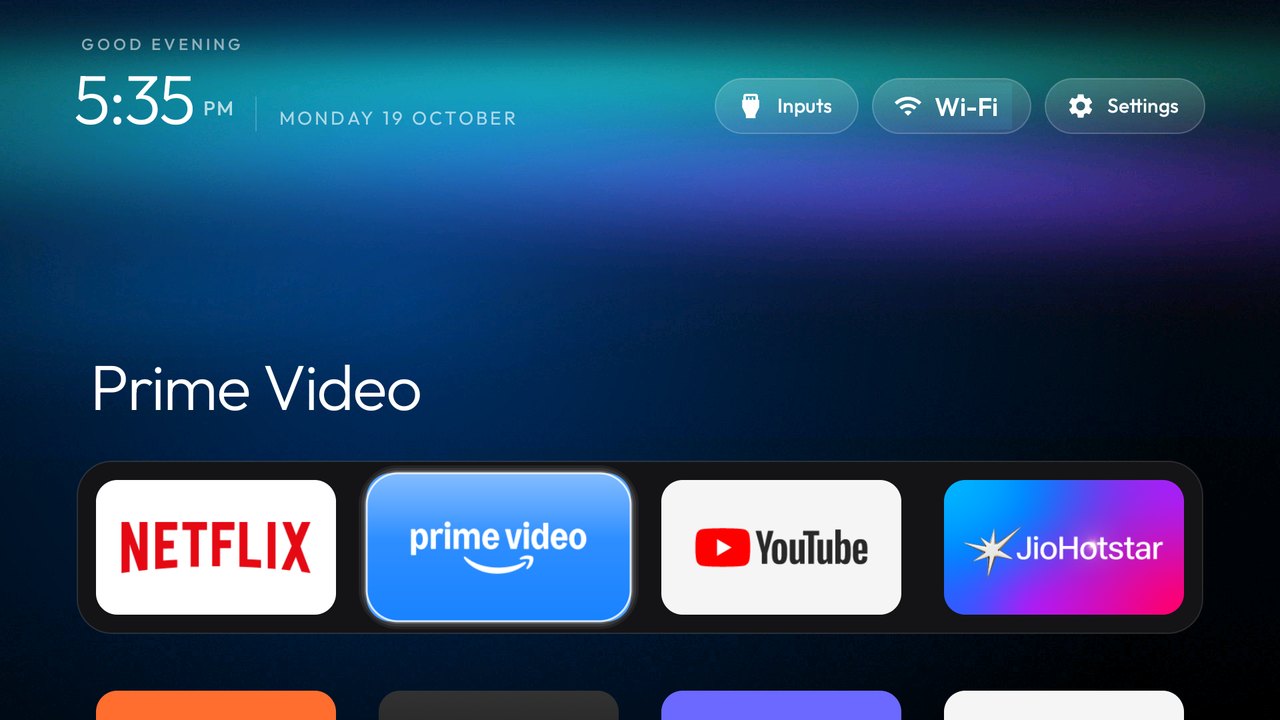
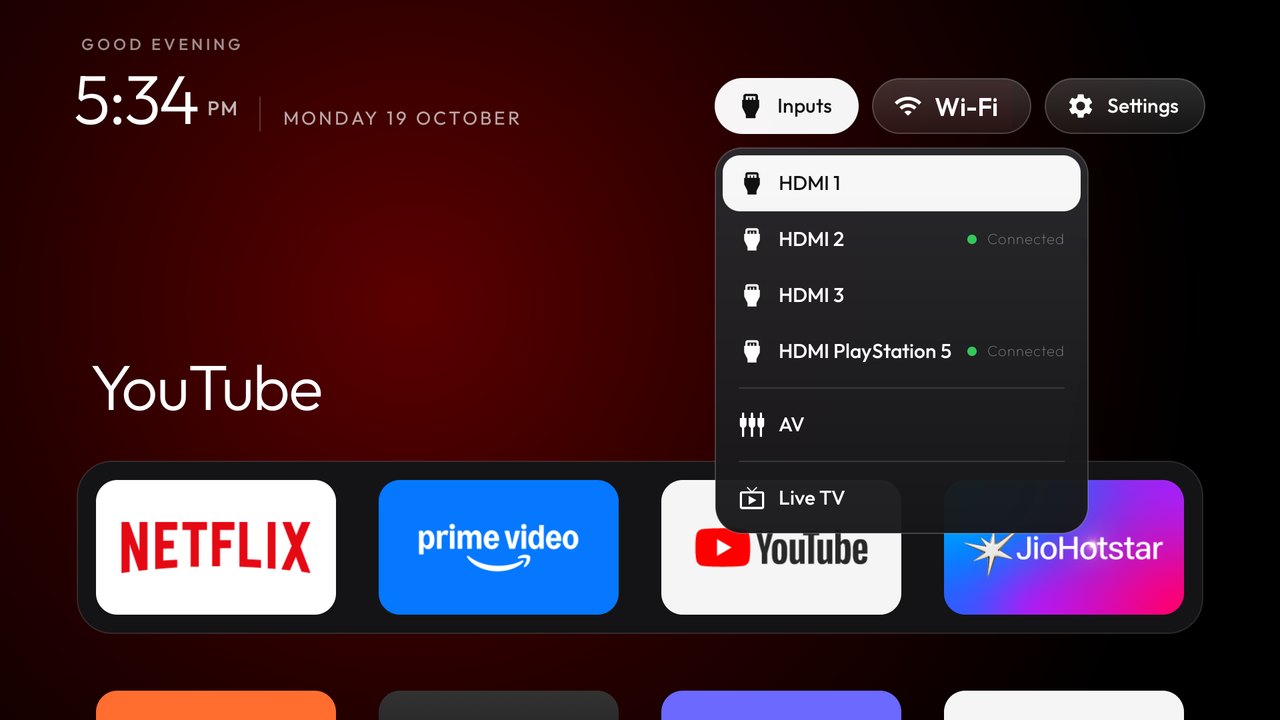
Jump to the inputs menu when it is time for a console, set-top box or another HDMI device. Network and system settings stay available from the home screen.
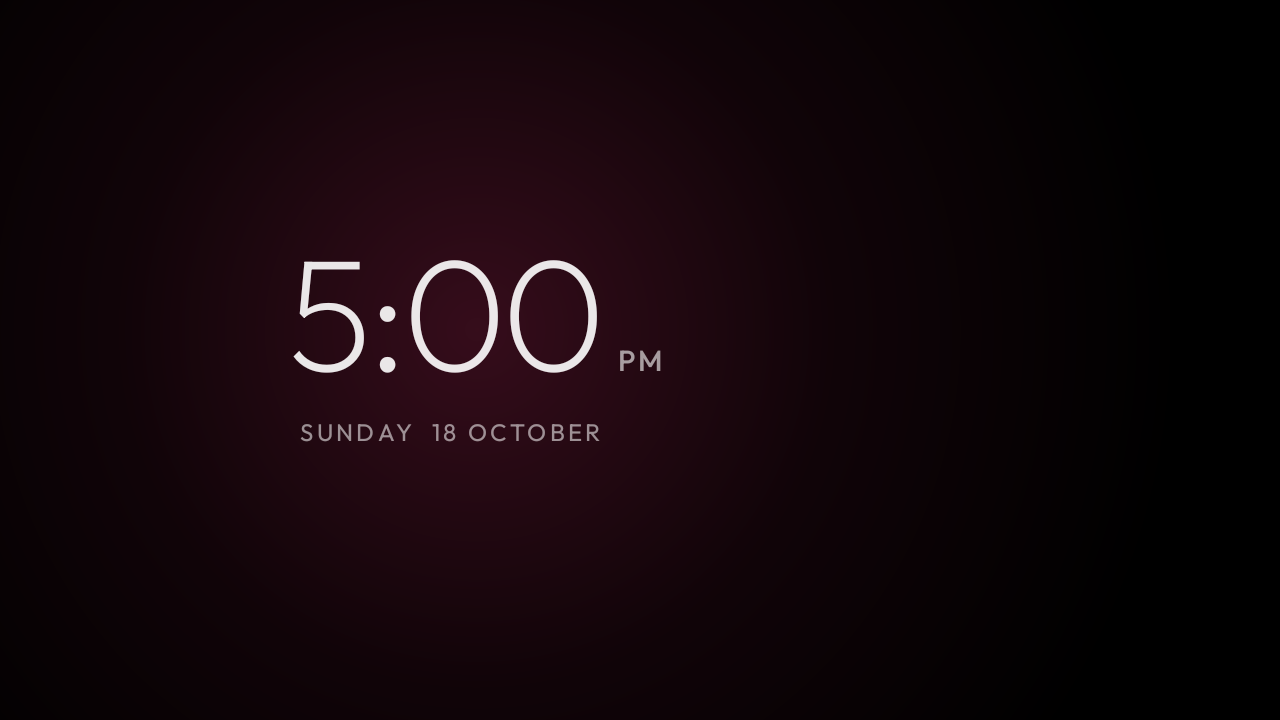
The optional clock screensaver gives your TV a calmer idle screen. Its clock moves gently across the display; select it in your TV’s screensaver settings.
SET IT UP. SETTLE IN.
Confirm the system and debugging access before buying. Your TV and computer need to be on the same local network.
Open the installation kit on your computer. Follow the TV-side steps, then approve your computer on the television.
Install the launcher, choose your favourites and check your remote. Keep the restore record, then turn debugging off.
ONE KIT. ONE PAYMENT.
US$19, paid once. No subscription. Streaming subscriptions and remote installation services are not included.
Unsuccessful use? Talk to us about a refund. →Check what changes, what your TV needs, and how to get help before you buy.
First check whether your Google TV offers apps-only mode and whether that meets your needs; it does not require buying this kit. If you want a different app-focused home, CleanYourTV is another option on compatible devices. Its home has no promotional recommendation feed, but changing the launcher does not remove ads inside streaming apps or manufacturer startup ads. Start with the free connection check before buying.
Understand apps-only modeChoose by your exact device, the apps your household uses, remote navigation and how you can restore the original home. There is no single best launcher for every TV. CleanYourTV suits people who like a favourites dock and app grid and want Windows or Mac setup tools with pictured instructions. Compare the interface and installation requirements, then run the free check; this site sells its own kit and is not an independent ranking.
Compare launcher choicesYes, on a compatible device you can arrange their usual apps in the favourites dock and keep a familiar layout. Other available apps remain in the app grid; this is not a locked senior mode or a parental-control feature. Help them test opening an app, pressing Home and switching HDMI inputs with their own remote. Keep the original Home record so you can restore it if the new layout does not suit them.
See setup and everyday checkscleanyourtv.org offers an independently operated US$19 self-service kit built around an adapted launcher. It is not the official website of Gathin23’s original CleanYourTV project and does not imply its endorsement. The original open-source project is available free on GitHub. This site charges for its packaged APK, Windows and Mac helpers, six-language pictured guides, theme examples and restore instructions. You can choose the free project if you prefer to handle its setup yourself; buying here is optional and does not unlock the original project.
Visit the original open-source projectIt replaces the Home screen with a simpler app launcher: a favourites dock, app grid, themes, settings and input shortcuts, and an optional clock screensaver. Your existing apps still play your content. It does not clean storage, upgrade the hardware or guarantee a faster TV.
The CleanYourTV home screen has no promotional recommendation feed. Ads inside YouTube, Netflix or other apps, manufacturer startup ads and system pop-ups are outside its scope. Your streaming subscriptions and each app’s advertising rules stay with their providers; no films, channels or accounts are included.
The launcher targets Android TV and Google TV running Android 8 or newer. Your exact model and regional firmware must also allow app installation and the traditional network ADB connection used by the helper. A Xiaomi, Sony or Google TV label alone does not establish compatibility. Run the free connection check on the device you want to change.
Check device requirementsThis kit does not support Samsung Tizen, LG webOS, Apple TV or Fire TV. If your TV displays a separate compatible Android TV or Google TV box over HDMI, you can check that box instead. Installation changes the box’s Home screen; it does not change the TV’s own operating system or startup screen.
There is no published certification list for individual models, and physical Xiaomi TV validation is still pending. Software and simulated workflow checks do not replace a test on your TV. Check the model, firmware and connection first, then verify Home, apps, inputs and reboot behaviour after installation.
The helper does not uninstall your existing apps, clear their data or reset the TV. You continue using those apps and their existing accounts. An app without a TV launch entry may still be absent from the grid; replacing Home does not make every phone APK compatible with a TV.
Troubleshoot missing appsYes. Download the free helper for your computer from the setup page, extract the whole ZIP and run the check. No account or payment is needed to check the connection and save the original Home record. This step does not replace Home. The launcher APK and installation are unlocked after a confirmed purchase.
Start the free connection checkIt confirms the connection and checks performed at that moment, not every feature or future firmware update. Installation still needs your confirmation. Afterwards, test Home, your usual apps, remote, voice, casting and HDMI where relevant, then reboot and check again. Keep the saved restore record.
Use Windows 10/11 on an x64 PC, or a Mac with Apple Silicon or an Intel processor. The computer and TV must share a local network that allows them to reach each other. This helper uses network debugging rather than a USB cable; a phone or Chromebook does not replace the supported computer. Daily TV use does not need the computer to stay on.
The helper handles the supported ADB steps, so you do not need to type commands yourself. You still need to enable debugging and approve the computer on the TV. The illustrated guide walks you through finding the TV address, enabling the available network debugging setting, approving your computer, checking and saving Home, then installing and testing. Keep the remote nearby. Menu names and connection problems vary by firmware, so there is no guaranteed installation time. You can stop before confirming installation if you are unsure.
Read the installation guideThe current helper supports traditional network ADB using the TV’s local IPv4 address and connection port. It does not implement pairing-code/TLS wireless debugging. A TV pairing code is also different from the website’s account-link confirmation number. If your device only offers pairing-code debugging, do not buy the kit to solve that limitation; contact support first.
Understand wireless debuggingEnter the TV’s current local address manually if discovery finds nothing. Check that it is awake, network debugging is enabled, the port matches its settings and you approved your computer on the TV. Guest networks may isolate devices. Record whether the result says refused, unauthorised, offline or timeout, then follow the connection guide. Paying does not fix a failed connection.
Troubleshoot the connectionThe Windows helper has no Authenticode signature, and the Mac helper is not Apple-notarised, so the operating system may show an unfamiliar-app warning. The Android APK is release-signed; that is separate from desktop signing. Use the official download and the platform instructions to verify the file and its source before deciding to open it.
Read the platform instructionsNo. The helper installs the launcher and changes the default Home configuration on devices that allow it. It does not root or flash the TV, factory-reset it, or delete or disable system apps. The original launcher stays installed. Changing Home still depends on your firmware, so save the original configuration and follow the checks.
The launcher is designed for directional buttons and OK on your existing remote, and includes settings and input shortcuts. Voice keys, casting, broadcast TV and input behaviour also depend on the manufacturer and other apps. We cannot guarantee every combination. Test the features you use after installation and after reboot; restore if the result does not suit your setup.
Yes. Arrange your favourite apps, adjust the layout and use the included theme examples. Change one setting at a time so you can compare the result from the sofa. The clock screensaver is optional and must be selected in the TV’s screensaver settings; installing the launcher does not automatically enable it.
That depends on the TV’s firmware. Test the Home button and reboot before finishing setup. A manufacturer update may restore its preferred launcher or change debugging and Home behaviour. Keep the installer and restore record; recheck your model and current instructions before applying changes again.
Check default Home behaviourKeep the original launcher installed and the restore record saved on your computer. Reconnect the same TV, use the helper’s restore action and confirm the change, then test Home and reboot. The record restores Home settings; it is not a backup of the whole TV or app data. A record from another device will not do. Restoring the saved original Home is not purchase-gated. If the record is missing or the firmware changed, contact support before guessing commands.
Read the restore guideNo. Once installation or restoration and the final checks are complete, disconnect the helper and turn debugging off when it is no longer needed. The launcher does not need debugging for normal use. Use a trusted home network, authorise only your own computer and keep the restore files. Reconnecting later may require enabling debugging again and checking the current address.
US$19 is a one-time payment for the self-service kit: the launcher APK, Windows and Mac tools, illustrated guides in English, Chinese, Spanish, Brazilian Portuguese, German and French, theme examples and restore instructions. There is no recurring subscription. Streaming memberships and a technician or remote installation appointment are not included. AI Beta access has separate usage limits.
See the kit detailsAfter a successful free check, link the helper to your signed-in account by checking the matching confirmation number in the browser and helper, and approving it. Complete the secure checkout. Once payment is confirmed, the linked helper can download the verified APK, and your account’s download centre provides your purchased files. Use an email address you can access.
First refresh the order status and confirm you are signed in with the account used for purchase. Returning from checkout is not itself proof that payment has been confirmed. Check the delivery email too. If you were charged and access is still missing, email support with your order number and purchase email before paying again; never send full card details.
Open your downloadsSign in to the purchasing account to find the order and available downloads, then choose the correct Windows or Mac package. Keep a separate copy of the original Home restore record: downloading the kit again does not recreate a record saved on another computer. Access remains subject to the order’s status; a fully refunded order no longer grants downloads.
Sign in to your accountThe purchase covers the kit and version described at checkout; it does not promise every future release or lifetime AI access. No device-count policy is currently published. Check each TV separately, keep its own restore record and only modify devices you own or are authorised to manage. Contact support about your multi-device or upgrade requirements before buying.
Read the purchase termsIt explains setup steps and diagnostic results and suggests what to check next. You still run the local helper and complete TV-side authorisation. AI cannot bypass missing debugging support or execute TV commands. Installation and restoration require your explicit confirmation in the helper; AI advice is not a guarantee of compatibility or a completed action.
It is optional and limited during Beta. Free helper sessions allow up to 8 messages per session, with additional network, rate and shared daily limits. Purchased kit accounts allow up to 50 requests per day during Beta, also subject to shared service limits. If AI cannot reply or your allowance is used up, the manual guide and helper remain available. Availability and allowances may change; the one-time kit price is not a promise of unlimited or lifetime AI.
The TV’s local address and original Home restore file stay on your computer. The service keeps a temporary two-hour connection session and limited abuse-prevention data. If you opt into AI guidance, your messages and a minimal summary such as model, operation, readiness and error code are sent through Kie and its model provider. The AI diagnostic summary does not automatically include the TV’s IP address, device IDs, app lists or backup paths. We do not store chats in our database; providers have their own policies. Avoid typing private data. Optional website analytics and setup outcome statistics require consent.
Read the privacy policyThe launcher itself runs locally and does not need the computer or AI to stay connected for daily use. Streaming apps, sign-in, payments, new downloads and AI need their relevant network services. Keep a complete downloaded kit and your restore record for later use; the free checker alone does not contain the paid launcher APK.
Email support@cleanyourtv.org with the exact TV or box model, Android version, the step you reached and the error text or a relevant screenshot. Include the order number and purchase email for paid-access issues. Leave out passwords, verification codes and full card details. Support is by email; the self-service kit does not include a remote technician appointment or a guaranteed response time.
Prepare a support requestEmail support@cleanyourtv.org with your order and device details and describe what failed. We review unsuccessful product use and discuss a refund with you; there is no unconditional or fixed seven-day offer. Agreed refunds go through the original payment method, with timing controlled by your payment provider. A fully refunded order loses download access; already downloaded files are not remotely deleted.
Read the refund processA HOME SCREEN, CONSIDERED.
A television home screen should help you reach the entertainment you already chose. When rows of recommendations, promotional tiles and unfamiliar apps compete for attention, even opening a favourite service can take more concentration than it should. Clean your TV gives that everyday starting point a simpler structure: favourites first, other apps below, essential controls nearby. You decide which applications deserve the most visible places. Your existing content subscriptions stay with their providers, and your remote remains the way you navigate.
For a shared family television, consistency matters. Put the applications your household recognises in the dock and keep their order predictable. Someone helping a parent set up a TV can explain the routine in plain terms: press Home, move to the app, press OK. Clean your TV does not require a computer to stay connected after setup. The initial installation is a separate task, with an on-screen approval on the television and a written record of the original home configuration.
A clean home screen is not only about removing visual clutter. It is also about balance, legibility and knowing where the next action will happen. The focused tile has a visible highlight, the selected application has a clear name, and the clock and system shortcuts share a consistent place. Clean your TV supports theme configuration so the dock, app columns and background can suit the display. Begin with the default layout and change one preference at a time; you can compare the result without rebuilding the Android application.
Your television needs to run a compatible Android-based TV system, and it must allow debugging and app installation. A brand name alone does not establish compatibility: regional firmware and different model years can behave differently. Clean your TV includes a compatibility checklist so you can identify the operating system and setup conditions first. On the TV, you enable the relevant developer setting, find its local network address and authorise the computer. Use your own trusted home network for this temporary connection.
The installation assistant saves the original home configuration before changing your launcher. Clean your TV keeps your existing home app and unrelated system packages in place, so you have a clear route back if you decide to restore. Keep the backup folder on your computer and use the same device when restoring. After setup, check the features you use every day, including voice control, casting, broadcast television and HDMI inputs. The guide walks you through these checks before you close the assistant.
The self-service kit brings together the launcher, computer-side setup tools, illustrated instructions and recovery guidance in one account. Clean your TV is a one-time US$19 purchase, not a recurring subscription. You can return to the download centre using the email account you purchased with. Read the current release notes and device requirements before choosing a file. The kit does not include a new television, streaming subscriptions, paid TV channels or a remote technician session.
After installation, use the remote to open a favourite app, return Home, navigate to the other apps and open the settings menu. Confirm that the original functions you rely on still work. If you use HDMI devices, test the input you normally watch. Clean your TV provides restore instructions alongside installation instructions so recovery is not something you need to search for later. Keep your local backup record, close the installation tool and turn off the debugging connection after you finish.
If the product cannot be used successfully, email the support address with your order number and the television’s model and system version. Describe the stage you reached and any visible message; a screenshot can help explain the problem. Avoid including passwords or unnecessary personal information. We review the reported product issue and discuss a refund by email where the product cannot be used successfully. Clean your TV puts the support contact beside your download and restore information so you can find it again when you need it.
A CLEARER NEXT STEP
Practical explanations for setup, missing app icons and choosing a home screen.
THE OPEN-SOURCE COLLECTION
Compare 16 open-source projects for home screens, YouTube playback, sponsor skipping and network filtering. Start with your television’s system.
Explore the open-source collection ↗