 CleanYourTV
CLEANYOURTV · Find your installed apps
Android TV installed apps not showing on the home screen
Android TV installed apps not showing on Home usually calls for a visibility check before another installation attempt. First open the TV's installed-app list. If the app is there, try opening it from its information screen. If it is absent, return to the installation result. This separates a missing shortcut from an APK that never installed.
This guide covers Android TV and Google TV devices, including compatible televisions and HDMI boxes. A Play Store search that does not offer an app is a different problem: availability can depend on device support, account and region. Start here when you have already attempted installation and want to find what happened afterward.
Separate installation, visibility and the Home button
There are three checkpoints: the package is installed, the launcher displays an entry, and the Home button opens the intended launcher. Passing one checkpoint does not prove that the others passed. For example, a launcher can open from Settings while Home still returns to the original interface.
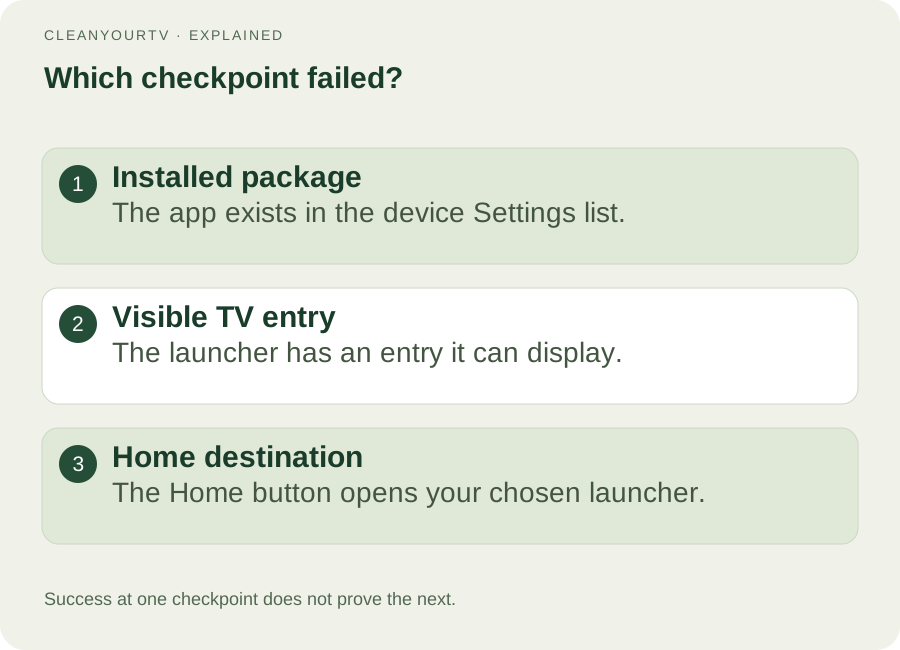
For Android TV installed apps not showing after a successful installation, record the exact app name and version before changing anything. Compare the name inside Settings with the name on the downloaded package: a file name, developer name and visible app label need not be identical.
If the installer reported “App not installed” or an INSTALL_FAILED error, use the APK installation error guide. Repeatedly reorganizing Home will not repair a rejected package. Likewise, successfully copying an APK onto a USB drive only proves that the file is on the drive.
Look in Settings before reinstalling
Open the TV's Settings → Apps, then look for the option that lists all installed apps. Names vary by interface. Check the device on which you installed the package: a television and an attached streaming box maintain separate app lists.
Find the app and open its information page. If an Open action is available, try it. If the app is disabled, review why it was disabled before re-enabling it. Do not re-enable unrelated system packages just because their names look similar.
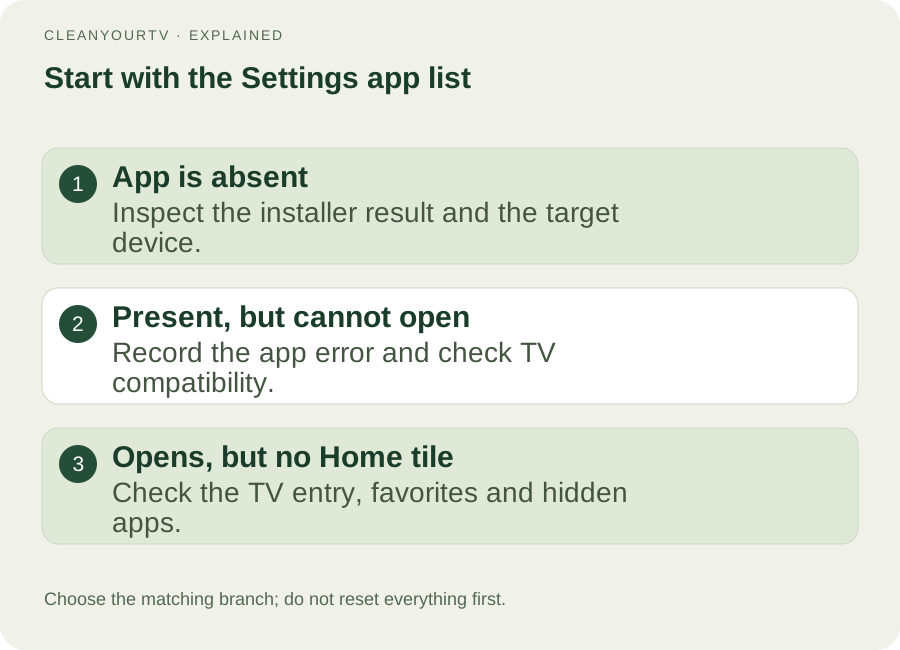
This gives Android TV installed apps not showing a useful starting point. An app that opens successfully but lacks a Home tile has a different problem from one that immediately crashes. Note the result rather than clearing data or reinstalling as the first response.
If the app opens but expects touchscreen gestures, tiny portrait controls or phone-only navigation, that is also important evidence. An APK can install on Android without offering a practical television interface. A different launcher does not automatically add remote-control support to that app.
Check whether the app provides a TV launcher entry
Android's TV app guidance says that a TV-facing launch activity needs the appropriate Leanback launcher category. Without it, a sideloaded app may be installed but absent from the television's normal application interface. The official TV app documentation explains this requirement.
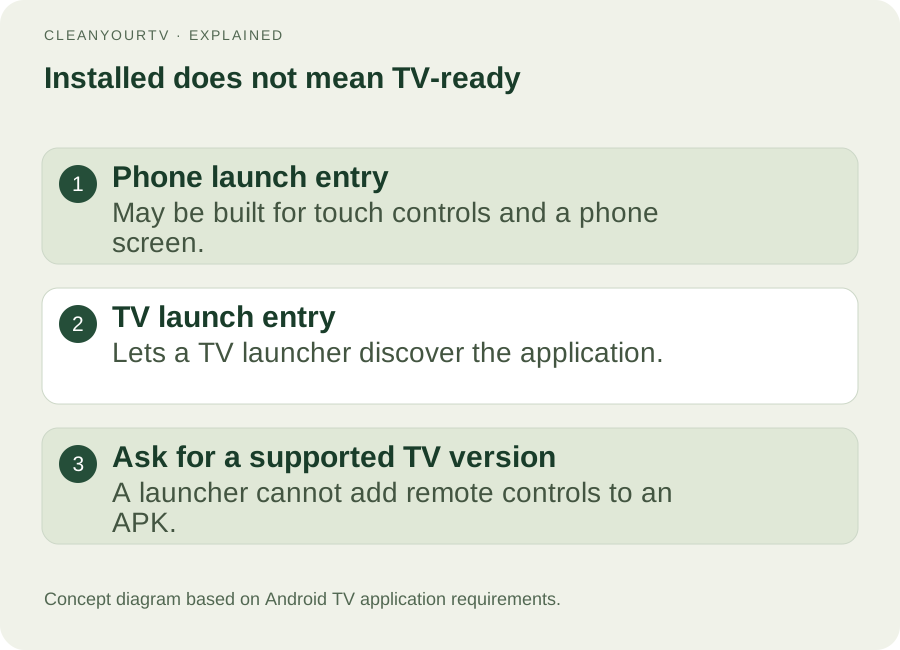
For Android TV installed apps not showing after sideloading, ask the app developer whether the package supports Android TV and where to obtain its TV version. Prefer the developer's official download or the TV's supported store listing. Do not assume a third-party file labelled “TV APK” is the same release.
Tools described as Sideload Launcher or App Launcher for Android TV may provide an alternative way to start some installed applications. Check each tool's stated behavior and permissions. Such a tool can provide a launch route; it cannot guarantee that a phone app becomes usable with a remote.
Check the launcher you are actually using
If the app has a TV entry and opens correctly, inspect your launcher's full app list as well as its favorites row. A favorite shortcut is only a selection of applications. Review any hide, category or filtering controls supported by that launcher.
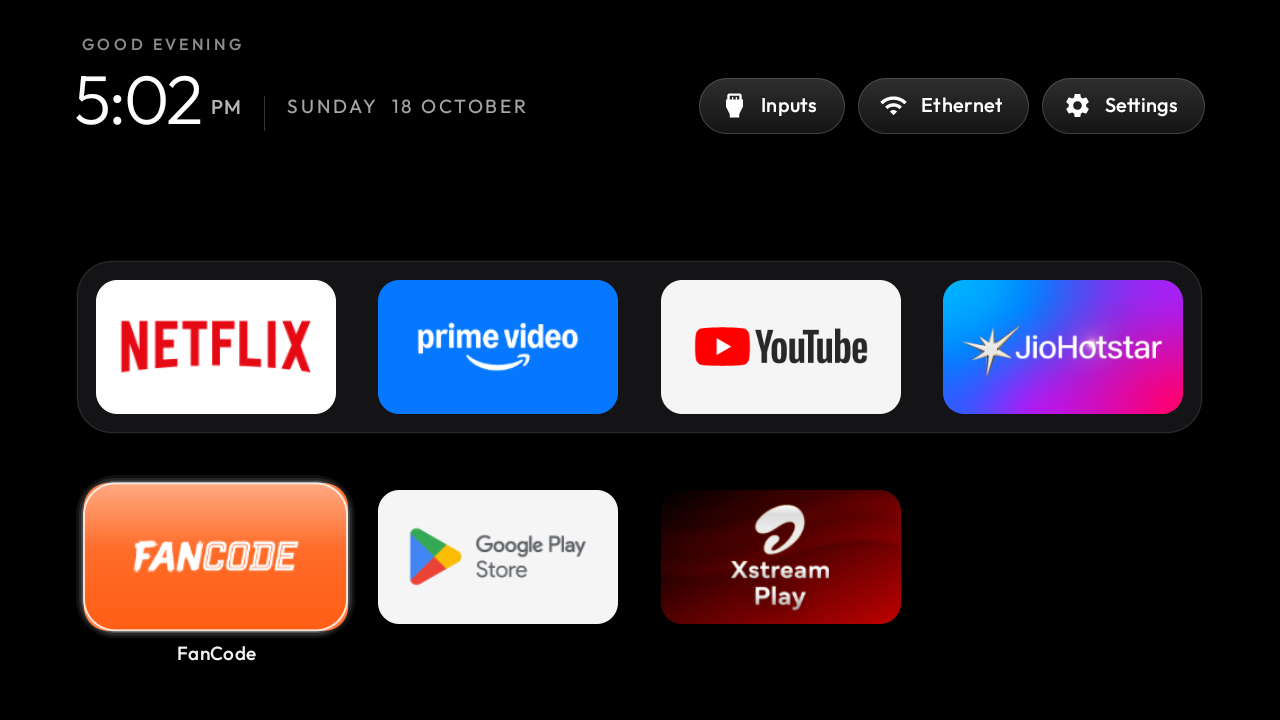
CleanYourTV currently discovers applications through their TV launcher entries and applies its own visibility settings. It is therefore not a universal fix for Android TV installed apps not showing. If your particular APK lacks a television entry, buying this kit does not change the APK's manifest.
When an existing app disappears after a launcher update, write down the launcher version and the app's status in Settings. Check the launcher's own documented visibility controls. If a restart is appropriate, save any current work first and compare the same app before and after restarting; a changed result is more informative than several unrecorded resets.
If the missing app is a new home-screen launcher
Open the launcher directly from its available app entry or Settings. Then press Home. If the original screen appears, the installed launcher is not necessarily broken: the system may still route Home to the original application.
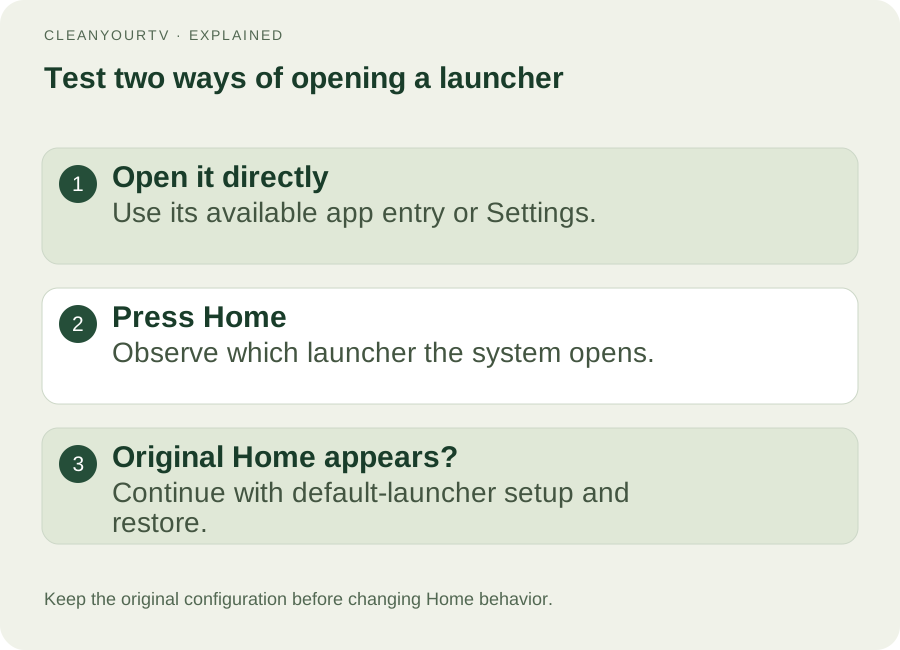
Use the default launcher setup and restore guide to understand the supported change process. Keep the saved original configuration and verify the remote after a restart. Do not uninstall the original home application simply to make it disappear.
This distinction matters when searching for Android TV installed apps not showing: “I cannot find the app” and “Home does not open it” lead to different actions. If you can open the new launcher successfully, describe the issue as Home-button behavior when contacting support.
Gather the details that make support useful
Send the TV or box model, Android version, app name and version, installation source, and the result of the Settings check. Include the exact error if opening fails. A photograph of the relevant screen is helpful; remove personal account details before sharing it.
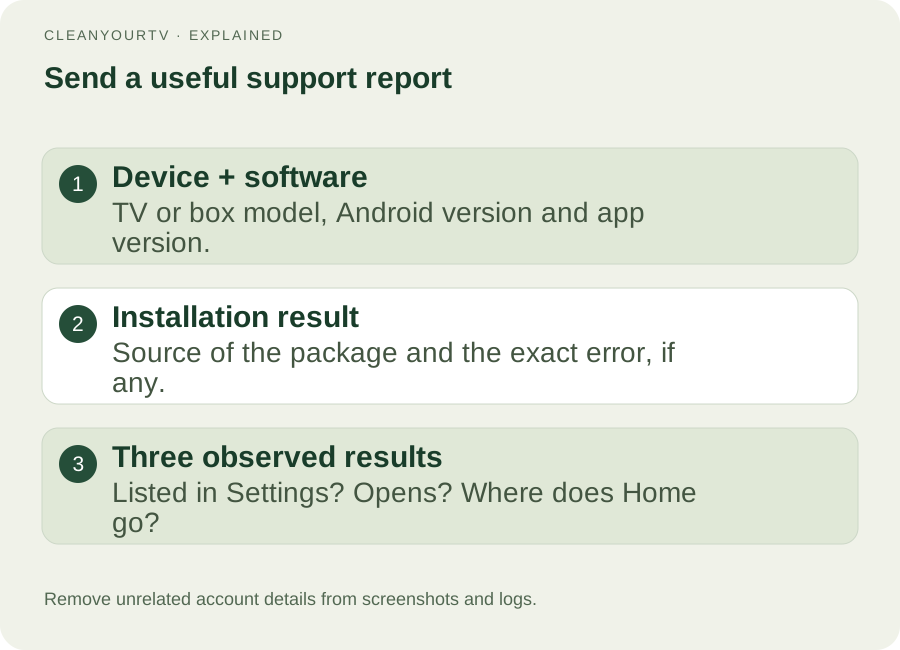
For a CleanYourTV installation, use the support page and include the relevant assistant result. Avoid posting a complete private log publicly. Start with the smallest set of details that shows the failed stage; support can request additional information if needed.
Common questions about Android TV installed apps not showing
Should I factory-reset the television?
A missing shortcut alone is not a reason to begin with a factory reset. First establish whether the app exists, opens and provides a TV entry. Resetting can remove accounts and settings without changing the underlying package. Follow device-specific support instructions if they later identify a need for a reset.
Why does an app work on my phone but not appear on TV?
Android phones and televisions share parts of a platform, but their launch interfaces and input methods differ. A phone package may lack a TV entry or remote-friendly controls. Ask for the developer's supported TV version rather than expecting every Android package to behave identically.
Can a different launcher solve this?
Sometimes the problem is a hidden tile or a launcher-specific filter. A different app list may help with that particular case. But Android TV installed apps not showing can also mean a missing TV entry, failed installation or an app that cannot run. Choose the next step from the diagnosis, not from the promise that one launcher fixes every cause.
ONE KIT. ONE PAYMENT.
Your calmer home, with a clearer setup.
Get the CleanYourTV self-service kit for US$19, paid once: the TV launcher, Windows and Mac assistants, pictured guides and restore instructions. Check your device, then follow the setup steps.
Check TV compatibilityUnsuccessful use? Discuss a refund by email.
Sources and review notes
Android Developers: TV launcher requirements ↗Google: download and manage Android TV apps ↗Official guidance and current product capabilities reviewed October 20, 2026. Menus vary by model, region and firmware. Diagrams explain the steps; they are not evidence of a physical test on a particular TV.