 CleanYourTV
CLEANYOURTV · PICTURED GUIDE
Android TV change default launcher: a checked route to a new Home
This Android TV change default launcher guide covers the part that comes after installing an app: making the remote’s Home button return to the launcher you chose. CleanYourTV’s assistant records the original Home before the switch, checks the selected component afterwards, and attempts to restore the original if the handover cannot be verified.
Know what you are changing
A launcher is the starting screen for opening apps. Changing it does not replace Android, add streaming subscriptions or remove advertising inside Netflix, YouTube or another service. Your favourite apps still use their own accounts. The useful change is where the Home button takes you and how you reach the applications you already use.
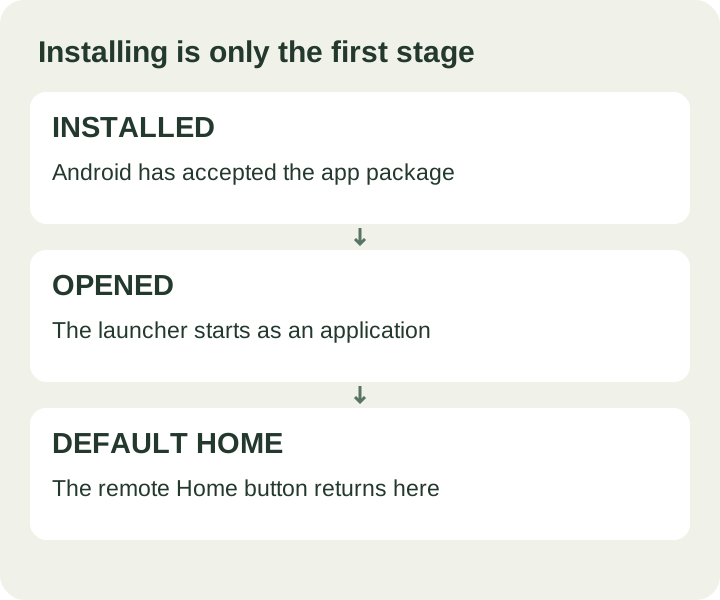
The Android TV change default launcher task has three separate checks: the APK installs, the launcher opens, and Android selects it as Home. An app appearing in the application list proves only the first part. A shortcut or remapped button may open a launcher without making it the system’s default Home. This guide follows the CleanYourTV assistant’s Home assignment workflow.
Before starting, confirm the device requirements, finish the installation preparation, and keep your remote nearby. A connection problem belongs in the ADB connection guide. A package installation error belongs in the APK error guide. Neither is solved by repeatedly selecting a default launcher.
See the launcher before choosing Home
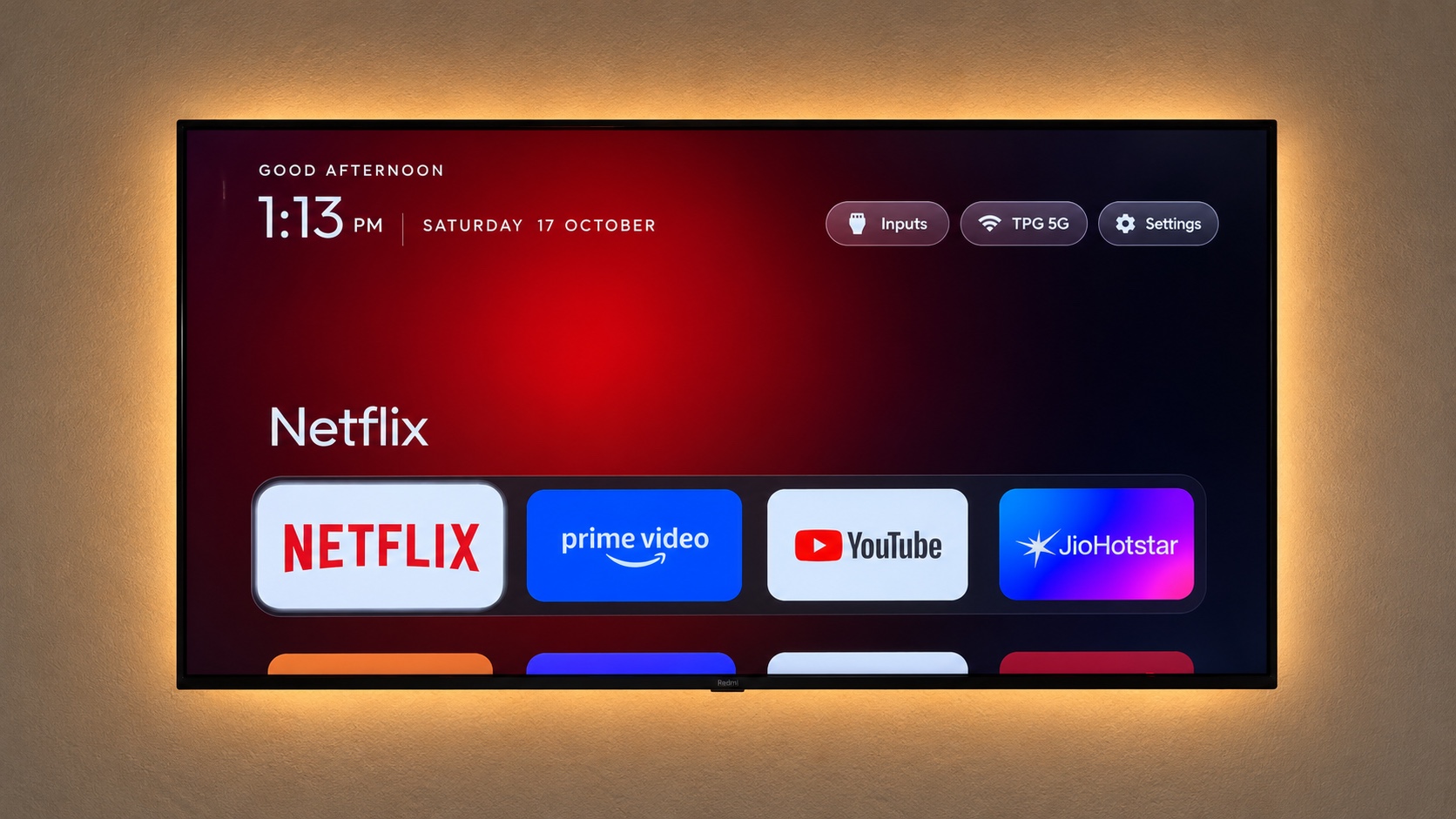
After the APK installs, the assistant starts CleanYourTV and checks the launch result. Its television-facing app name is Home. The release includes a TV application-list entry as well as a Home entry, so it can be represented in a compatible television’s app list. The exact placement and presentation of that list depend on the existing TV interface.
Look at the television, not only the computer’s progress message. Check that the intended launcher is visible, that the remote can move focus and that a familiar app can open. The product screenshot below shows the launcher interface; it is not evidence that your particular firmware has accepted a permanent Home change.
For an Android TV change default launcher attempt, keep these observations separate. If the application fails to start, the assistant stops before changing Home. If the application starts but Home still goes elsewhere, move on to the assignment and verification checks. Do not uninstall the stock launcher to make an incomplete handover appear successful.
Preserve the original Home first
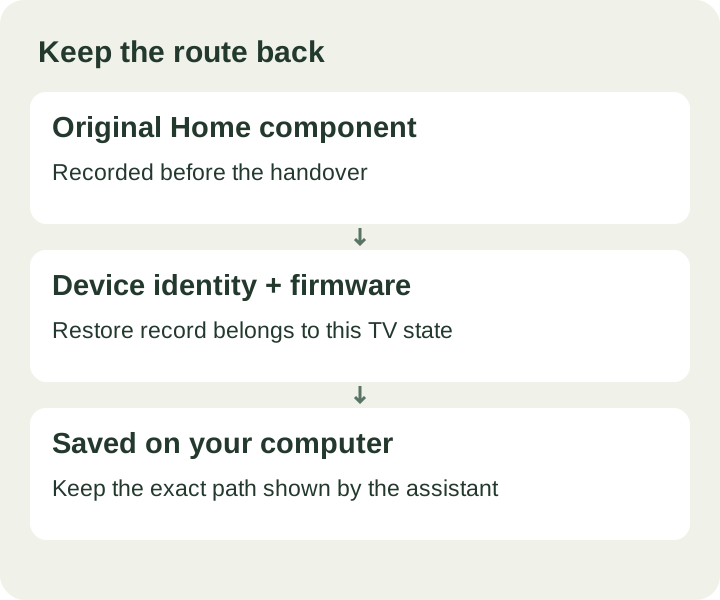
Run the assistant’s inspection and backup step before installation. It records the current Home component, device identity, firmware information and enabled package list. The result shows the restore-record path on your computer. Save that path and keep the record; it is the reference the assistant uses when you ask to return to the original Home.
This record is not a complete image of the television and does not back up streaming passwords, downloaded programmes or every application setting. It is designed for the launcher handover performed by this assistant. Copying another person’s file, editing a package name by guesswork or using a record from a different TV undermines that purpose.
A careful Android TV change default launcher workflow also checks device identity before changes. The assistant rejects a mismatch instead of treating every connected TV as interchangeable. Firmware changes can affect the recorded identity. If the tool reports a mismatch after an update, preserve the existing record and contact support rather than deleting it to continue.
Assign Home and check the result
After a verified app launch, the assistant asks Android to select CleanYourTV as the Home activity. It then resolves the current Home component and compares the result with the expected launcher. These are separate operations: a command being accepted is not the same as the system reporting the expected default afterwards.
Some firmware accepts a replacement Home; other firmware restricts or overrides the choice. If your TV displays a Home chooser, read the application names and choose the intended launcher. An “Always” option, when present, expresses a preference; it still needs the remote and restart checks below. Do not expect identical menus on Xiaomi, Sony, TCL and every Google TV device.
The Android TV change default launcher procedure here does not require rooting the TV, disabling its stock Home package or installing a separate Launcher Manager. Those are different workflows with different consequences. Keep the original interface available. If assignment fails, read the assistant’s recovery result instead of adding commands from an unrelated model’s tutorial.
Test the remote in normal use
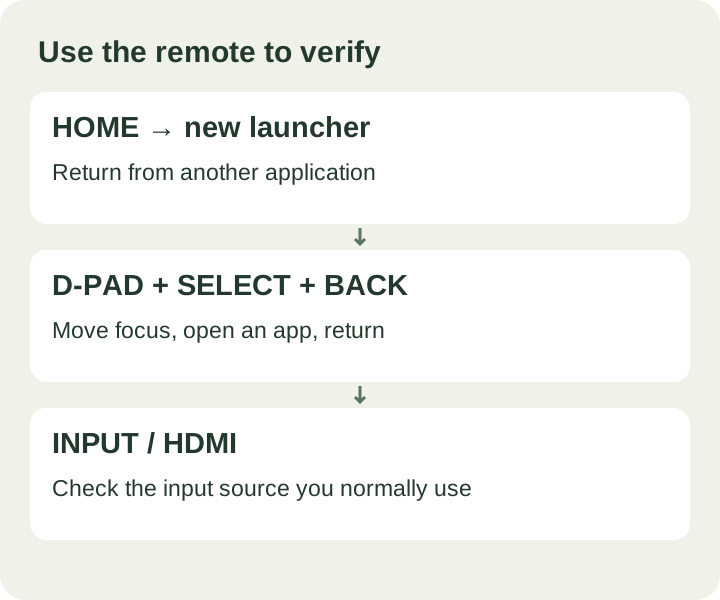
Press Home from inside another application. The expected result is the CleanYourTV launcher. Move through several shortcuts with the directional pad, select an app, and use Back where appropriate. Test the input source or HDMI device you normally use. A layout that looks correct on first launch still needs these everyday navigation checks.
For this Android TV change default launcher check, use your usual remote rather than only an on-screen computer control. Button behaviour can differ, and an accessibility-based button mapper can make a different action appear successful. If you already use such a utility, note that fact when reporting unexpected Home behaviour; do not silently remove settings that another person relies on.
Record a simple result: Home returned to the expected screen, an app opened, focus remained usable and the usual input worked. If any item fails, record which one and what appeared instead. This is more useful for support than saying only that the launcher does not work.
Repeat after a television restart
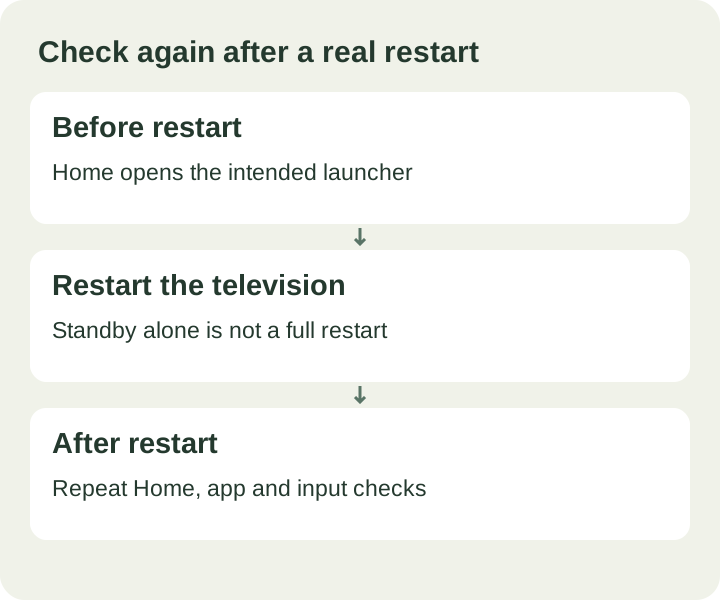
Use the television’s normal restart control and let it finish booting. Switching the display into standby may not restart Android, so it does not test the same condition. Once the TV is ready, press Home again, open a familiar app and check the usual input. Keep the remote available throughout this final check.
If the original interface returns, the Android TV change default launcher setting has not persisted in the way you expected. Note whether the change followed an ordinary restart or a firmware update. Do not advertise success based only on the pre-restart screen, and do not assume that repeating installation will make a firmware restriction disappear.
Restore or get help with a blocked handover
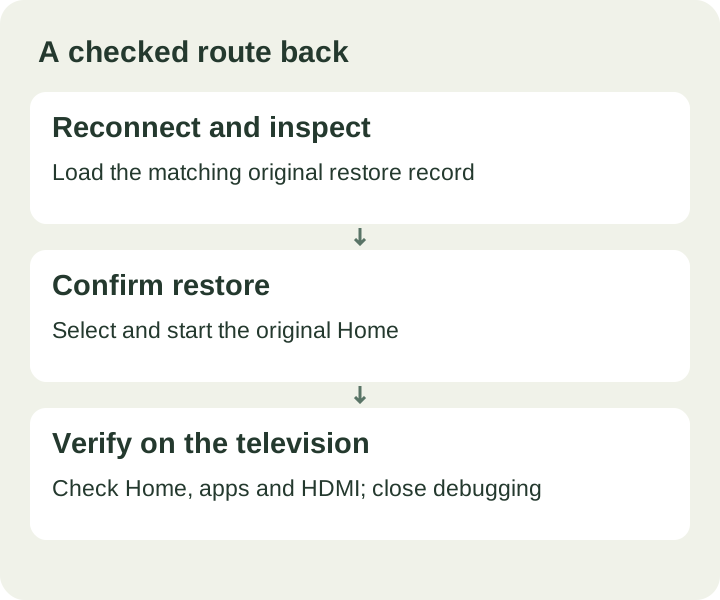
When a Home switch cannot be verified, the assistant attempts to set and start the recorded original Home, then checks that result. Read the message carefully: a successful restoration and an unverified restoration require different next actions. If it asks you to choose the original Home in TV settings, use the option available on your exact model and verify with the remote.
For a later deliberate return, reconnect using the same computer and matching restore record, inspect the TV, and follow the restore guide. The assistant keeps the stock launcher installed. Recovery still depends on the matching device state and available firmware controls, which is why the saved record and the actual television check both matter.
If you need help, email support@cleanyourtv.org with your order number, exact model, Android version, assistant message and whether Home worked before the restart. For unsuccessful product use, the refund policy explains the email review process. Once normal use works, retain the backup and turn debugging off; everyday viewing does not need the computer connection.
ONE KIT. ONE PAYMENT.
The tools and guidance, together.
The US$19 self-service kit includes the launcher, Windows and Mac assistants, pictured guides in Spanish, English and Chinese and restore instructions.
See the self-service kit ↗Technical references
Android Developers: Android Debug BridgeInstructions describe the current CleanYourTV assistant. TV menus and firmware behaviour depend on the specific device.