 CleanYourTV
CLEANYOURTV · PICTURED GUIDE
Android TV ADB connection refused: find the right fix
An Android TV ADB connection refused message usually points to the address, port or debugging service. Start there before changing applications on your television. This guide separates that error from a timeout, an authorisation request and an offline device, then shows how to return to the CleanYourTV installation assistant with the right information.
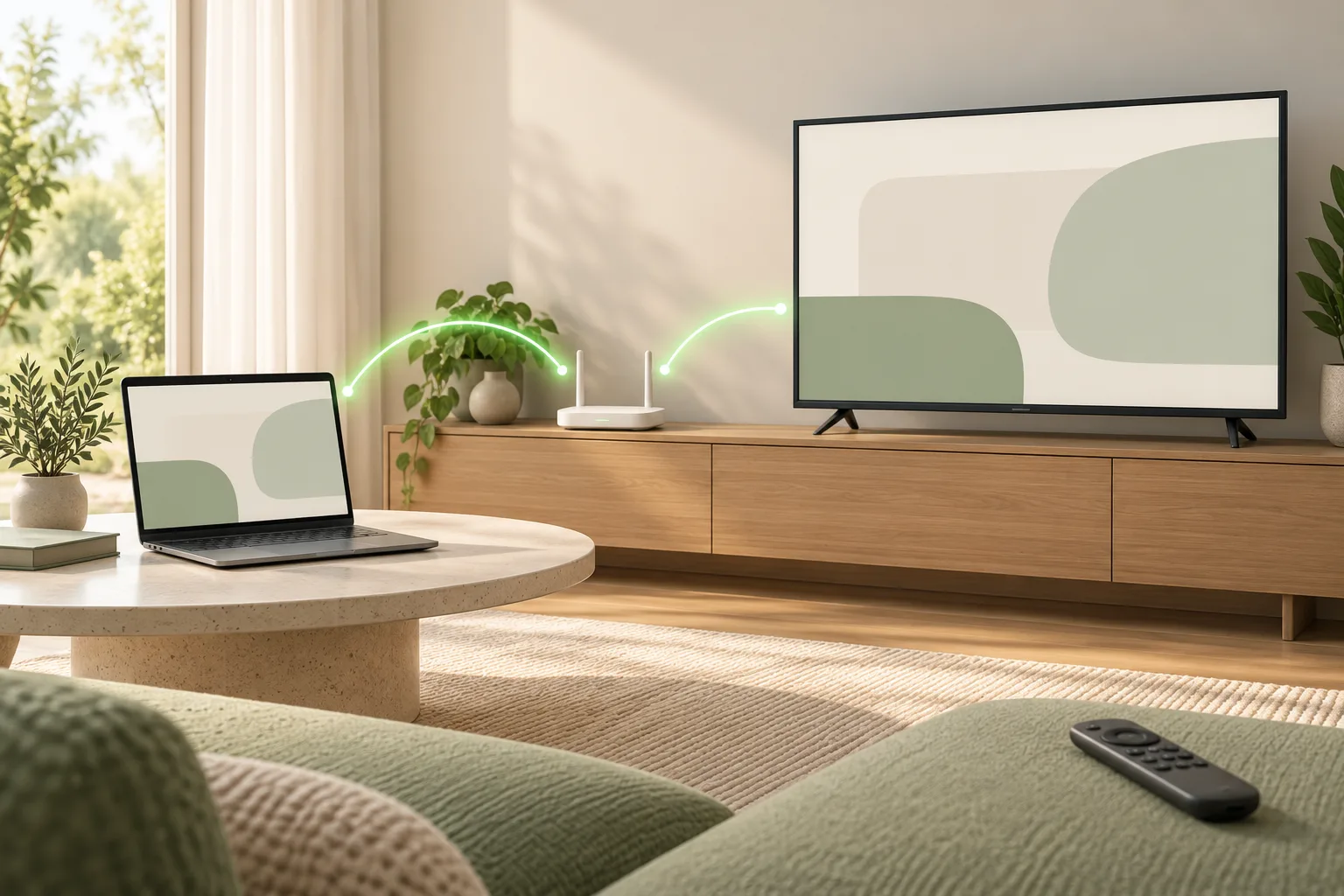
Before connecting, find the current TV IP address and identify the wireless debugging method. The address format and the connection protocol answer different questions.
Start with the exact message
For Android TV ADB connection refused, check the TV’s current local address and whether its network debugging service is listening on the stated port. A refusal is not proof that the launcher APK is damaged. The connection has not yet reached the installation step, so downloading a different launcher is unlikely to address this particular symptom.
Keep the television awake, open its network and developer settings, and leave the remote nearby. Read the message rather than interpreting every connection failure as the same problem. The assistant may also ask you to approve the computer when it cannot establish a usable device state; that prompt alone does not identify the underlying network cause.
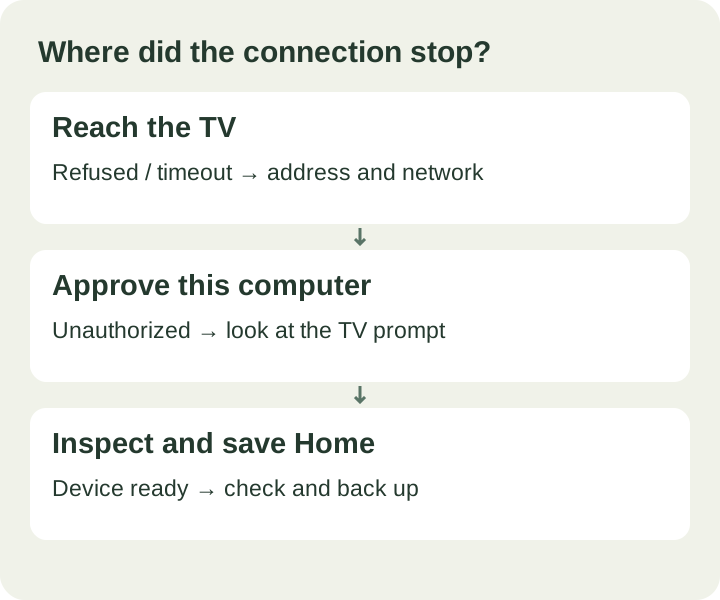
Choose the closest symptom: connection refused, connection timed out, unauthorized, or offline. Each points to a different next check. If the television has no network debugging option, check the device requirements before attempting another method.
Check the address and port
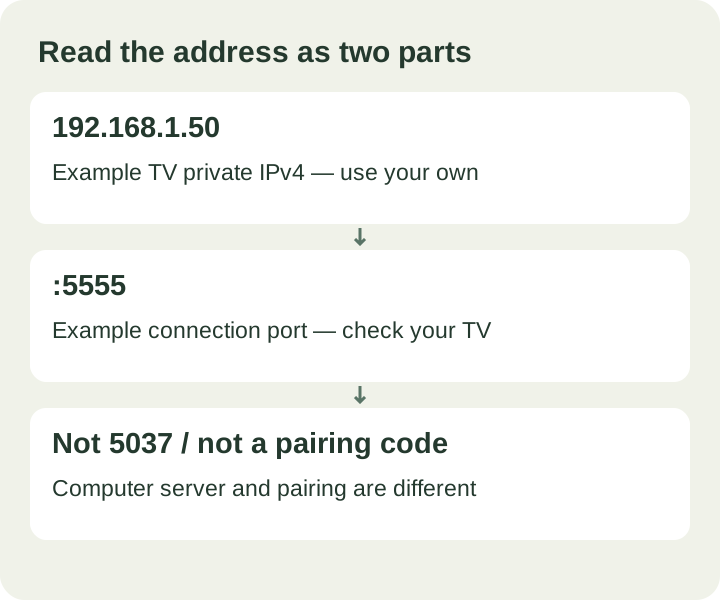
Open the TV’s own network information and copy its current IPv4 address. In the assistant, enter an address and port together, for example 192.168.1.50:5555. That is an example, not the address of your television. The four numbers identify the TV on your local network; the number after the colon identifies its debugging service.
An Android TV ADB connection refused error can follow a router restart because the TV now has a different address. Recheck the screen instead of reusing yesterday’s value. Do not use your computer’s address, a public internet address, a website URL or localhost. The assistant accepts private IPv4 addresses and a numeric port from 1 to 65535.
Use the connection port actually provided by your TV or its model-specific instructions. Port 5555 is common in older network-debugging workflows, but it is not universal. Port 5037 belongs to the ADB server on the computer; it is not a replacement TV connection port. A port used by a separate remote-control or notification app is also unrelated.
Check the local network
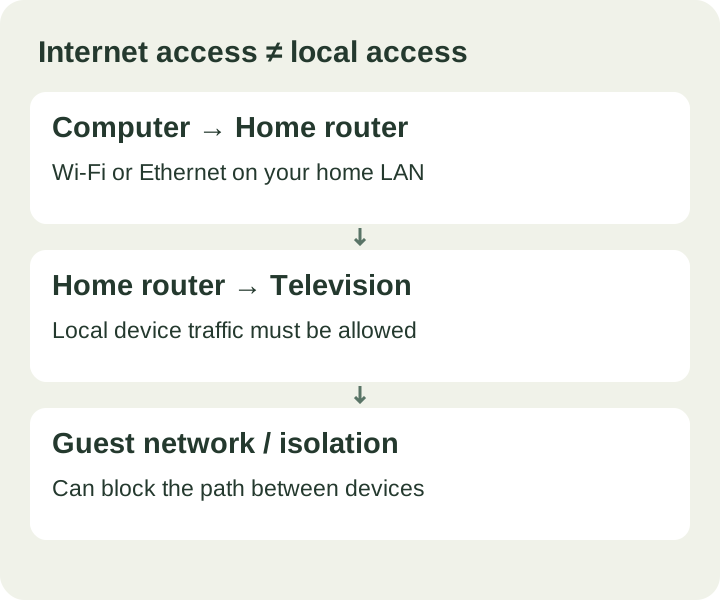
A television that streams films successfully can still be unreachable from your computer. Internet access and device-to-device access are different. Put both devices on your own home network. A wired television and a wireless computer can communicate when the router allows traffic between them; they do not need matching cable types.
Guest Wi-Fi, client isolation and some managed networks prevent local devices from communicating. A timeout can suggest this kind of blocked path, though the exact error varies. Check whether either device joined a guest network. If you use a VPN, review whether it blocks local-network access. Avoid changing unrelated router security settings just to make one connection work.
For an Android TV ADB connection refused report, network checks still matter, but do not skip the active port and debugging setting. Keep access local: the installation does not require router port forwarding or an internet-facing debugging service. On a Mac, allow the assistant’s local-network access if the operating system requests it.
Approve your own computer
When the TV displays a debugging authorisation prompt, use the remote to approve the computer you are currently using. Watch the television while running the assistant’s check step; an unanswered prompt can leave the connection unusable even when the address is correct. If the screen says unauthorized, address this approval before attempting installation.
Do not approve an unfamiliar device. If you previously denied the request, reconnect and look for it again. Menu labels and how a prompt reappears vary by firmware. Resetting every debugging authorisation is not the first step: it can also remove access for other computers you intentionally paired. Preserve the exact screen message when asking for help.
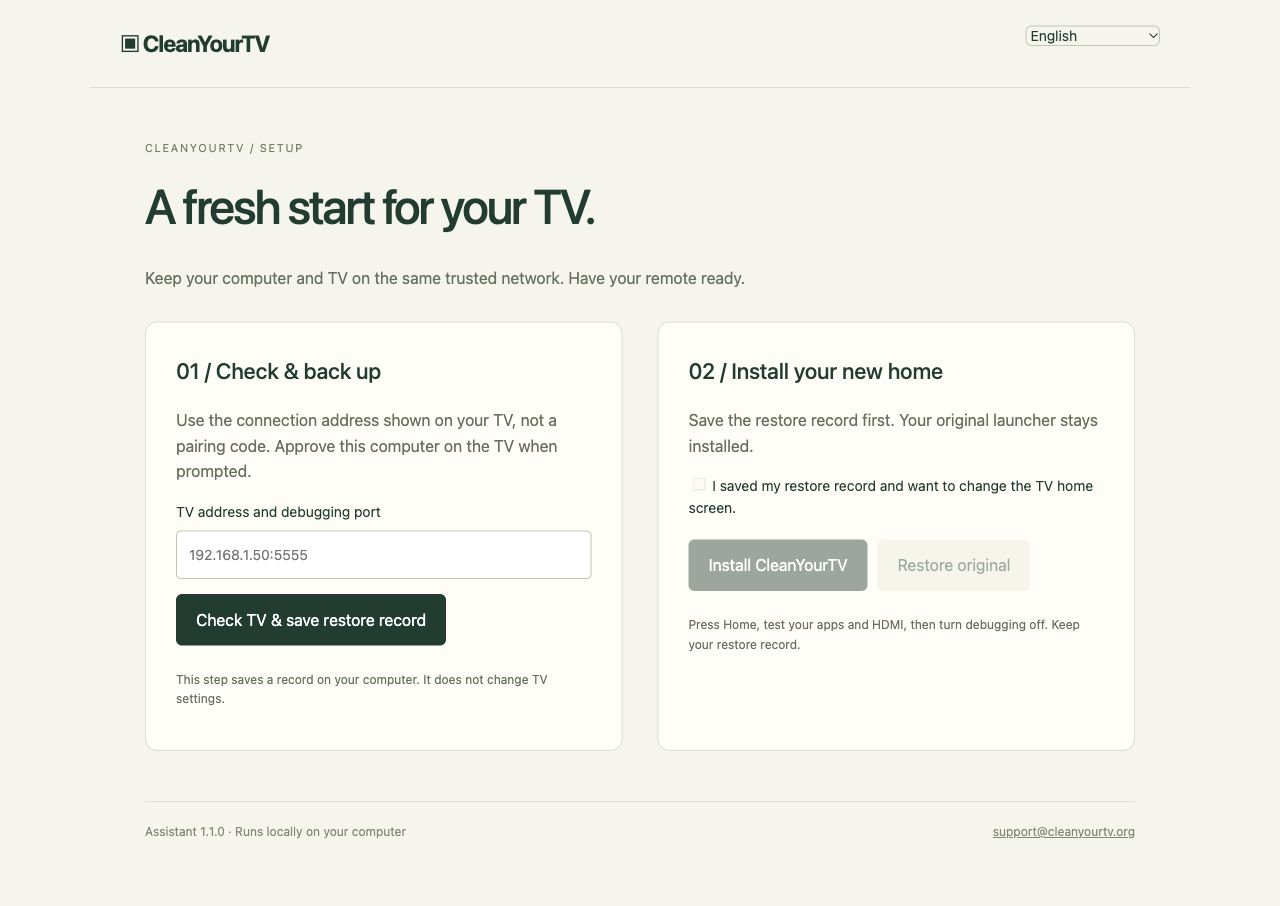
Once approved, choose the assistant’s check-and-back-up action again. A successful result should identify the television and show a saved restore-record path. This is a stronger completion signal than simply seeing a network connection message. It confirms that the assistant could inspect the device sufficiently to prepare its next step.
Pairing codes need a different step
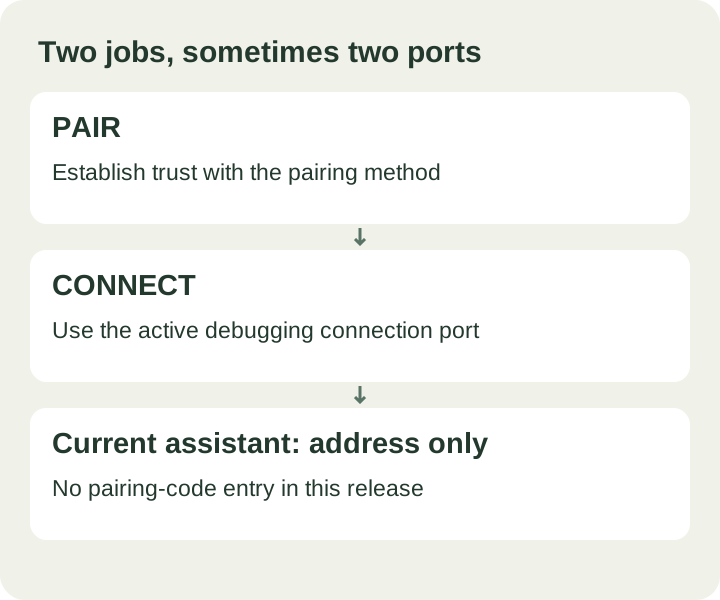
Some newer televisions offer wireless debugging with a pairing code. Pairing establishes trust; connecting uses the debugging connection address. The pairing port and connection port can be different. Copying a pairing port into a connection field does not perform the pairing, even when both numbers appear on the same settings screen.
If Android TV ADB connection refused began after a firmware update, check whether the available debugging method changed. The current CleanYourTV assistant has an address field, but no pairing-code entry screen. Do not enter the six-digit pairing code as a port or assume that an Android version alone guarantees a supported installation path.
If your TV offers only code-based pairing, email its exact model, Android version and the names of the displayed debugging options to support before continuing. You do not need to send the pairing code itself. Android’s official documentation describes the separate pairing workflow; the assistant does not automate that workflow in this release.
Reconnect after a change
An offline state means the computer has a device entry but cannot use it normally. Let the TV finish starting, confirm debugging is still enabled and recheck its address. Close duplicate installation assistants, reopen the supplied assistant, and run its inspection again. Avoid installing several unrelated ADB tools while diagnosing one connection.
For repeated Android TV ADB connection refused errors, change one relevant condition at a time and record the result. For example: correct the address, retry; verify the active port, retry; inspect the authorisation prompt, retry. This makes it possible to explain what changed instead of leaving a collection of untracked settings changes.
Keep the original restore record if one already exists. A failed reconnect is not a reason to delete a backup, remove system packages or factory-reset the television. If inspection reports a device-identity mismatch or an invalid restore record, stop and send that specific result to support.
Confirm the result and continue
The useful endpoint is a successful inspection of the intended television and a saved original-Home record. When those are present, return to the complete installation guide. If the connection works but package installation fails, use the APK installation error guide; repeating network changes will not fix a signing or storage error.
If Android TV ADB connection refused remains unresolved, email support@cleanyourtv.org with the exact error, TV model, Android version, computer system and the step you reached. Describe whether debugging uses an authorisation prompt or a pairing code. Include a screenshot with unrelated personal information removed; never send passwords or complete payment details.
After successful installation and the remote-control checks, turn debugging off. The computer is needed for setup, not everyday viewing. The US$19 self-service kit brings the assistant, launcher and bilingual guides together. If the purchased product cannot be used successfully, our refund process starts with an email review of the issue.
ONE KIT. ONE PAYMENT.
The tools and guidance, together.
The US$19 self-service kit includes the launcher, Windows and Mac assistants, pictured guides in Spanish, English and Chinese and restore instructions.
See the self-service kit ↗Technical references
Android Developers: Android Debug BridgeInstructions describe the current CleanYourTV assistant. TV menus and firmware behaviour depend on the specific device.