 CleanYourTV
CLEANYOURTV · PICTURED GUIDE
Android TV app not installed: diagnose the failed step
An Android TV app not installed message describes an outcome, not one universal cause. The useful next step depends on whether the TV rejected the file, the Android version, an existing app’s signature, available storage or a device policy. Keep the exact message and use the matching section below before trying another installation.
Separate connection, installation and Home
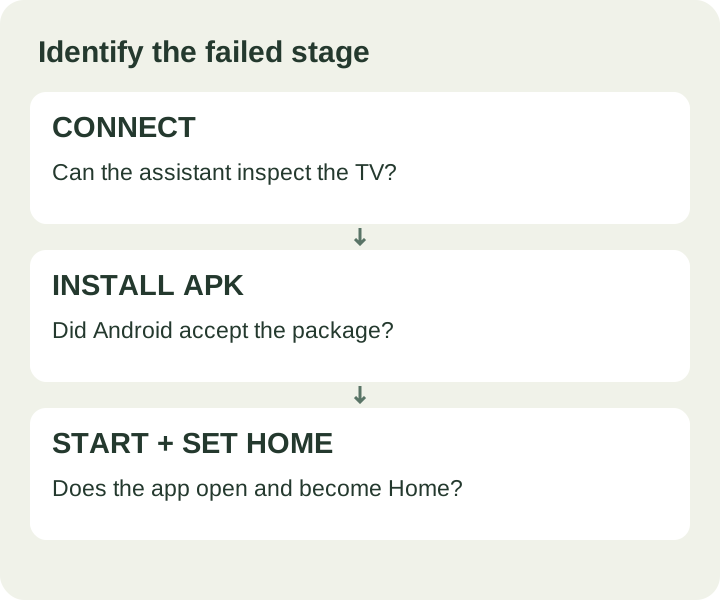
First, identify where the process stopped. If the assistant cannot inspect the television, start with the connection guide. If Android rejects the application package, stay on this page. If installation succeeds but there is no icon, use the installed-app visibility guide. If the new launcher opens but Home returns elsewhere, use the default launcher guide.
The CleanYourTV assistant reports the package-installation output when installation does not succeed. Copy that complete message, including any INSTALL_FAILED code. A screenshot of a generic “App not installed” notice is still useful, but a specific error provides a narrower starting point. Avoid replacing an exact error with your own summary when contacting support.
For Android TV app not installed troubleshooting, jump to file checks, Android version, signature conflicts, storage, or device restrictions. These checks are alternatives driven by evidence, not a requirement to change every setting on the TV.
Use the correct complete file
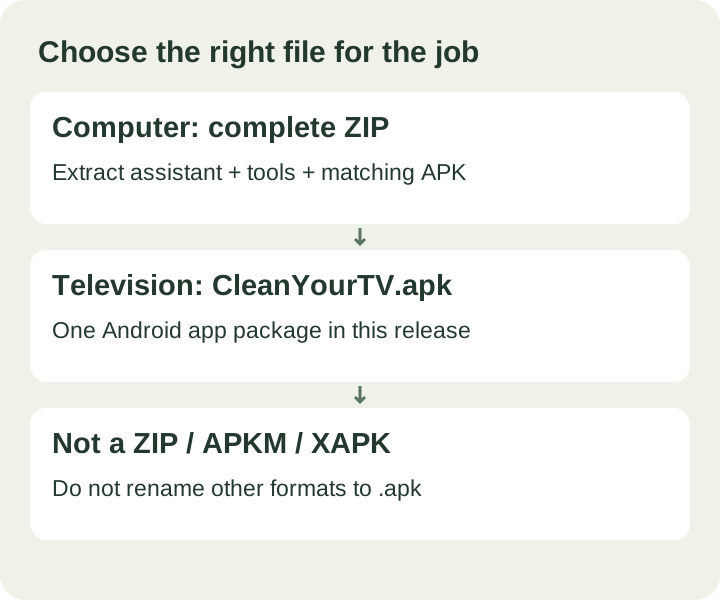
The computer download is a ZIP containing the assistant and its accompanying files. Extract the complete ZIP on your computer and keep the contents together. The television application is CleanYourTV.apk. Windows cannot run that APK as a desktop program, and a TV package installer cannot install the computer ZIP as an Android application.
Download your release through My kit, using the account that owns the purchase. The assistant checks its bundled APK against the expected release hash before installation. If it reports that the APK does not match, download the complete kit again. Do not mix an assistant from one release with an APK copied from another source.
An Android TV app not installed error can also arise when the file is incomplete or is not a single installable APK. Renaming .zip, .apkm or .xapk to .apk does not convert it. This release supplies a single APK; it is not a split-package installer for other applications. A download completing successfully is useful evidence, but it does not by itself prove Android will accept the package.
Check the TV system and version
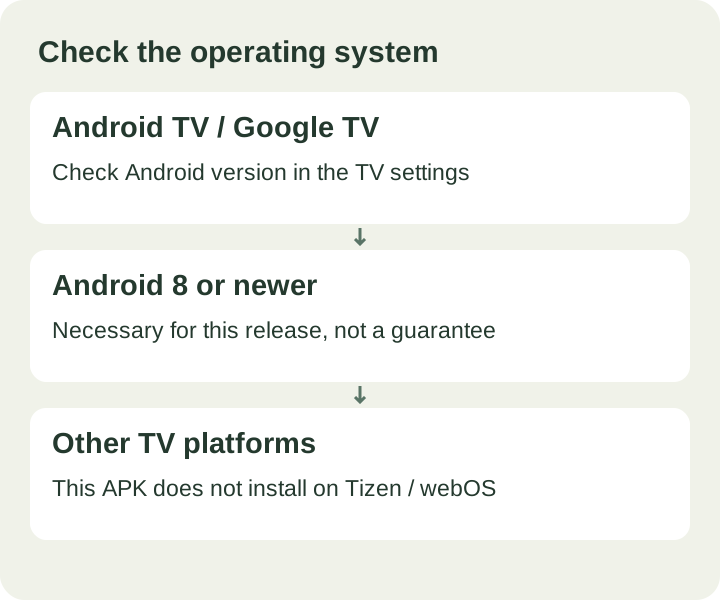
Open the television’s Settings and find its operating system and Android version. The current CleanYourTV release requires Android 8 or later on an Android TV or Google TV device. The assistant checks both the Android API level and television features during inspection. A familiar brand name or a recently purchased screen is not enough to establish these conditions.
If the result includes INSTALL_FAILED_OLDER_SDK, compare the installed Android version with the app requirement. A newer marketing name for the TV interface does not necessarily mean a newer Android version underneath. Check available official system updates for the exact model; do not flash unrelated firmware or claim a download can change a hardware support limit.
The Android TV app not installed diagnosis also starts with platform compatibility. This Android APK is not an application for Samsung Tizen, LG webOS or Apple TV’s operating system. Meeting the Android version requirement is necessary, but firmware restrictions can still affect installation or Home assignment. Use the compatibility check to review the product conditions before purchasing.
Understand an existing app conflict
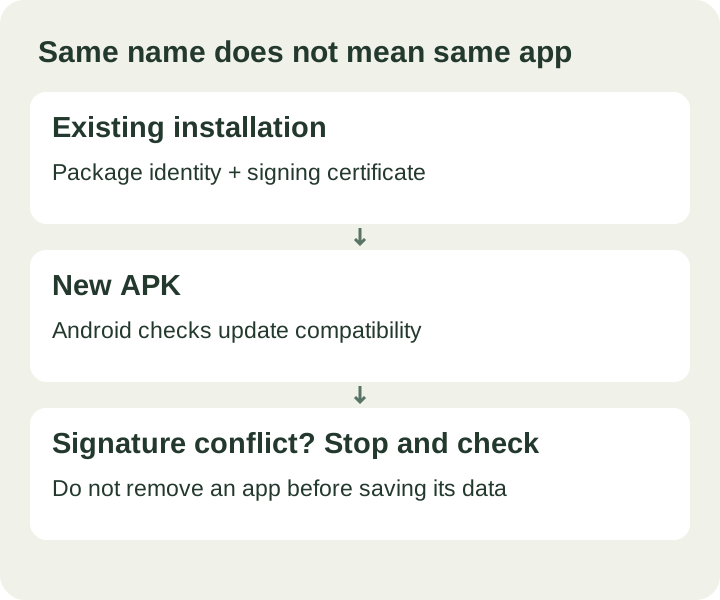
Android uses package identity and signing information to decide whether one APK can update an installed application. The visible name alone is not the identity. CleanYourTV’s package is org.cleanyourtv.launcher; its TV-facing display name is Home. Two apps with a similar name are not automatically compatible updates of each other.
A result such as INSTALL_FAILED_UPDATE_INCOMPATIBLE can indicate a signing conflict with an existing package. Stop and identify what is already installed, where it came from and whether it contains settings you need. Do not uninstall a launcher simply because a general internet answer says to remove the old version. Uninstalling can remove that application’s local data.
For this Android TV app not installed case, send the exact failure and installed version information to support. The assistant uses a replacement-install operation for the matching release; it does not bypass Android’s signature rules. Keeping the previous working setup available is preferable to removing an app before you understand which package is involved.
Check internal storage
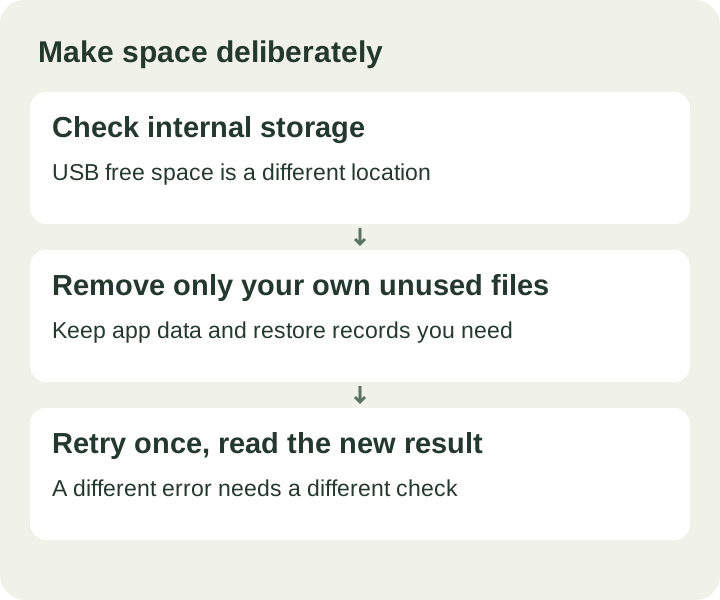
For INSTALL_FAILED_INSUFFICIENT_STORAGE, inspect free internal storage in the TV settings. Space on a connected USB drive may be a different location from the area Android needs for installation. The downloaded file’s size is not the only space the installation process uses, so do not rely on a fixed multiplier as a guaranteed requirement.
Remove only files or apps you recognise and no longer need. Keep personal downloads, application data and the original-Home restore record when you still depend on them. Clearing an app’s data is different from clearing its cache: the former may remove sign-ins or preferences. Read the TV’s confirmation text before accepting any cleanup action.
After addressing a clear storage issue, retry once and read the new result. If the message changes to a signature or policy error, follow that new evidence. An Android TV app not installed problem is not resolved by freeing space indefinitely when the installer is rejecting a different condition.
Distinguish permission and policy errors
Manual installation through a browser or file manager may require permission for that particular source. Menu names and availability vary by firmware. That permission is different from authorising a computer for ADB. The CleanYourTV assistant uses ADB, so repeatedly toggling a file manager’s “install unknown apps” setting is not a universal fix for its errors.
A verification failure, explicit administrator restriction or vendor security block needs its own explanation. Keep the warning visible and identify what it says. Do not disable system-wide protection or follow instructions to remove security components merely to force an APK through. If the device is managed by someone else, ask its administrator about the intended installation policy.
When the reason remains unclear, provide the exact model and error to support. Some devices do not permit the required operation. A truthful Android TV app not installed resolution can therefore be a confirmed limitation and an email support outcome, rather than another attempt with the same blocked conditions.
Retry once you have a specific reason
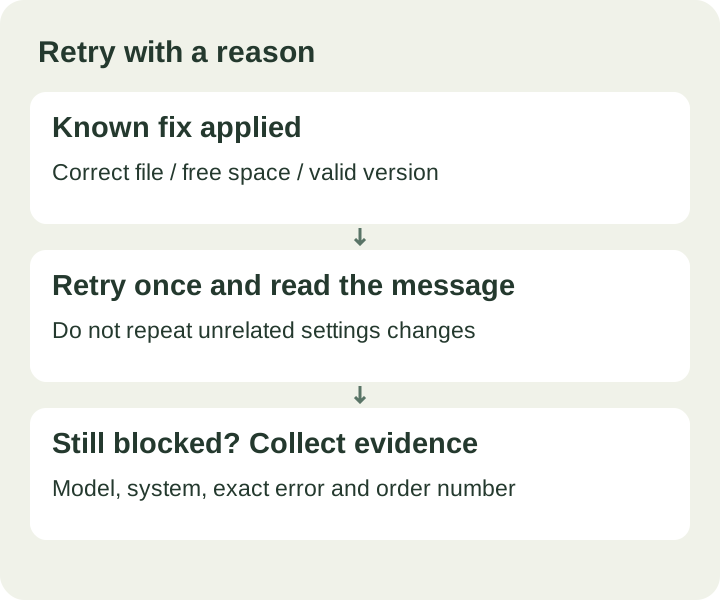
A useful retry follows a concrete correction: a fresh complete download, the right file, sufficient internal storage or a confirmed compatible update path. Keep a short note of what you changed and the result. If installation succeeds, continue with app launch, Home, remote and restart checks in the installation guide.
If it still fails, email support@cleanyourtv.org with your order number, exact TV model, Android version, computer system, file source and complete error text. Screenshots can help; omit passwords and complete payment details. The refund policy covers email review when the purchased product cannot be used successfully. The self-service kit provides tools and guidance without an automatic recurring charge.
ONE KIT. ONE PAYMENT.
The tools and guidance, together.
The US$19 self-service kit includes the launcher, Windows and Mac assistants, pictured guides in Spanish, English and Chinese and restore instructions.
See the self-service kit ↗Technical references
Android Developers: Android Debug BridgeAndroid Developers: app signingAndroid Developers: package installationInstructions describe the current CleanYourTV assistant. TV menus and firmware behaviour depend on the specific device.