 CleanYourTV
CLEANYOURTV · PICTURED GUIDE
Clean Your TV installation: your pictured Windows and Mac guide
Clean Your TV installation takes you from a downloaded kit to a new television Home screen, with an original-Home record kept on your computer. Follow the steps in order: confirm the device, choose the matching computer download, connect and back up, install, then check the remote and restart. Keep your television and remote within reach throughout setup.
Check your television before downloading
The current release is for Android TV or Google TV with Android 8 or later. Open the TV’s Settings and check its operating system, exact model and Android version. Samsung Tizen, LG webOS and Apple TV use different platforms and cannot install this APK. A product name that includes “smart TV” does not establish Android compatibility.
Clean Your TV installation also needs a debugging connection that the supplied assistant can use. Check your TV’s available network debugging options before purchase. Menu labels vary by manufacturer and firmware. The current assistant accepts a private IPv4 address and connection port; it does not provide a wireless pairing-code entry screen. If your TV only offers pairing codes, contact support to confirm the setup path.
Use the compatibility check with the information from your own television. A suitable operating system is a starting condition, not a claim that every model has been tested. The kit changes your launcher and provides setup guidance; it does not supply streaming subscriptions or remove advertising inside other applications.
Choose your Clean Your TV installation kit
Sign in to My kit with the email used for your purchase. After payment confirmation, the download centre provides the Windows, Mac Apple Silicon and Mac Intel packages, the launcher APK and PDF guides in all six supported languages. Choose the computer package that matches the machine you will use for installation.
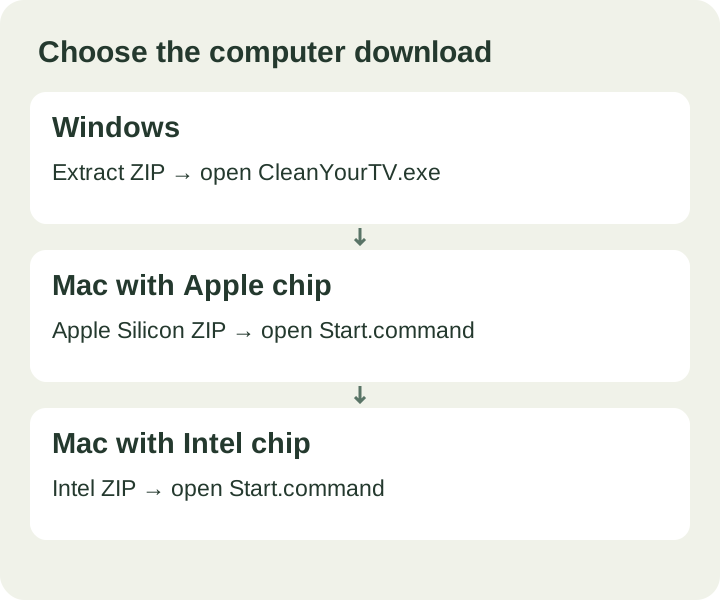
On a Windows computer, extract the entire ZIP into a normal folder and open CleanYourTV.exe from there. Do not run only the executable from inside an archive preview. The accompanying platform-tools folder and CleanYourTV.apk must stay with the assistant. Moving a single file to the desktop can leave it unable to find the rest of the kit.
On a Mac, check About This Mac: an Apple chip needs the Apple Silicon download; an Intel processor needs the Intel download. Extract the whole ZIP and open Start.command. Keep its terminal window open while the assistant is running. For Clean Your TV installation, the file choice is about your computer’s chip, not the processor inside your television.
Open the local installation assistant
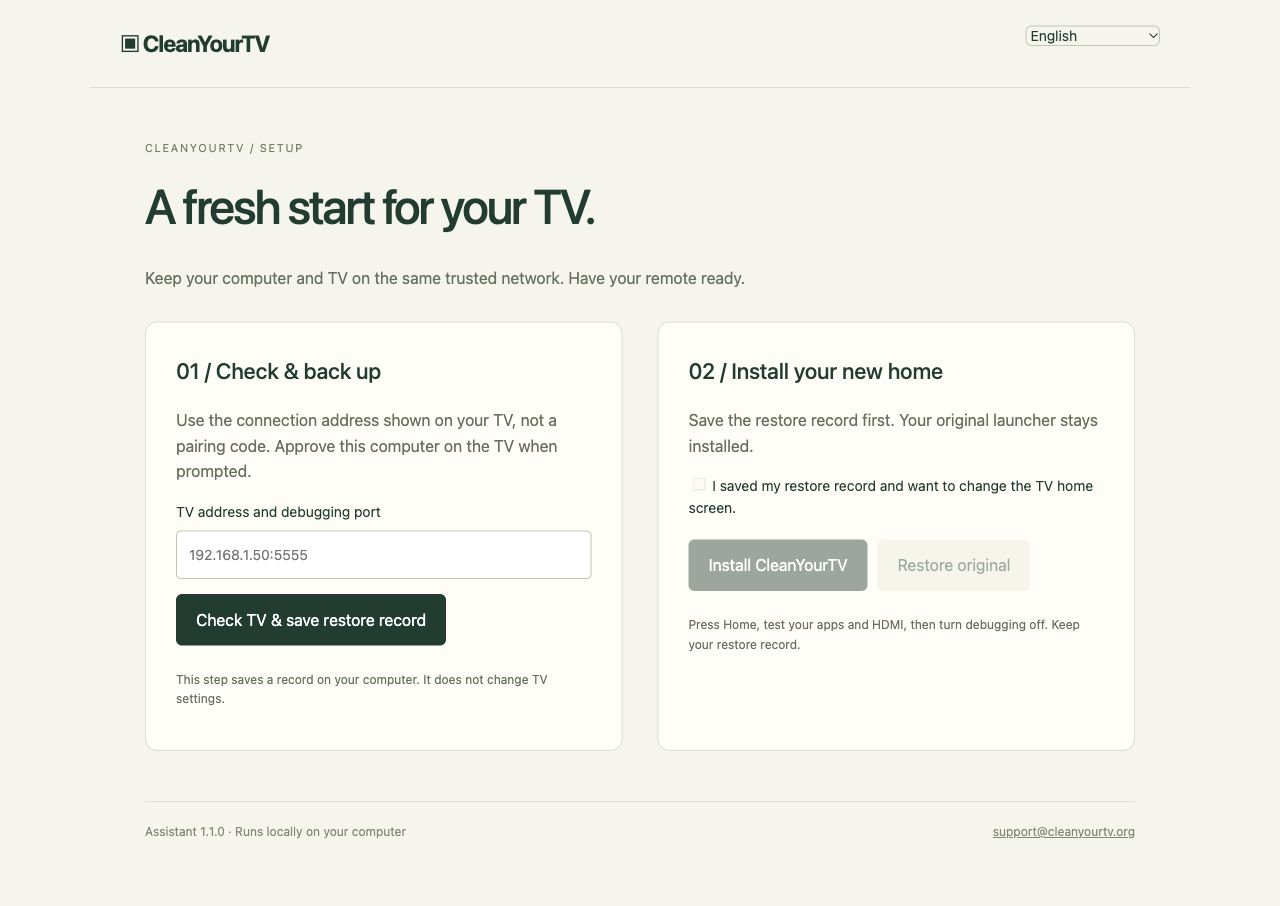
The assistant opens a browser page running locally on your computer. This page controls the setup process; it is different from your website account and download centre. Keep the program or terminal window running until you finish. Closing it stops the local service, so an old browser tab may no longer respond afterwards.
The computer binaries are not Windows Authenticode signed or Apple notarized. If your operating system or organisation blocks them, note the exact message and contact support. Do not switch off device security to continue. If macOS asks for local-network access for the assistant, that permission allows it to communicate with the television on your own network.
Your Clean Your TV installation kit includes the matching APK and tools. There is no need to search for a separate launcher download or add a third-party Launcher Manager to this workflow. Choose English, Chinese, Spanish, Brazilian Portuguese, German or French from the language menu in the assistant. Errors include next steps and a support-summary button; raw technical details stay on your computer. The screenshot shows the actual assistant interface and the order of its two main stages.
Enable debugging and connect to your TV
Place the computer and television on the same trusted local network. In the TV’s About section, the build-number entry commonly unlocks developer options after seven presses. If you cannot find the menu, follow the Android TV developer options guide. Exact paths differ, so follow your model’s menus and confirm that network debugging is actually available. Merely enabling a general developer-options switch may not start a network debugging service.
Read the TV’s current local address and debugging connection port, then enter both in the assistant, such as 192.168.1.50:5555. Use your own values, not that example. Keep the television awake and approve your computer if its debugging authorisation prompt appears. Guest networks and device isolation can block communication even when both devices can access the internet.
Choose “Check TV & save restore record”. If this stage fails, use the connection troubleshooting guide to distinguish refused, timed-out, unauthorized and offline states. Clean Your TV installation should continue only after inspection succeeds. Do not expose a debugging port to the public internet or enter a pairing code into the connection-address field.
Keep your Clean Your TV installation record
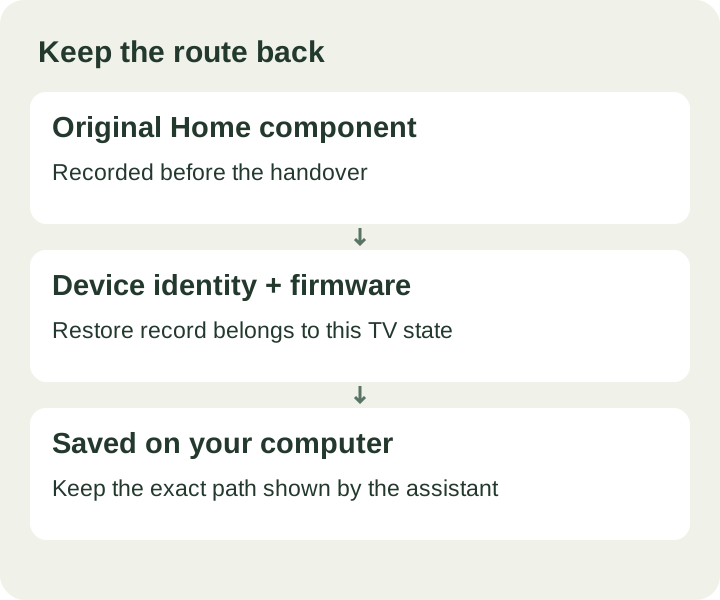
A successful inspection identifies the television, checks its system requirements and records the original Home component, device identity, firmware and enabled application list. The assistant displays the restore-record path. Keep that file on the same computer and save its location somewhere you can find again before making changes.
The records live under your computer user’s .cleanyourtv/backups folder. On Windows, that is inside your user-profile directory; on a Mac, it is inside your home directory. The assistant’s displayed path is the most precise reference. The leading dot can make the folder less visible in a normal file-browser view.
This Clean Your TV installation backup is a record for the launcher handover, not a full television backup. It does not copy streaming credentials or every app’s personal data. The assistant checks the device identity before installing or restoring and will stop if the record does not match. Keep existing records rather than replacing them with another TV’s file.
Install and watch the television
Once inspection succeeds and the restore record is saved, read the confirmation beside the installation controls. Select the confirmation that you want to change the TV home screen, then choose “Install CleanYourTV”. Keep the computer running and watch the television while the assistant checks the bundled APK, installs it and tests its launch.
Next, the assistant asks the system to select the new Home and checks the result. It leaves the original launcher installed. If the handover cannot be verified, it attempts to restore the recorded original Home and reports the result. Read that message before taking any further action; a blocked Home change is different from a failed APK installation.
If Android rejects the package, follow the app installation error guide. If the application opens but the Home button does not behave as expected, use the default Home guide. Clean Your TV installation is complete only when the intended result also works on your television, not simply when an app icon appears.
Check everyday use and restart
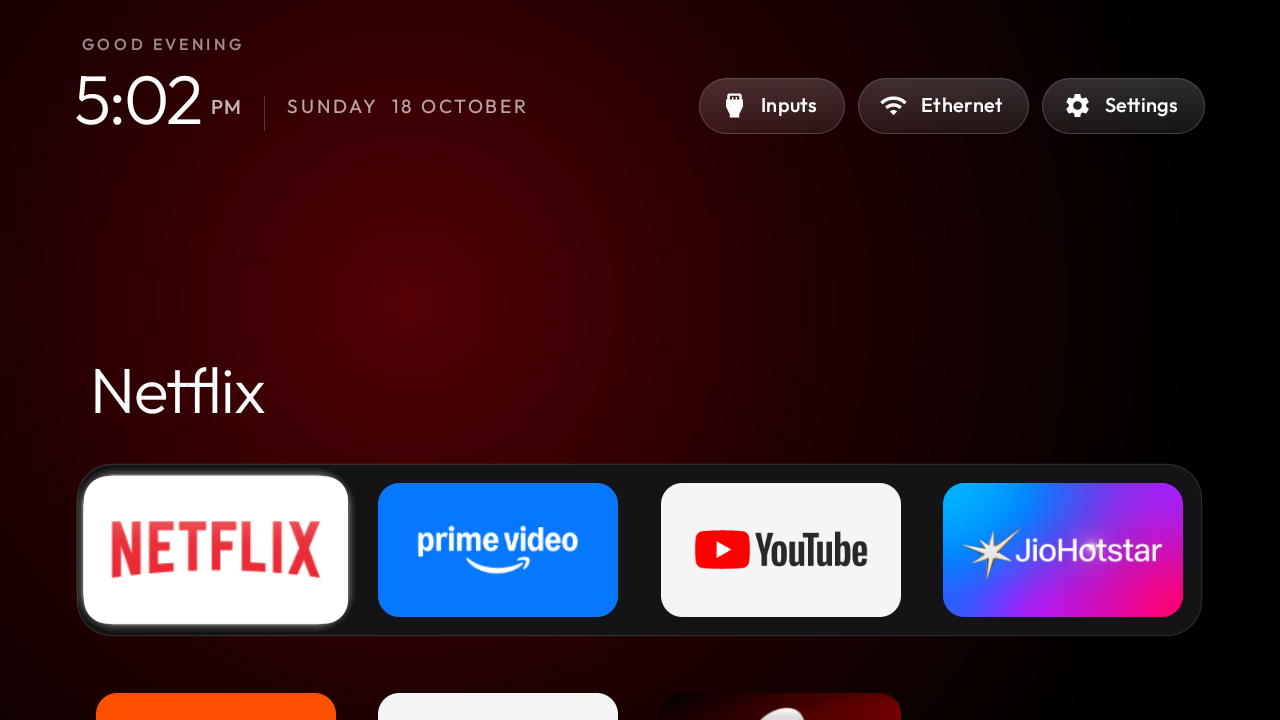
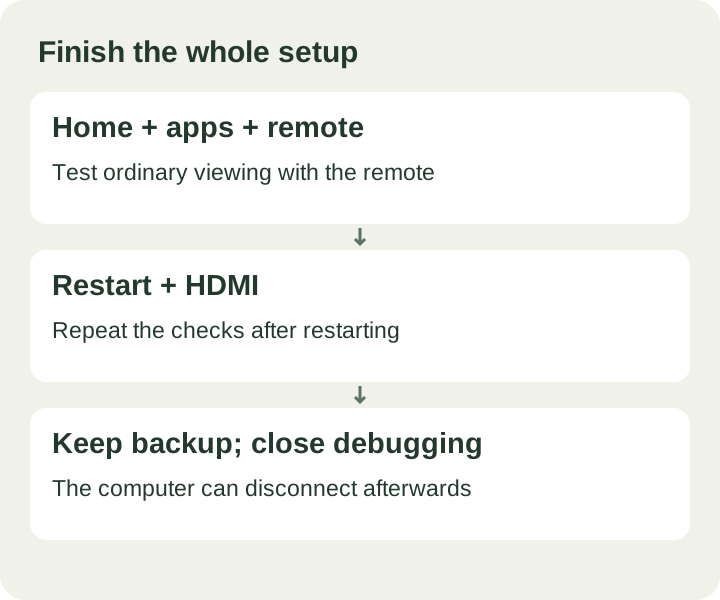
Use the remote’s directional pad, Select, Back and Home buttons. Open a familiar application, return to the new launcher, and check the HDMI input or source you normally watch. The app’s TV-facing name is Home, so look for that name when checking the installed application list. Interface placement depends on the original TV launcher. If installation succeeded but an icon is missing, use the installed-app visibility checklist.
Restart the television through its normal restart control, wait for it to finish, and repeat the checks. Standby alone may not restart Android. This final Clean Your TV installation check helps distinguish a working initial launch from a Home preference that your firmware changes after reboot. Record any difference rather than repeatedly reinstalling without a diagnosis.
After normal viewing works, keep the restore record and turn debugging off. Your computer can disconnect; it is not needed for everyday use. If you want the previous interface later, follow the original-Home restore guide with the matching record. For unsuccessful product use, email support@cleanyourtv.org with your order, model and exact error; the refund policy explains the review process.
ONE KIT. ONE PAYMENT.
The tools and guidance, together.
The US$19 self-service kit includes the launcher, Windows and Mac assistants, pictured guides in Spanish, English and Chinese and restore instructions.
See the self-service kit ↗Technical references
Android Developers: Android Debug BridgeInstructions describe the current CleanYourTV assistant. TV menus and firmware behaviour depend on the specific device.