 CleanYourTV
CLEANYOURTV · Installation preparation
Android TV developer options for installing a TV launcher
Android TV developer options let a trusted computer communicate with your television for tasks such as installing an APK. For a launcher installation, the useful outcome is simple: find the menu, enable the connection method your TV supports, approve your computer, and leave unrelated settings alone. Opening this menu does not replace your home screen or automatically make the television faster.
If you install an app directly from the TV's store, you normally do not need these settings. If you are preparing the CleanYourTV Windows or Mac assistant, start with the steps below, then continue to the pictured installation guide. Keep your remote nearby: the television may ask you to approve the connection.
Find the correct settings path
On a Google TV interface, look under Settings → System → About. On many classic Android TV interfaces, look under Settings → Device Preferences → About. Some manufacturers put About directly inside Settings. These are starting points, not a promise that every model uses identical labels.
Before searching for Android TV developer options, read the operating system shown on the About screen. A smart television is not necessarily an Android television. Samsung's Tizen and LG's webOS do not acquire this menu by following an Android guide. If an Android box is connected through HDMI, use the box's settings and remote rather than the television's separate settings.
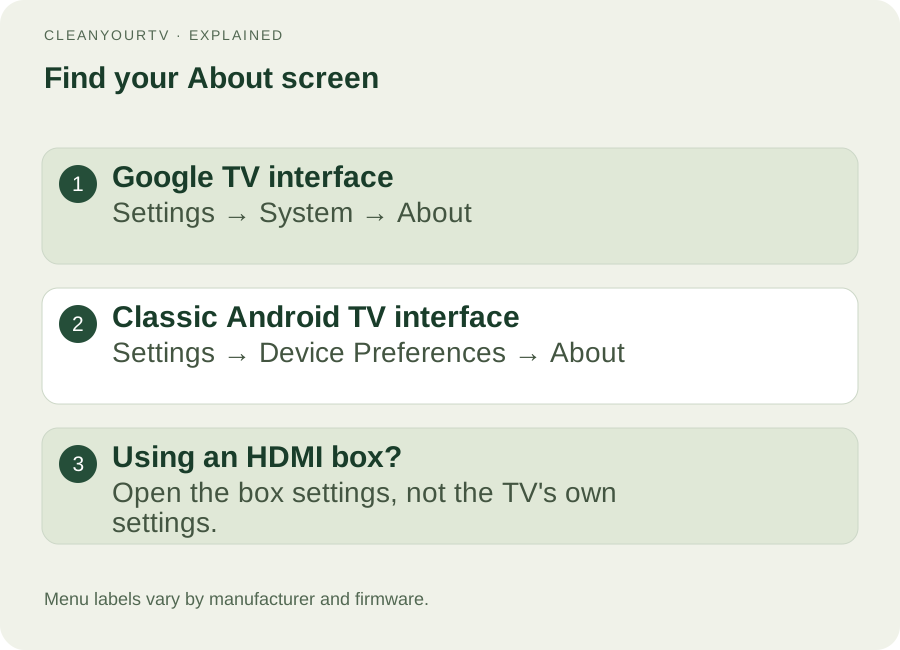
Record the model, Android version and build number while you are here. These details help distinguish a menu difference from an unsupported installation method. A brand name alone is not enough: two Xiaomi televisions sold in different regions can have different interfaces and firmware.
Enable Android TV developer options
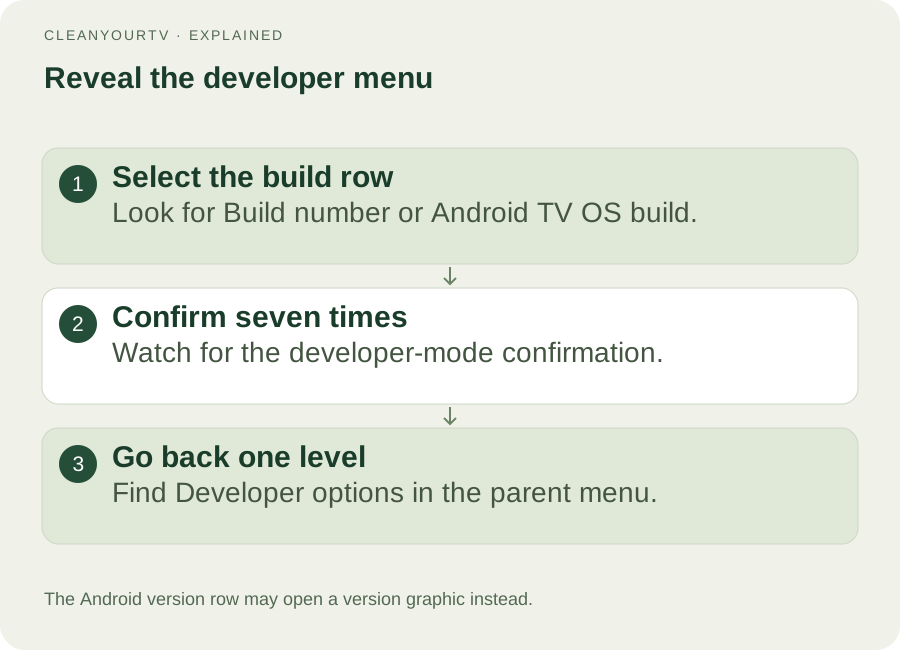
Locate Build, Build number, or Android TV OS build in About. With the row selected, press the remote's confirmation button seven times. Android usually shows a countdown followed by a message that developer mode is enabled. If it says you are already a developer, this step is already complete.
Return one level to System or Device Preferences and look for Developer options. You do not open it by repeatedly selecting the Android version row; that can display an Android version graphic instead. The Android developer settings documentation describes the build-number activation mechanism and notes that manufacturers can place settings differently.
If Android TV developer options ask for a PIN, use the device's existing authorized unlock method. There is no universal developer password in this guide. On a managed television, account or administrator restrictions may prevent changes. Check the device documentation or ask its administrator instead of trying random codes.
Choose the debugging method your TV actually offers
The Android TV developer options menu contains many controls. For this installation task, focus on debugging. USB debugging, network debugging and wireless debugging with a pairing code are related, but their connection procedures are not interchangeable.
- USB debugging: permits debugging through a supported USB connection. A USB port used for a memory stick does not automatically support a computer-to-TV debugging connection.
- Network or ADB debugging: some TVs expose an address and port for a local-network connection. Use the values supported or shown by your device.
- Wireless debugging with pairing: some Android versions use a pairing step and separate connection information. A pairing port is not necessarily the port used after pairing.
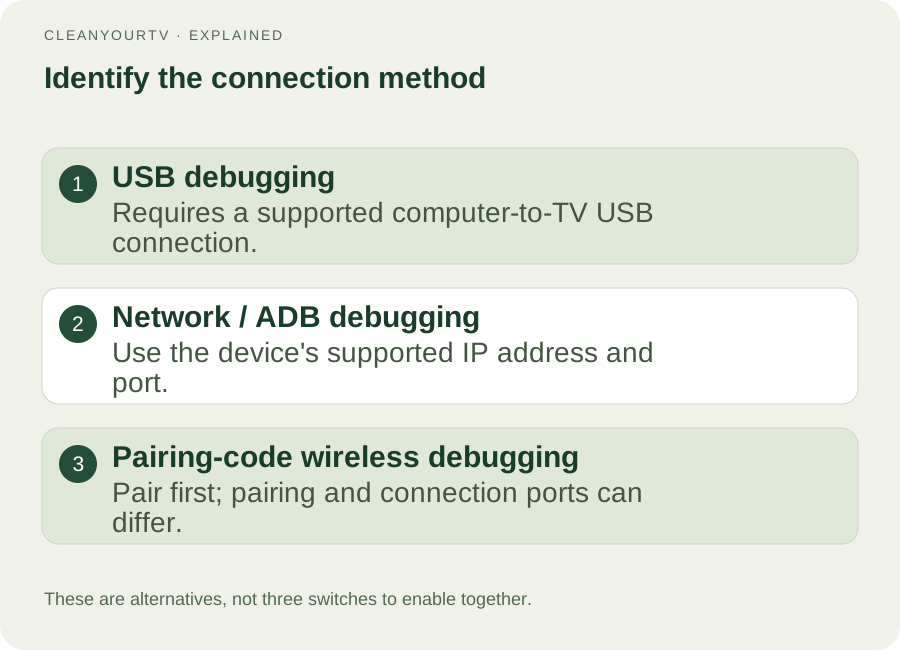
CleanYourTV's current assistant accepts an IP address and port. It does not provide a pairing-code interface. If your television offers only a pairing-code workflow, consult the connection and pairing guide before trying the assistant. Do not assume that changing a port to 5555 creates a supported connection.
Connect on your home network
For a supported network connection, put the computer and television on the same reachable local network. They can use Wi-Fi or Ethernet; what matters is whether the network allows them to communicate. A guest network, router isolation or a VPN can interrupt that path even when both devices have internet access.
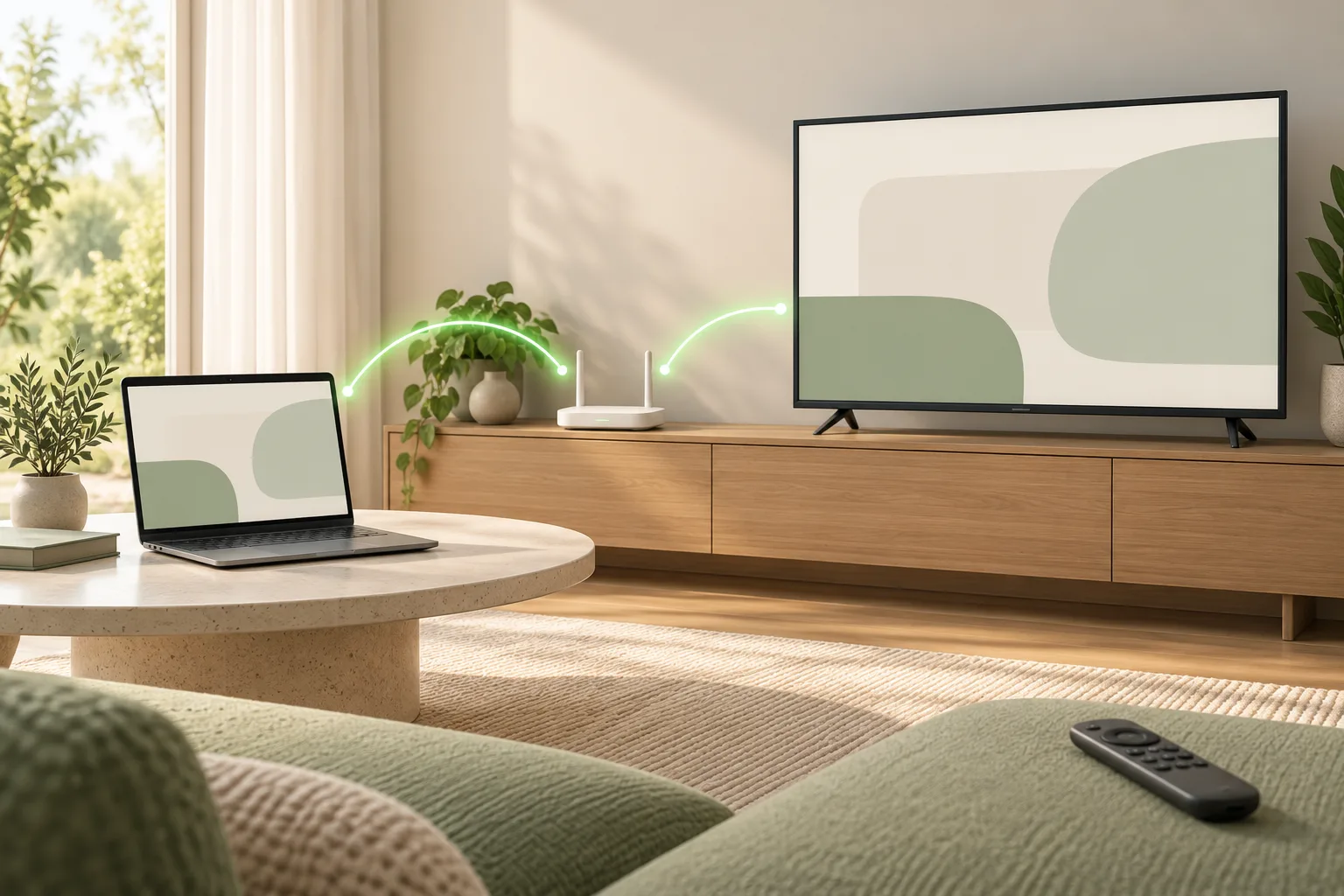
After enabling the relevant setting in Android TV developer options, read the TV's current address. Enter it in the assistant with the correct port, start the connection and watch the television for its authorization prompt. Approve a computer only when it is the one you intended to use.
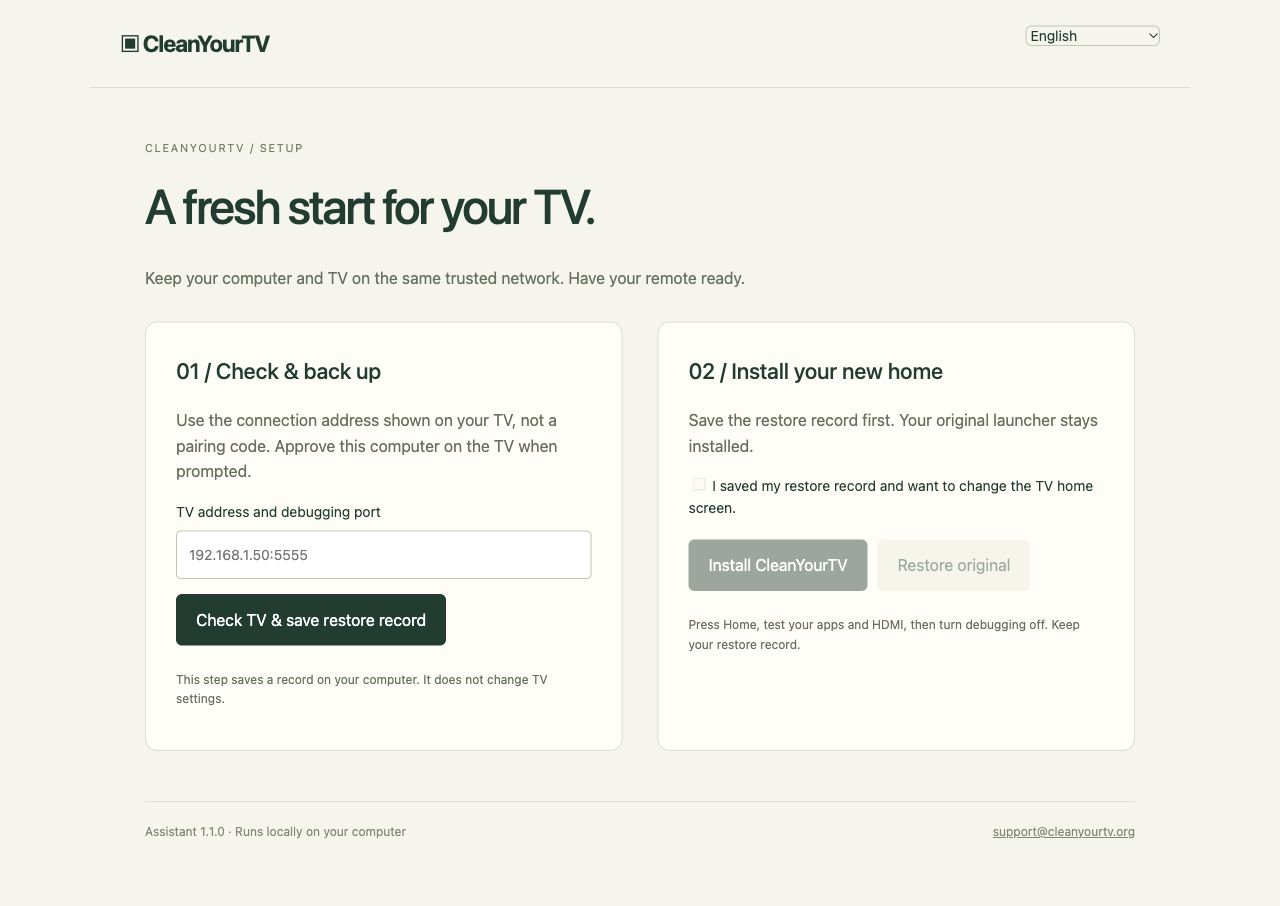
Different messages indicate different next steps. A refused connection suggests the address, port or debugging service needs attention. An unauthorized connection means the television has not approved that computer. A timeout can point to reachability. The connection guide separates those cases so you can fix the failed stage rather than repeat the entire installation.
Leave unrelated developer settings unchanged
For a launcher setup, Android TV developer options are a preparation tool. You do not need to disable app verification, limit background processes or turn off every animation. Changing several unrelated switches makes later problems harder to explain and can affect other applications.
“Install unknown apps” is a different permission. It applies to a particular app that opens an installation package on the TV, such as a file manager. Enabling developer mode does not grant every file manager permission to install software. Conversely, allowing a file manager to install an APK does not authorize a computer to use ADB.
A useful way to keep the task small is to write down each setting you change and its original value. If a tutorial asks for broad changes unrelated to connecting or installing, pause and identify what each change accomplishes. Keep the original launcher available while testing the replacement.
Finish the installation and close the connection
Once the assistant connects, follow its backup and installation sequence. Then test three separate actions: open the new launcher, start one of your usual TV apps, and press Home. A successful installation does not itself establish which launcher the Home button will open.
If Home still opens the original interface, use the default launcher guide. If installation succeeded but there is no visible icon, use the installed-app visibility checklist. Those are different problems from locating Android TV developer options.
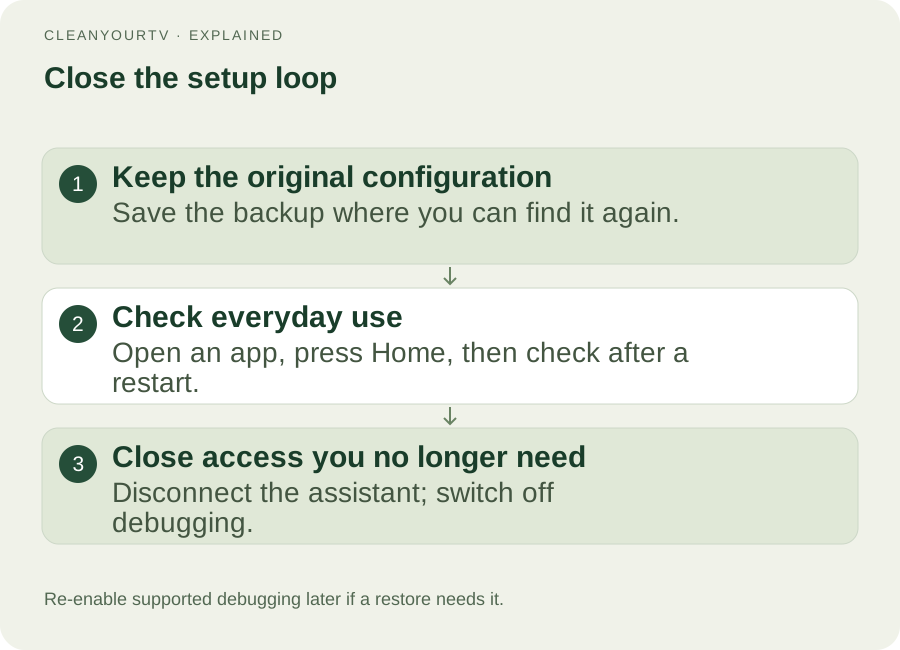
After finishing any install or restore operations, disconnect the assistant and turn off debugging if you no longer need it. You can enable it again for a later supported maintenance task. Keep the saved original configuration somewhere you can find without relying on the new TV home screen.
Common questions
Why are Android TV developer options still missing?
First confirm that you selected the build row and saw the completion message. Then return to its parent menu. If the menu remains absent, check the exact model's documentation and whether the device is managed. Repeatedly toggling unrelated settings will not establish whether the manufacturer exposes the required control.
Should Android TV developer options stay on all the time?
There is no need to keep a debugging connection enabled merely to launch an already installed app. Close the access you no longer use after testing. If you later need the computer for recovery, re-enable the supported method and authorize the intended computer again when prompted.
Does developer mode make my TV compatible with every launcher?
No. Android version, installation permissions, TV-oriented app support and Home-button behavior still matter. Use the compatibility check before choosing a package. Android TV developer options give you access to particular development controls; they do not remove firmware restrictions or convert another TV operating system into Android.
ONE KIT. ONE PAYMENT.
Your calmer home, with a clearer setup.
Get the CleanYourTV self-service kit for US$19, paid once: the TV launcher, Windows and Mac assistants, pictured guides and restore instructions. Check your device, then follow the setup steps.
Check TV compatibilityUnsuccessful use? Discuss a refund by email.
Sources and review notes
Android Developers: developer options ↗Android Developers: set up a TV device ↗Official guidance and current product capabilities reviewed October 20, 2026. Menus vary by model, region and firmware. Diagrams explain the steps; they are not evidence of a physical test on a particular TV.