 CleanYourTV
CLEANYOURTV · Connection methods
Android TV wireless debugging: choose the right connection method
Which menu does your TV show?
Android TV wireless debugging can mean two different things: a manufacturer's network ADB switch, or Android's newer pairing-code connection. Start with the menu actually shown on your television. If it displays a six-digit pairing code, use a tool that supports that pairing protocol. An IP address and port alone are not enough to complete the pairing step.
This guide helps you identify the method, understand the two ports and choose a useful next step. CleanYourTV's free helper 1.3 checks supported classic network ADB connections. It does not currently handle pairing-only TLS connections. Use the selector above before downloading or purchasing anything.
Identify your Android TV wireless debugging menu
Open the settings of the device whose Home screen you want to change. For an HDMI streaming box, that means the box's settings, even when the television displaying the picture is another brand. Find the system version and developer options, then read the available debugging labels.
For Android TV wireless debugging, labels describe a possible route rather than a compatibility guarantee. Network debugging, ADB debugging and wireless debugging are sometimes used differently by manufacturers. A USB debugging switch alone does not prove that a network service is listening. Do not assume that every Xiaomi, Sony or TCL model exposes the same option.
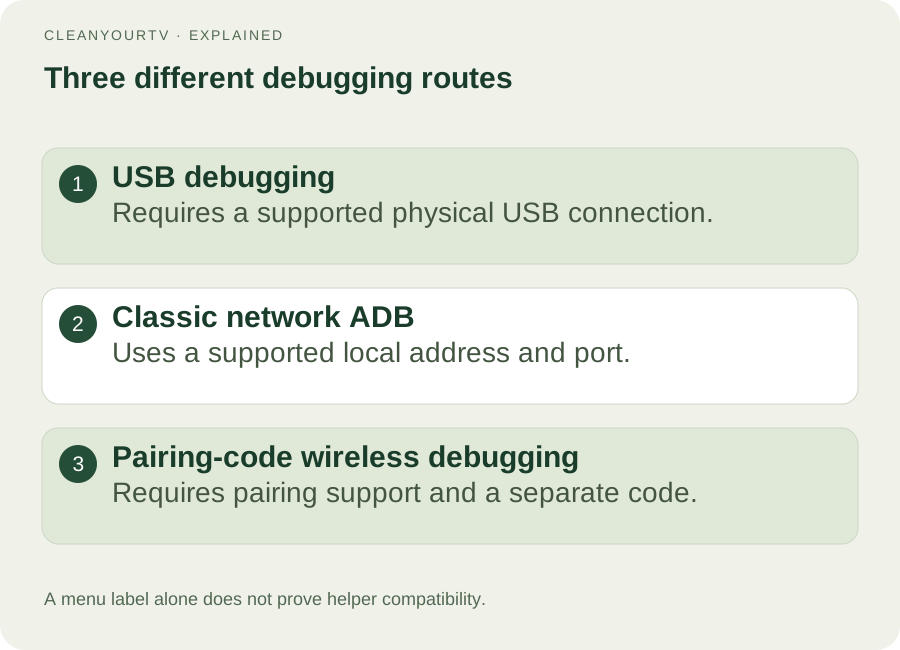
Menu comparison diagram. These are alternative connection methods, not three switches to enable together.
A regular network ADB route usually involves the TV's local address, its supported port and an authorization prompt. A pairing-code route adds a pairing dialog and a temporary code. If neither route appears, identify the exact model and firmware before trying commands intended for another television.
Check the system and local network prerequisites
Android's official documentation lists Android 13 or later for wireless pairing on TVs, while the corresponding phone requirement is Android 11 or later. That distinction matters when following a tutorial filmed on a phone. The version requirement does not guarantee that a manufacturer exposes every setting on your particular TV.
Put the computer and television on a trusted local network where devices can communicate. For the official Wi-Fi pairing procedure, connect them to the same Wi-Fi network. Guest-network isolation can prevent discovery even when both devices access the internet. Check network membership before disabling any security software or changing router settings.
Local-network illustration, not a screenshot or a claim of a tested television model.
Write down the current TV IP address. It is normally a private IPv4 address, not the public address shown by an internet IP website. Keep the television awake and its settings visible. Android TV wireless debugging is easier to diagnose when you can read a fresh address instead of relying on yesterday's note.
Understand pairing port versus connection port
The most common misunderstanding in Android TV wireless debugging is treating every number on the pairing screen as interchangeable. The pairing dialog can show an IP address, a pairing port and a six-digit code. After pairing, the main wireless debugging screen provides the address used for the actual debugging connection. Its port can be different.
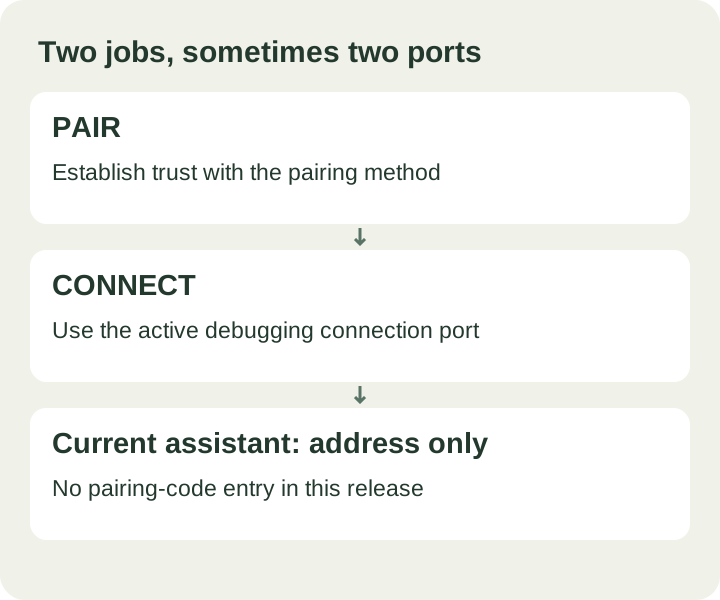
Two-stage diagram. Copy each value from its own screen rather than reusing a number automatically.
For example, a television might show 192.168.1.42:37123 in its pairing dialog and 192.168.1.42:42001 on the main screen. The first port is used for pairing; the second is used for connecting. Those are illustrative values, not ports to enter on your own television. Reopen the current screen whenever values have changed.
The code is separate again. A six-digit pairing code belongs at the pairing prompt. It is not a password for the website, not a purchase code, and not something to append after the IP address. Do not send a current code to someone offering unsolicited remote help.
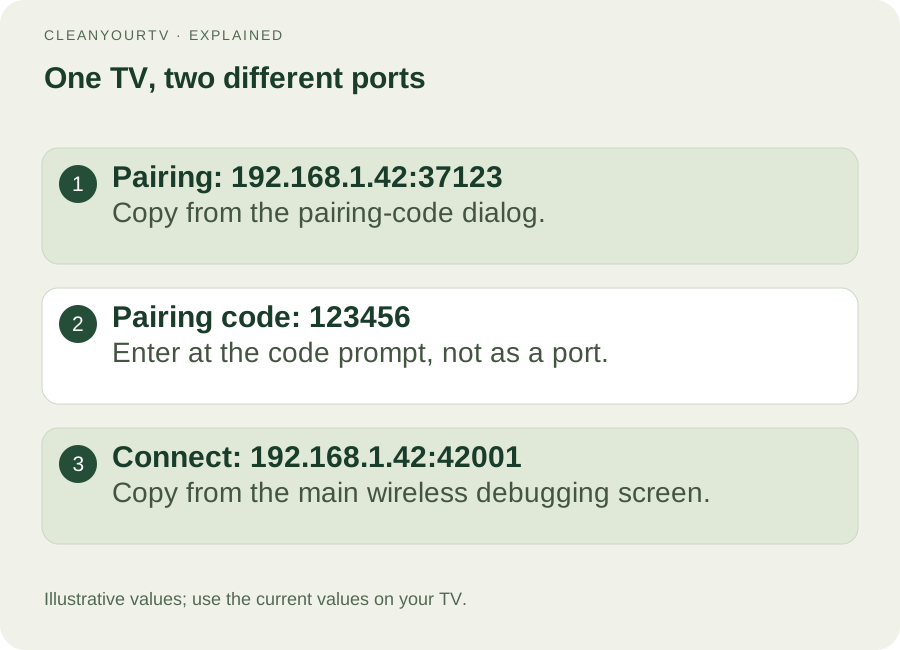
Example only: two different ports can belong to the same television. Your device supplies the actual values.
Use the official pairing workflow when appropriate
For a compatible pairing-enabled TV, Android's official route uses an up-to-date copy of SDK Platform Tools. Open Wireless debugging, choose the pairing-code option, then run the pair command on your own computer with the address currently shown. Enter the code when prompted. The official documentation linked below explains installation and platform differences.
adb pair 192.168.1.42:37123
adb devices
These commands illustrate the sequence, not a ready-to-run command for your TV. If pairing succeeds but the device is absent from the connected-device list, the official troubleshooting route may require connecting with the main screen's connection address:
adb connect 192.168.1.42:42001
adb devices
Successful pairing with one application does not automatically give every other application that same connection capability. In particular, the current CleanYourTV helper does not implement this pairing workflow. Completing Android TV wireless debugging manually is useful for development, but it does not establish that the paid launcher kit can use that route.
For classic network ADB, start with the free check
If your TV offers a supported regular network ADB endpoint, start the free connection check. Use the TV's actual address and port, then approve the computer on the television when requested. Port 5555 is common in classic examples, but it is not a universal setting and should not replace a different port documented by your device.
The free helper checks the connection before the purchase step and records the original Home application during inspection. Inspection does not replace your launcher. A successful check gives you a concrete next step; a failed check gives you an issue to resolve before paying. The installation guide explains the subsequent launcher workflow.
Android TV wireless debugging by itself does not remove recommendations, advertisements or applications. Debugging is a connection mechanism. CleanYourTV's product changes the supported Home launcher; it does not promise to remove advertisements inside streaming videos or speed up every television.
Read the failure state before repeating commands
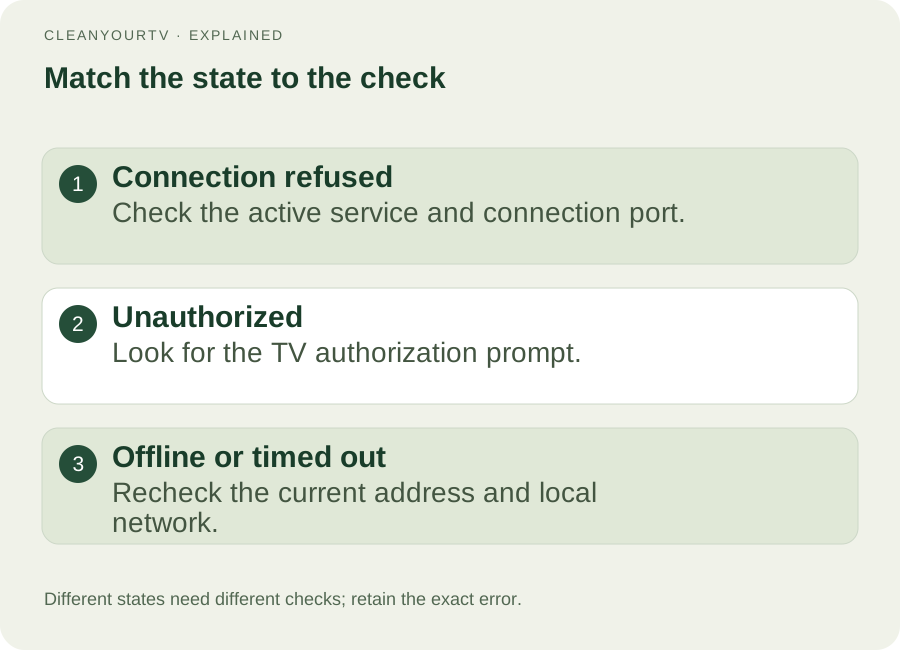
Different states need different checks. Repeating the same address is not a universal fix.
Connection refused can mean the service is disabled, the port is wrong or the firmware does not offer that endpoint. Unauthorized usually means an authorization decision is still needed on the TV. Offline indicates a different communication state. A timeout can point to an unreachable address or local-network isolation. None of these messages alone proves the television is unsupported.
For Android TV wireless debugging problems, first check which stage failed: finding the TV, pairing, authorizing or connecting. Use the connection troubleshooting guide for the relevant state. Avoid factory resets, router port forwarding or random system-app removal as first responses to a connection error.
Finish your Android TV wireless debugging session
When setup is complete, stop the connection and disable debugging if you no longer need it. Modern wireless settings can also let you forget a paired computer. Keep recovery information about your original Home application before changing a launcher, and confirm that the remote's Home button behaves as intended.
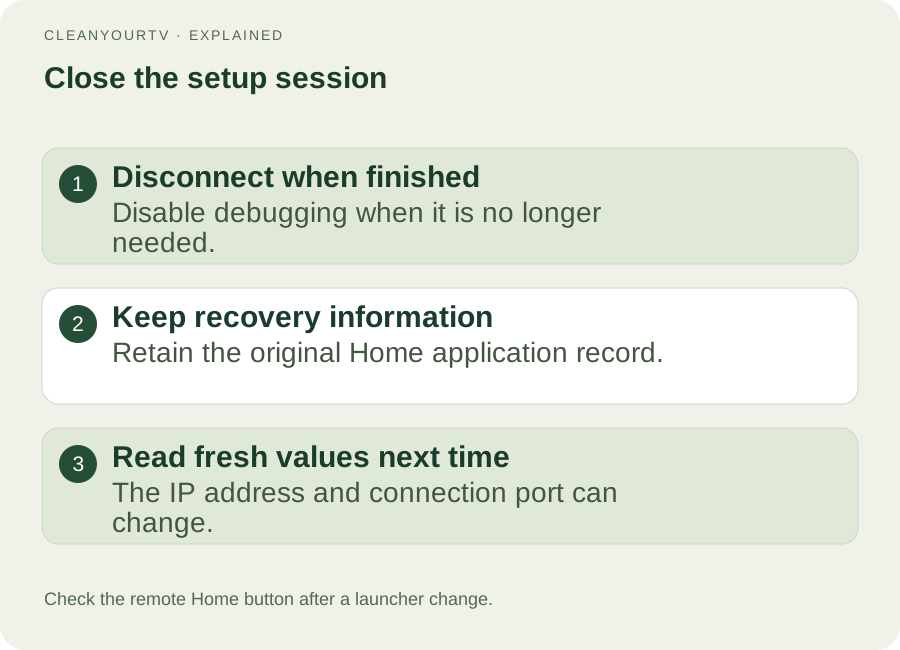
Completion checklist. Recheck the displayed address and port at the next session.
A later network change may give the TV another IP address. A renewed wireless session may also expose another connection port. Android TV wireless debugging instructions should therefore tell you where to obtain fresh values, rather than asking you to save an example forever.
Frequently asked questions
Why is there no wireless debugging option on my TV?
The operating-system version and manufacturer firmware both matter. Check the precise model's documentation and available developer settings. A phone tutorial or an Android version number alone cannot establish that your TV has the same menu.
Does a successful pairing mean CleanYourTV supports my TV?
No. Pairing verifies a relationship with the tool that completed that procedure. CleanYourTV helper 1.3 supports its classic network ADB route, not pairing-only TLS devices. Run its free check before considering a purchase.
Can I use 5555 as the wireless pairing port?
Use the pairing port currently displayed by the television. A classic ADB example using 5555 does not define the pairing port or the modern connection port. Keep the three values—IP, port and code—separate.
START WITH A FREE CHECK
Check the connection. Then simplify your home.
Download the free Windows or Mac connection helper first. After the check passes, the US$19 one-time kit includes the launcher, guided installation and pictured instructions.
Start the free check →Check TV compatibilityUnsuccessful use? Discuss a refund by email.
Sources and review notes
Android Developers: Android Debug Bridge ↗AOSP: Wi-Fi debugging architecture ↗Reviewed 2026-10-21 against official guidance and current product capabilities. Diagrams are explanatory examples. Menus and network support depend on model and firmware; this is not a physical-device test.