 CleanYourTV
CLEANYOURTV · A simpler Google TV home
Google TV apps only mode: what changes and how to use it
Google TV apps only mode hides personalized recommendations from the home screen and makes installed apps the main way to find something to watch. To enable it, open Settings, choose Accounts & Sign In, select your profile and turn on Apps only mode. You can turn it off from the same place.
The important tradeoff is that this is a simpler Google TV home experience, not a guarantee of an advertisement-free television. Google says sponsored content and teasers can still appear. Search, Google Assistant and several recommendation-related features are unavailable in this mode. Check which of those features you use before deciding to keep it enabled.
What Google TV apps only mode actually changes
Think of this setting as a change to the starting screen. Instead of using personalized suggestions to pick a film, you open an installed streaming app and browse inside it. That can suit a household that already knows which services it uses and wants a more direct route to them.
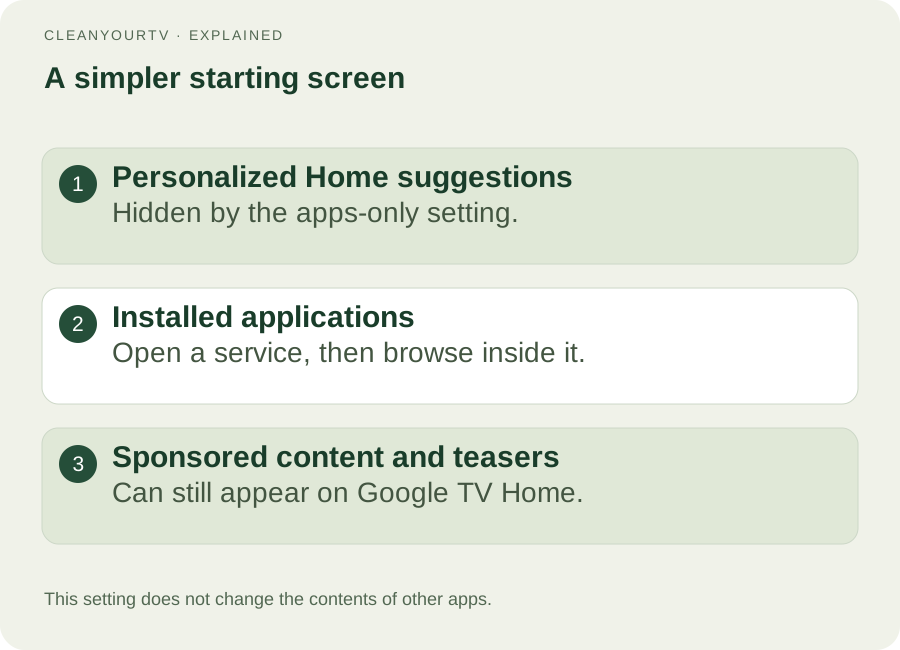
It does not rewrite the interfaces of Netflix, YouTube or another service. Those apps can still display their own recommendations and advertising according to their own settings and subscriptions. It also does not change your privacy settings merely because personalized Home recommendations are hidden.
Google's official apps-only explanation is the source for these distinctions. If your main goal is to remove advertisements inside videos, changing this home-screen setting will not accomplish that goal.
Turn it on for your profile
Use the remote to open the television's full Settings menu. Choose Accounts & Sign In, select the profile you use, then find Apps only mode. Read the information displayed by your device and switch it on.
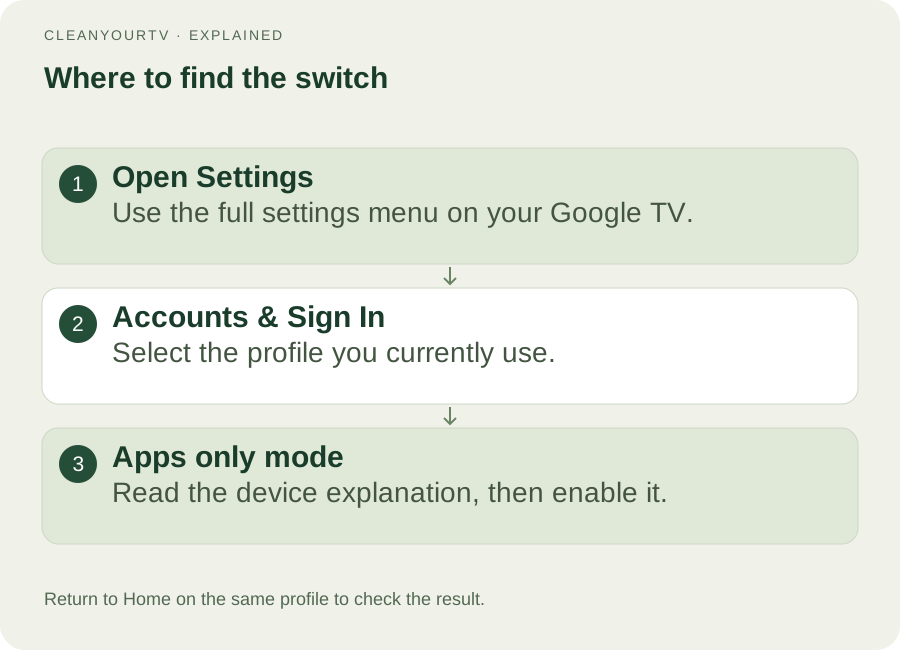
Return to Home and check the result on the same profile. Open an app you use regularly and confirm that you can reach your usual content. If several people share the device, explain the change before they try to use a feature that the mode no longer exposes.
Google TV apps only mode is a Google TV feature. A television advertised as Android TV may use a different home interface and may not offer the same switch. If it is absent, first identify the operating system and active profile; do not start changing developer settings to search for an unrelated account preference.
Check the features you will give up
Google lists several features that are unavailable with this mode, including Search, Google Assistant, personalized recommendations, ratings and watchlist-related actions. The normal Home view of your content library also changes. These are meaningful differences if you frequently ask the remote to find a title across multiple services.
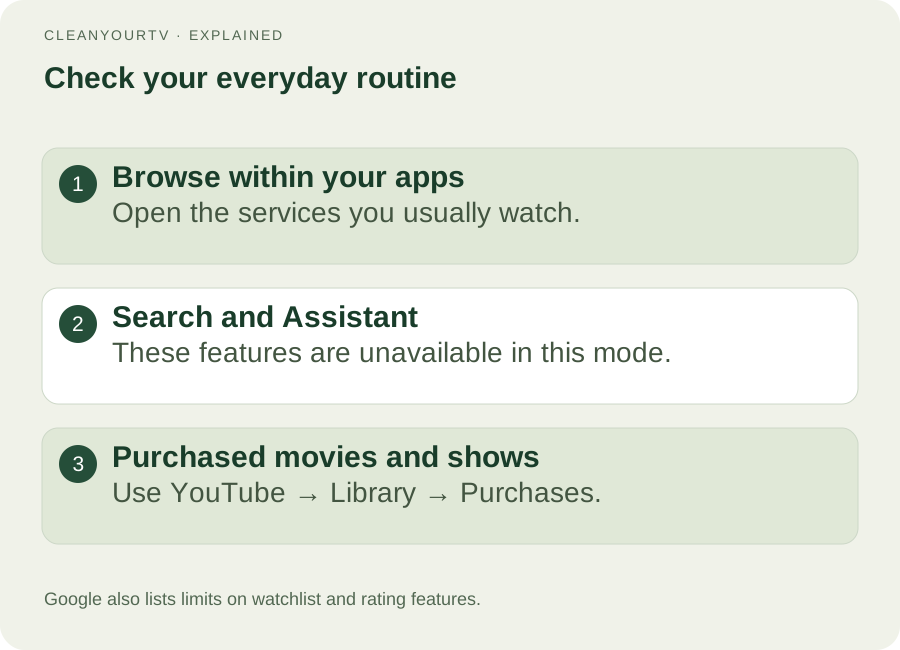
Before leaving Google TV apps only mode enabled, try your actual evening routine. Can you open the service you need? Does a family member rely on voice search? Do you usually start from a watchlist rather than an app? A cleaner screen is useful only if the remaining route still fits how you watch.
For purchased movies and shows, Google's guidance points to the YouTube app: open Library and then Purchases. Labels and availability can depend on the app and account, so use the account that owns the content. If a purchase is missing there too, investigate that account or service instead of assuming the home-screen mode deleted the purchase.
Sponsored content and app advertising remain separate
Google TV apps only mode can reduce recommendation clutter without eliminating every promotional surface. Sponsored items and teasers can remain on Home. Once you enter an app, that service controls what appears inside its own interface.
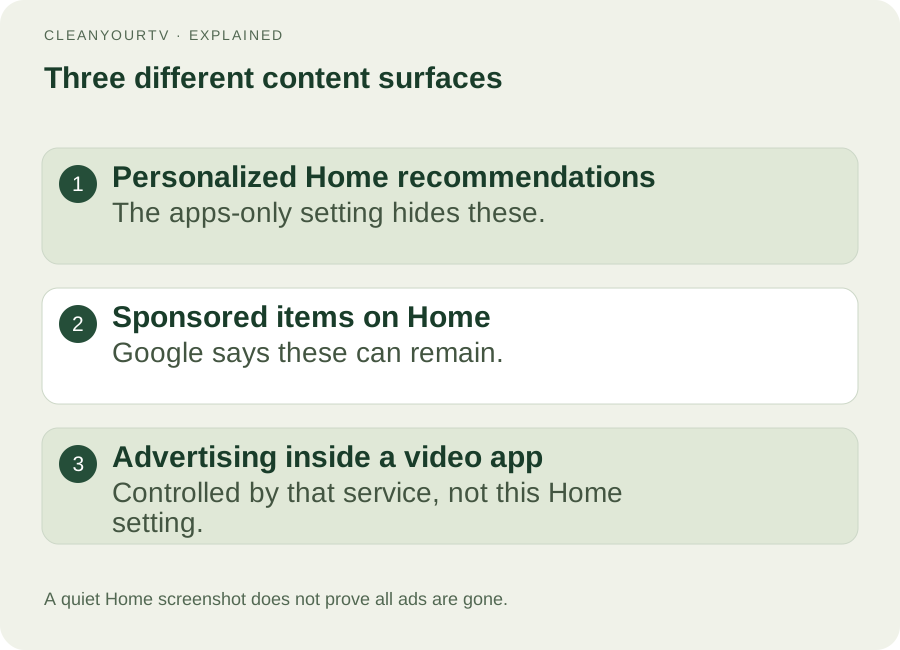
This distinction helps when comparing screenshots online. A photograph of a quiet Home screen at one moment does not demonstrate that a particular firmware will never display promotional material. Equally, an advertisement in YouTube does not prove that the apps-only switch failed to hide personalized Home recommendations.
If your goal is a home screen organized around your own shortcuts and layout, consider a TV launcher as a different category of solution. If your goal is simply fewer personalized suggestions with no extra installation, the built-in mode is a sensible first option to try.
Turn Google TV apps only mode off again
Return to Settings → Accounts & Sign In → your profile → Apps only mode and turn the switch off. Go back to Home and check whether the standard interface and the features you need are available again. You do not need to uninstall your streaming apps to reverse this setting.
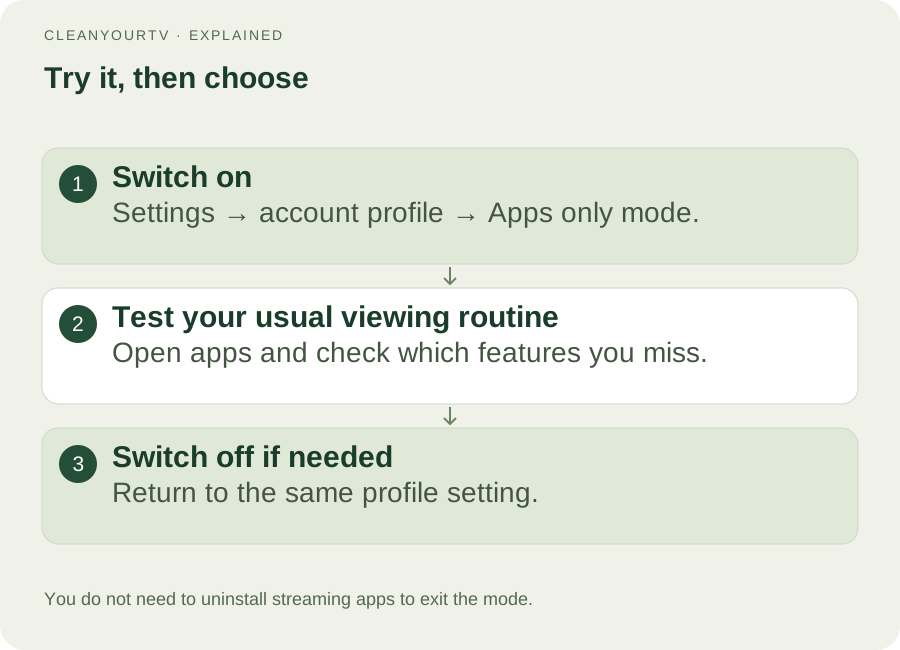
If Home does not immediately look as expected, verify the selected profile and current switch state. Follow the device's normal restart procedure if needed after saving active work. Avoid clearing account data or factory-resetting as the first response to a display that has not refreshed.
This reversible test is useful before you commit to another setup. Spend a little time opening your usual apps, then return to the standard view if the missing search or library features outweigh the simpler starting screen.
What if the option or an app-install button is missing?
For Google TV apps only mode not showing in Settings, identify the exact model, region, software version and interface. Compare the menu with the manufacturer’s guidance. A Samsung or LG television using its own operating system will not gain this Google TV setting unless you are operating a separate Google TV device attached to it.
If “Discover more” or another app-discovery control does not work in your particular setup, record what happens. One device's broken button is not evidence that every television in this mode cannot install apps. You can temporarily turn the mode off, use the device's supported application installation route, then return and re-enable it.
For an app that already installed but is absent from Home, use the installed-app visibility guide. That guide checks Settings, TV launcher entries and hidden apps; repeatedly toggling this mode is not a substitute for confirming whether the package is installed.
Built-in mode or a custom launcher?
Choose Google TV apps only mode when your main aim is to hide personalized suggestions and you are comfortable opening services individually. Choose a custom launcher when your priority is how the home screen itself is arranged, with your preferred apps and a different visual layout.
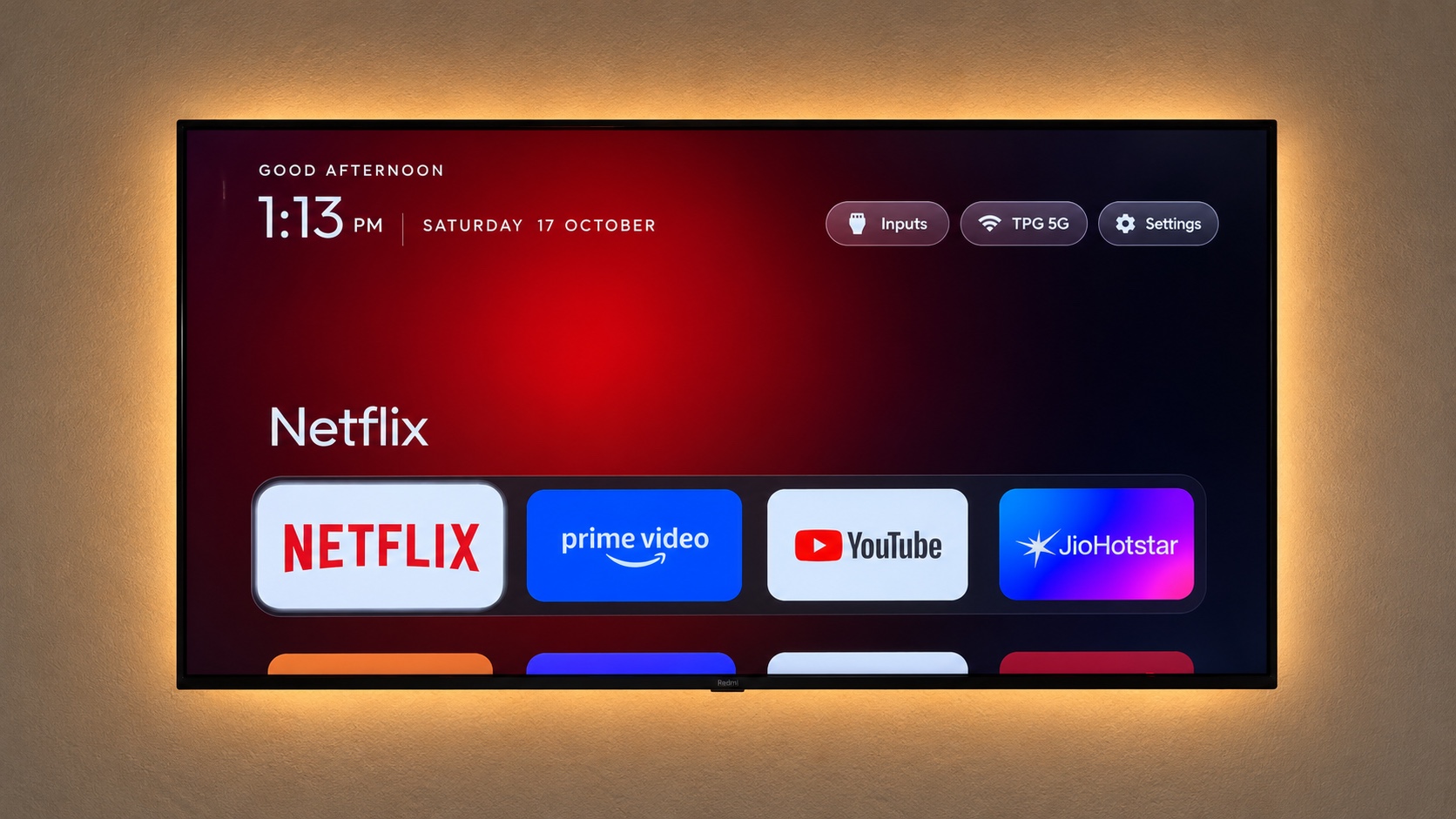
A custom launcher involves a separate installation and Home-button configuration. Compare that work with the simplicity of a reversible built-in switch. Our launcher selection guide explains the different options, including free approaches and the CleanYourTV self-service package.
Is Google TV apps only mode a privacy setting?
Hiding personalized recommendations does not itself change the privacy controls for your account. Review privacy settings separately if that is your goal. The setting described here changes the home-screen experience.
Is it the same as replacing the launcher?
No. You are adjusting the existing Google TV interface. A replacement launcher is another application with its own features and setup requirements. Both can make Home feel calmer, but they offer different controls and neither automatically removes advertising inside streaming applications.
ONE KIT. ONE PAYMENT.
Your calmer home, with a clearer setup.
Get the CleanYourTV self-service kit for US$19, paid once: the TV launcher, Windows and Mac assistants, pictured guides and restore instructions. Check your device, then follow the setup steps.
Check TV compatibilityUnsuccessful use? Discuss a refund by email.
Sources and review notes
Google TV Help: hide personalized recommendations ↗TCL: Google TV apps-only mode ↗Official guidance and current product capabilities reviewed October 20, 2026. Menus vary by model, region and firmware. Diagrams explain the steps; they are not evidence of a physical test on a particular TV.