 CleanYourTV
CLEANYOURTV · Why choose CleanYourTV
Best Android TV launcher: why choose CleanYourTV?
The best Android TV launcher should make the television you already own feel easier to use. Your favorite apps should be easy to spot, the remote should have an obvious destination, and setting up your new home screen should come with a clear next step.
CleanYourTV brings those priorities together: a calm TV interface, Windows and Mac installation assistants, pictured instructions, and a way to restore your original setup. For households that want this combination in one self-service package, it is our recommended choice.
We make CleanYourTV, so this is our product guide. Here is what makes the kit appealing, what your US$19 buys, and how to decide whether it is the best Android TV launcher for your everyday routine.
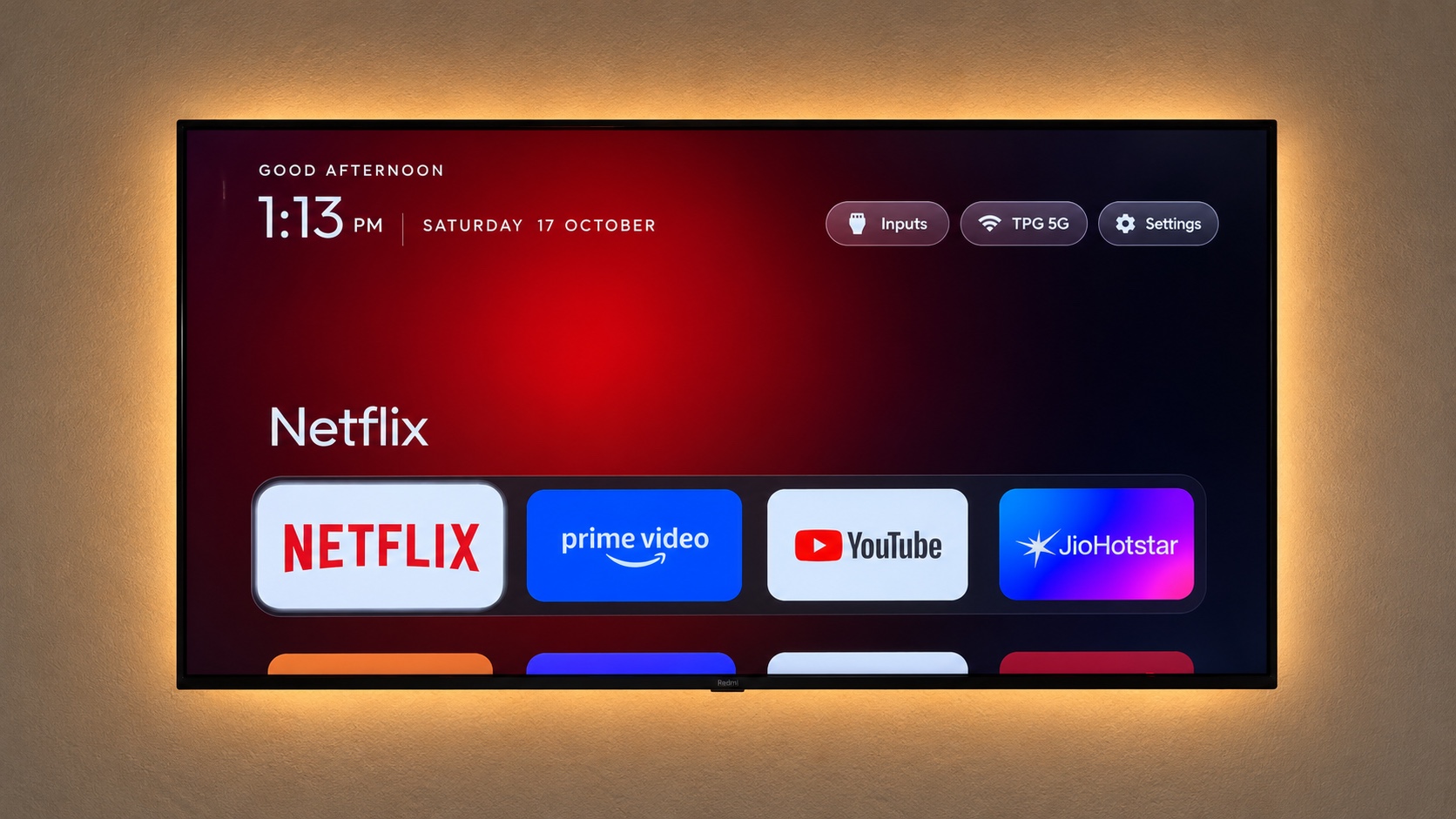
Start with the apps you actually watch
A television is often shared by people with different habits. One person opens a movie service, another watches a familiar channel app, and someone else switches to a games console. A useful home screen gives those routines a recognizable starting point.
CleanYourTV uses a favorites dock for the applications you want close at hand, with a larger application grid below. The selected item has a visible focus state, so you can follow the remote as you move across the screen.
When you compare the best Android TV launcher options, think about that first decision after pressing Home. Can everyone find the app they came to watch? A stable arrangement of familiar icons can matter more than a long list of features.
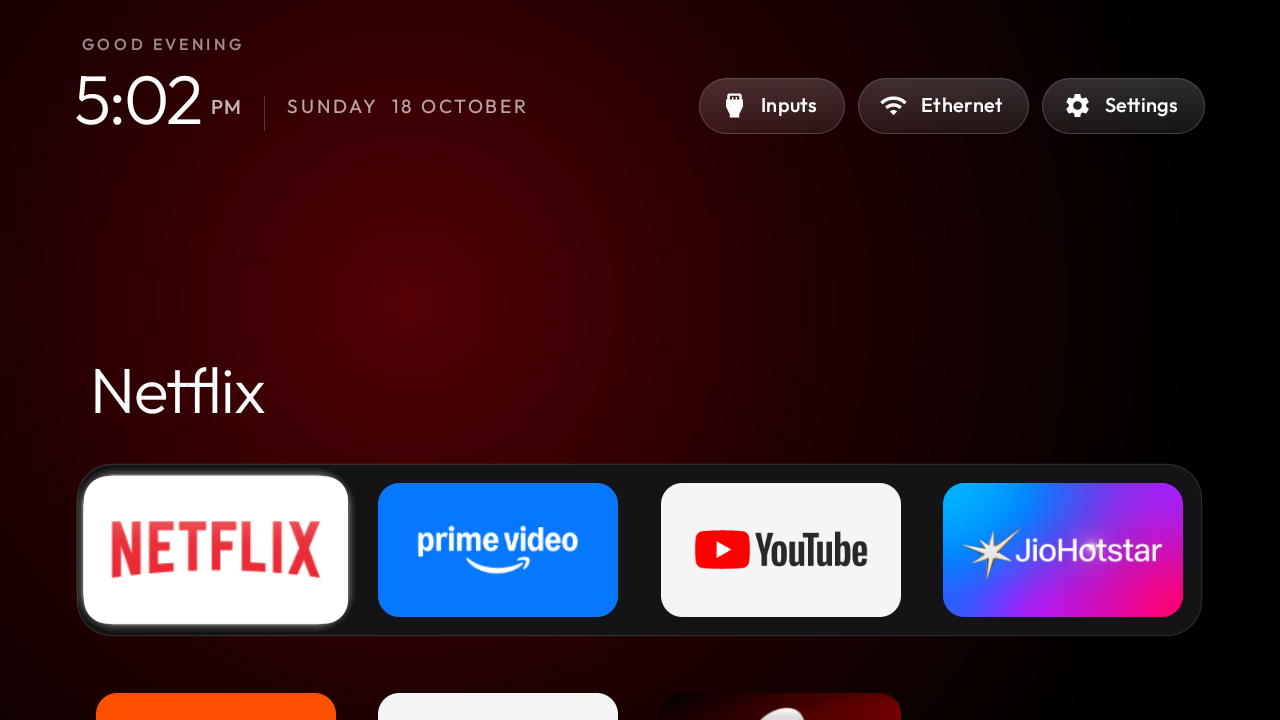
Start with a small set of everyday apps in a familiar order. Keep occasional tools in the main grid.
Give the rest of your apps a clear place
The application grid gives you another level of organization. You can browse the installed TV applications beyond your favorite shortcuts and keep a clear distinction between daily viewing and occasional utilities.
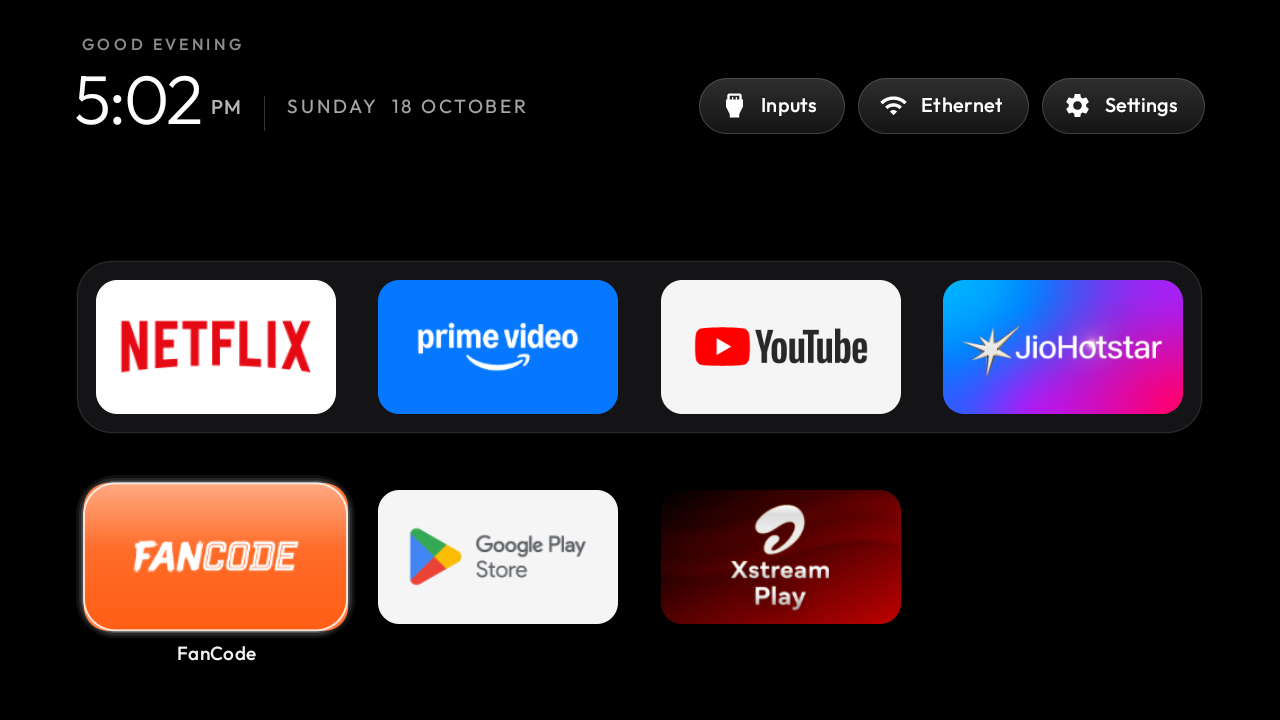
This is also a useful check when choosing the best Android TV launcher: write down the apps your family needs, then confirm their TV versions work with your remote. CleanYourTV discovers applications with a TV launcher entry. Some phone APKs lack that entry and will need separate investigation.
If an installed application is missing, use our installed-app checklist to distinguish a missing icon from an installation failure. Follow the relevant checks before reorganizing Home.
Make the screen feel like part of your room
CleanYourTV includes theme examples and layout settings, letting you choose a restrained background or a more colorful atmosphere. The interface can adapt its background color as the selected application changes.
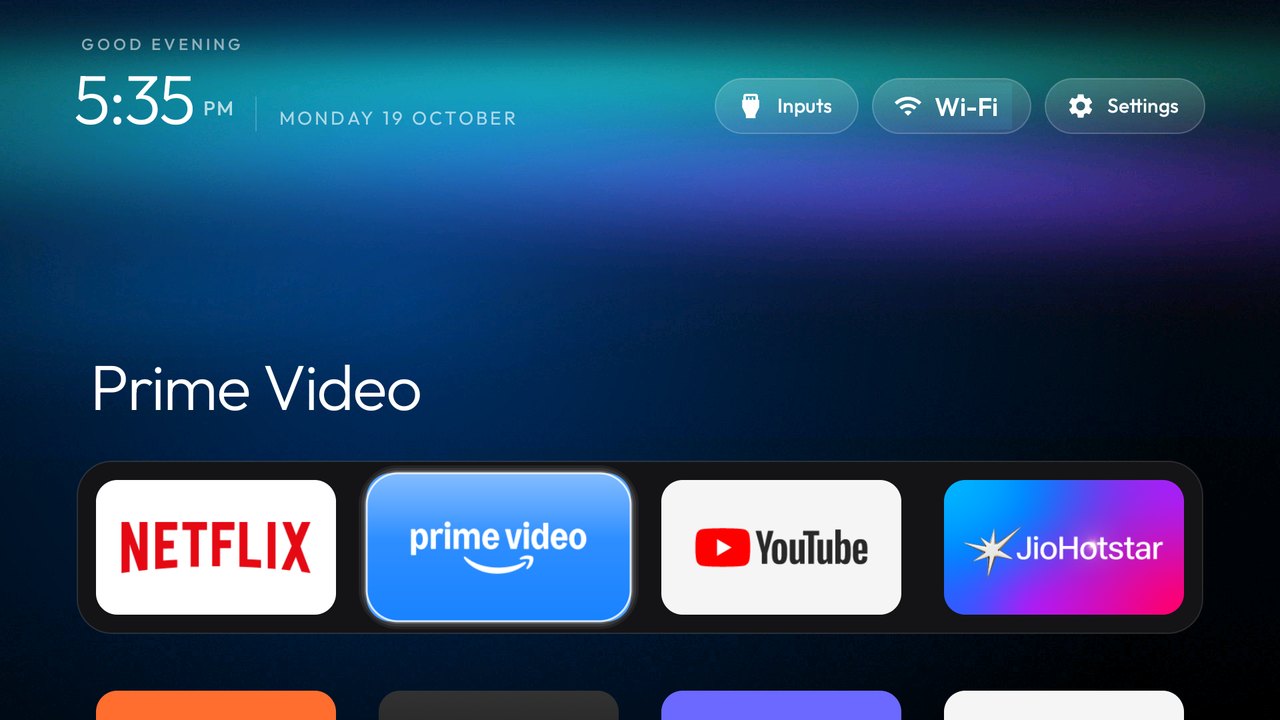
For the best Android TV launcher experience in a shared room, begin with readability. Check the size of the icons from the sofa, the contrast of the selected item, and the arrangement your household finds comfortable. Then experiment with the background.
Adjust one preference at a time, keeping the app order familiar while you compare backgrounds. A simple dark background is also available.
Bring the setup tools and instructions together
Finding a launcher is one task. Getting it onto your television, selecting the intended Home behavior, and keeping the original configuration are the next tasks. CleanYourTV packages the software and guidance around that whole sequence.
The kit includes Windows and Mac assistants for the supported computer-to-TV installation workflow. Pictured guides explain the television settings, connection, authorization, installation checks and recovery process. Your computer and television need to be on the same trusted local network.
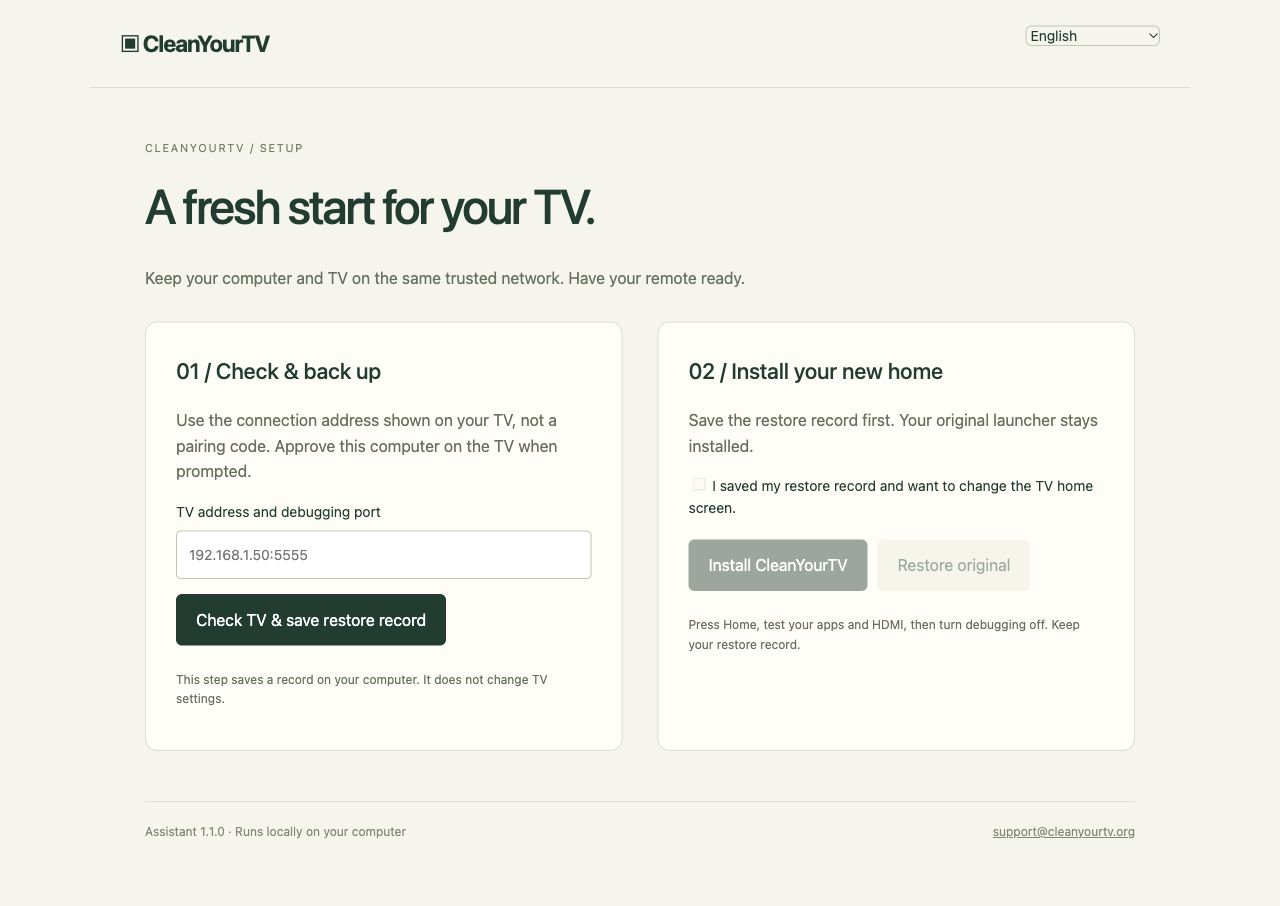
Our case for the best Android TV launcher for guided self-service setup rests on this combination. You receive a home screen to use every day and the material needed to work through the installation. A person still needs to follow the instructions and approve the connection on the television.
Start with the installation guide. It links to the relevant troubleshooting steps if you cannot find the debugging settings, connect to the TV, or make Home open the intended launcher.
Keep a route back to the original home screen
Changing a shared television is easier to manage when the recovery steps are part of the plan. The CleanYourTV assistant saves the original launcher configuration for the supported workflow, and the kit includes restore instructions.
Keep that record on your computer. It belongs to the specific television and configuration involved, so use the matching device when following the restore process. After installation, check Home, a normal restart, Settings and the inputs you use.
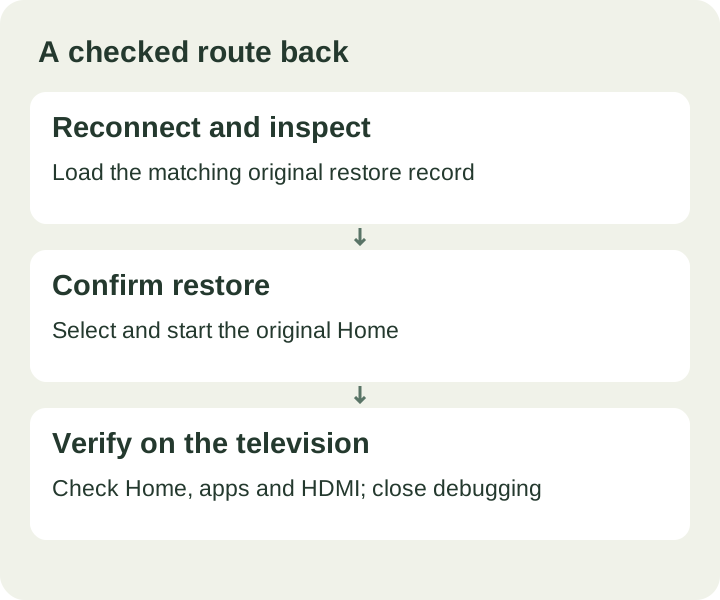
The best Android TV launcher for your home should fit the way you maintain that device as well as the way you watch it. Our default launcher guide explains the checks, and the restore guide keeps the return path easy to find.
What the US$19 self-service kit includes
CleanYourTV is a one-time US$19 purchase with no subscription. The package is delivered through your account after payment is confirmed.
| Included | What you use it for |
|---|---|
| CleanYourTV launcher APK | Install the TV home-screen application |
| Windows and Mac assistants | Follow the supported installation and restore workflow |
| Pictured guides in six languages | Work through preparation, setup and checks |
| Theme examples and settings guidance | Adjust the appearance and layout |
| Restore tools and instructions | Return to the saved original configuration |
| Account downloads and order access | Find your purchased files again |
The best Android TV launcher purchase for you should match what you want delivered. Here, the value is the launcher together with the computer tools and organized instructions. The first package is self-service; streaming memberships and a remote installation appointment are separate from this offer.
If the product does not work successfully for you, contact support to discuss the issue and a refund. Include your order number, television model, system version and the step that did not work so the problem can be understood.
Decide whether CleanYourTV fits your setup
Use this quick decision table before choosing the best Android TV launcher for your device.
| Your situation | A useful next step |
|---|---|
| You want CleanYourTV's layout plus computer tools and pictured setup guidance | Check compatibility, then choose the self-service kit |
| You only want fewer personalized recommendations on Google TV | Read the built-in apps-only mode guide first |
| You want extensive categories, channels or wallpaper controls | Compare the current official features of alternatives such as Projectivy |
| You use Samsung Tizen or LG webOS without an Android TV device | An Android launcher will not install directly on that TV system |
| You want to remove advertisements inside a streaming app | Check that service's own options; changing Home does not change video playback |
Our compatibility check helps you identify the system and setup requirements. The current kit targets Android 8 or later with a supported debugging connection; model, region and firmware still determine the available installation controls.
For a wider comparison, read our guide to home screens without ads. It explains the differences between the built-in mode, individual launcher apps and a paid installation package.
Your first evening with a cleaner Home
Once you have checked the requirements, use a simple sequence: download the package for your computer, follow the pictured preparation steps, authorize the TV connection, and keep the saved configuration. Install the launcher and check the supported Home setup.
Then arrange your favorite TV apps, try the remote from your usual seat, and test the inputs you use. Keep the restore record and close debugging when you have finished.
That is the everyday result we design CleanYourTV around: a familiar television with a clearer starting point. If your idea of the best Android TV launcher includes useful setup tools and instructions alongside the interface, the US$19 kit brings them together.
Is CleanYourTV a free Android TV launcher?
The CleanYourTV self-service kit costs US$19 once. If your priority is a free change to Google TV recommendations, apps-only mode may meet that narrower need. It can still show sponsored content and limits some Google TV features.
Do I need a computer after installation?
The computer is used for the supported setup workflow and, when needed, restoration. Day-to-day viewing uses the television and remote. Save your installation files and restore record somewhere you can find them later.
What makes it the best Android TV launcher for me?
Choose it when you want the CleanYourTV interface, meet the device requirements, and value having desktop assistants, pictured instructions and recovery guidance in one purchase. Those are the reasons behind our recommendation. Your television and daily habits determine the fit.
ONE KIT. ONE PAYMENT.
Your calmer home, with a clearer setup.
Get the CleanYourTV self-service kit for US$19, paid once: the TV launcher, Windows and Mac assistants, pictured guides and restore instructions. Check your device, then follow the setup steps.
Check TV compatibilityUnsuccessful use? Discuss a refund by email.
Sources and review notes
CleanYourTV installation guide ↗Google: apps-only mode and its limits ↗Projectivy: official feature description ↗Official guidance and current product capabilities reviewed October 20, 2026. Menus vary by model, region and firmware. Diagrams explain the steps; they are not evidence of a physical test on a particular TV.