 CleanYourTV
CLEANYOURTV · Home screen customisation
Customize Google TV home screen: apps, layout and wallpaper
What would you like to change?
Choose a goal to get a suitable starting point. This guide does not change your TV.
Start with native app ordering
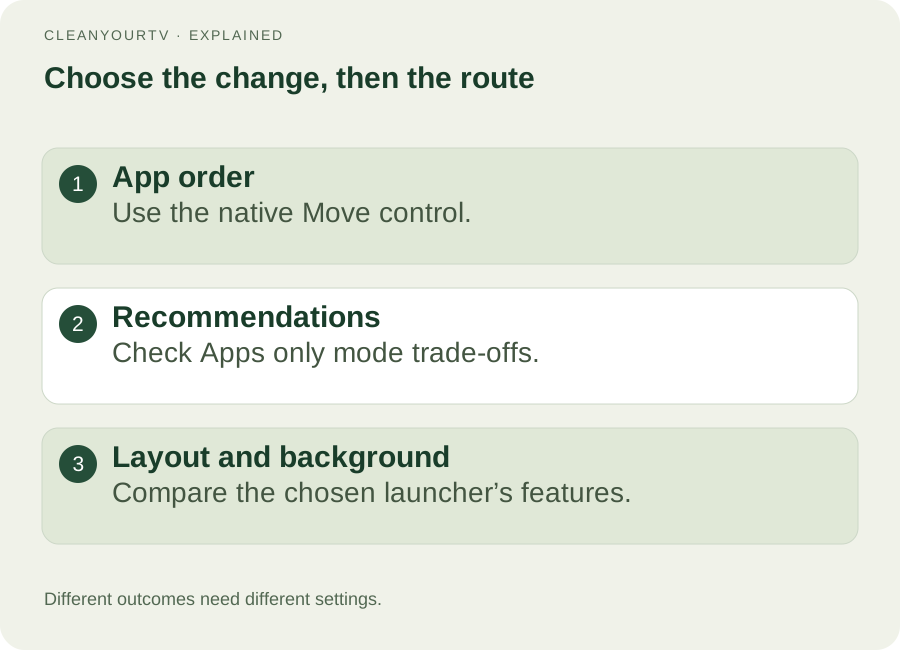
- Open For you or Apps, then find Your apps (or See all).
- Highlight an app, hold Select or OK, choose Move, and confirm the position.
- Press Back, return Home and check that the order remains.
To customize Google TV home screen, start with the change you actually want: put favourite apps first, reduce personalised recommendations, or choose a different layout. These are three different tasks. Moving an app does not replace the launcher, and changing the idle screensaver does not change the picture behind your app tiles.
Use the chooser above to find the relevant route, then follow the matching section below. The native settings are a useful first step because you can keep your current interface. You only need a different launcher when the appearance or organisation you want is outside those settings.
Start with your interface and one clear goal
Check which device produces the screen you are changing. A streaming box connected through HDMI has its own settings; the television's picture menu is a different place. Look at Settings → System → About and note the model and Android TV OS version. Manufacturer labels can vary.
Google TV and classic Android TV share some underlying technology, but their Home controls are different. Google's interface help describes separate options for each. Do not follow a classic Android TV channel-row tutorial and assume those switches will appear on Google TV.
A useful first goal is specific: “Put my three most-used apps at the front.” A second goal might be “Use a darker background.” Keep them separate so you can tell which change solved the problem. A different icon style after an update does not by itself mean your personal ordering controls have disappeared.
Customize Google TV home screen without installing anything
On the For you or Apps tab, find the Your apps row. Highlight an app, hold the remote's Select or OK button, choose Move, and use the directional buttons to place it. Confirm the position and press Back to save the ordering. On some televisions, begin with See all instead.
The iFFALCON/TCL guide documents that See all variation. Treat these paths as ways to locate the control, rather than a promise of identical labels. If holding OK immediately opens the app, return to its tile and hold instead of tapping; also check that the remote is controlling the streaming device you intended.
For example, move your main streaming app first, a second service next, and a local player third. Return Home and try opening each with the remote. The useful result is less searching through the row, not a larger collection of installed apps.
When you customize Google TV home screen this way, you change app ordering within the supplied interface. It does not move every content section, replace sponsored banners, or alter the design of the apps themselves.
Reduce recommendations, with the right expectations
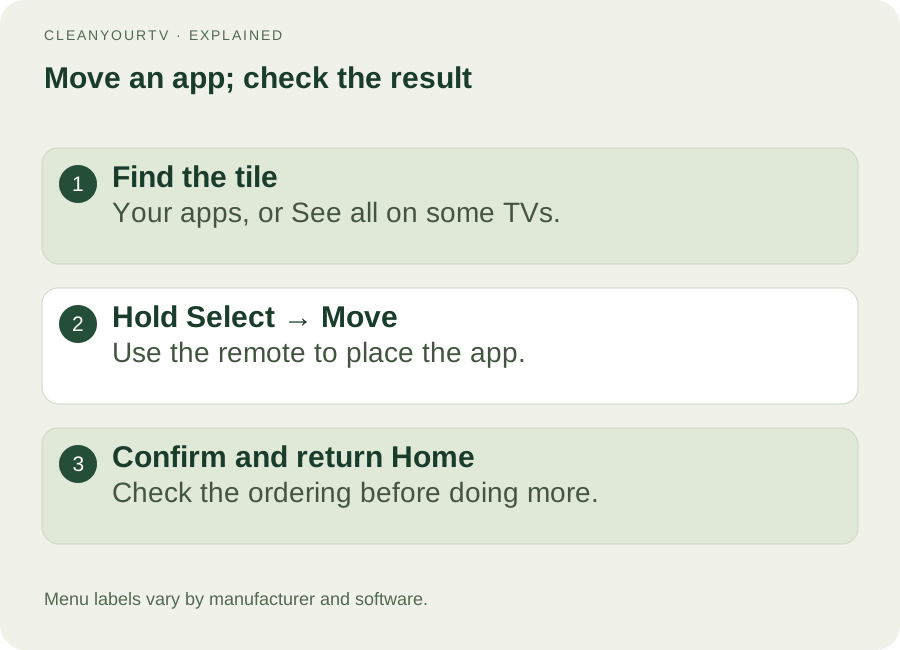
If the distracting part is personalised content rather than app order, consider Apps only mode. On the current Google path, open All settings → Accounts & Profiles, select your profile, and turn on Apps only mode. Some manufacturers use an account-management menu with different wording.
This mode changes the Home experience for that profile. Google states that sponsored content and teasers can still appear, and some functions, including Search or Google Assistant, are unavailable in this mode. It is therefore a different choice from a promise to remove every advertisement.
Our Apps only mode guide covers that trade-off and how to return to the normal view. If your goal is an ad-free alternative launcher, use the separate ad-free launcher comparison. Neither route removes adverts inside a streaming programme.
This distinction matters when you customize Google TV home screen for another person: a simpler view may be helpful, but losing a search feature they use could make everyday viewing harder. Try the reversible setting and check their regular tasks before deciding it is an improvement.
Hide, remove and uninstall are different actions
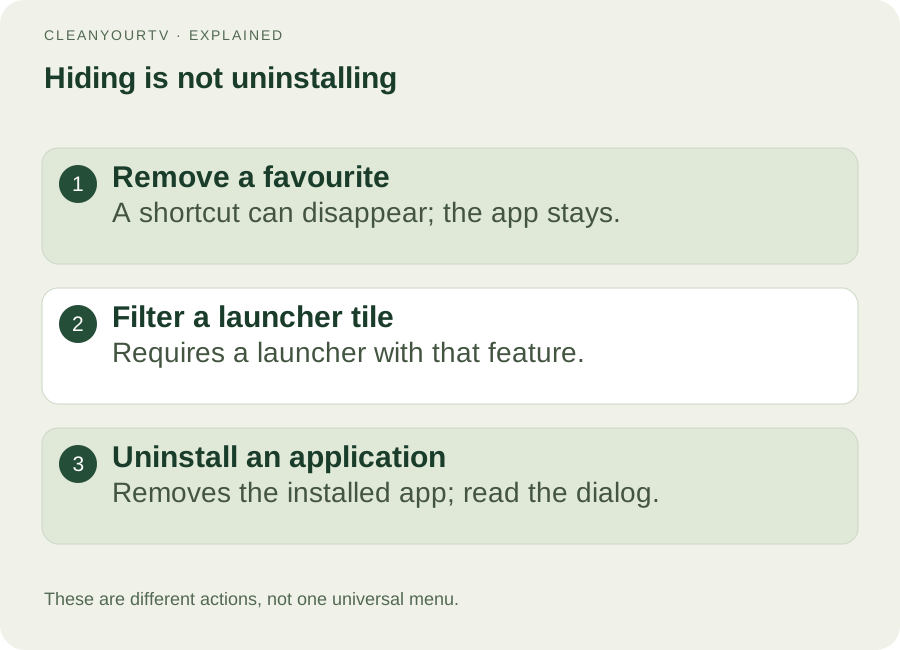
“Hide this app” can mean removing a shortcut, excluding a tile from a custom launcher, or uninstalling the application. Those outcomes are not interchangeable. Removing a favourite on classic Android TV can leave the app installed; Google's Google TV removal instructions lead to Uninstall.
Before confirming a removal, read the actual menu. If the dialogue says Uninstall and you want to keep the app, cancel it. A launcher that supports hidden tiles may offer another route, but that is a feature of that launcher, not a universal Google TV switch.
CleanYourTV can filter configured hidden-app package names through its theme configuration. The current television settings screen does not provide a confirmed “hide any app” button for each tile. Do not buy the installation kit expecting that specific menu.
If an application disappeared accidentally, the problem is different. Follow installed apps not showing to check its installation and TV entry point. Trying to customize Google TV home screen should not turn an accidental missing icon into an instruction to uninstall it.
Choose a launcher when you need a different layout
Consider a custom launcher if your priority is a different grid, background or organisation model. Start by comparing what each option actually changes in the launcher selection guide. Installation and becoming the default Home app are separate stages, and firmware can restrict the latter.
Projectivy supports categories, channels and a wider range of background and icon customisation. Its official Play listing identifies some wallpaper and advanced icon options as premium features. Use its own current setup instructions; the CleanYourTV assistant is a separate product.
With CleanYourTV, the remote settings offer four to seven grid columns and animation controls. Theme files can also define the dock, hidden package list and a static background image. Applying a theme file is a computer-and-debugging workflow described in the kit, rather than a native Google TV wallpaper picker.
To customize Google TV home screen responsibly, choose the smallest route that meets your goal. Native app ordering costs no launcher purchase. A third-party app may suit richer visual customisation. The CleanYourTV US$19 self-service kit is an option for its own launcher and installation workflow; first use the free connection check.
Keep the wallpaper separate from the screensaver
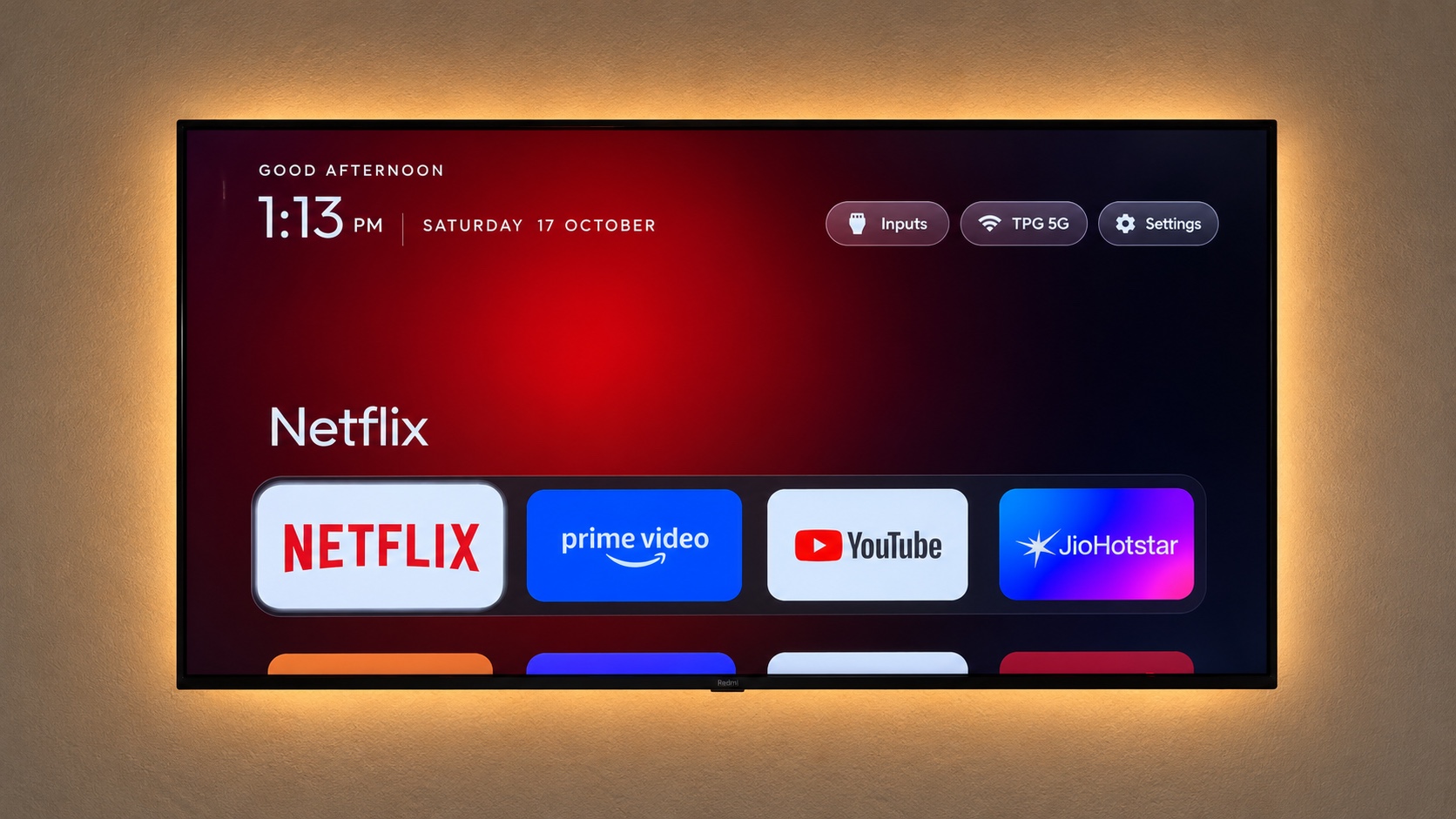
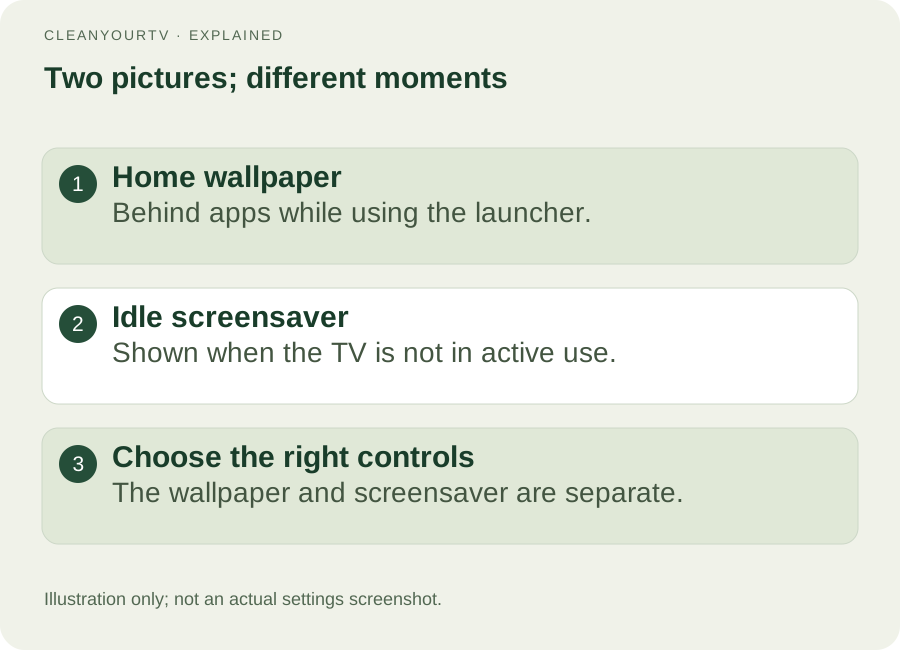
A wallpaper is visible while you are using Home. A screensaver appears when the television is idle. Setting a Google Photos album as a screensaver will not necessarily put those photos behind your app row.
If your request to customize Google TV home screen is mainly about the background, first identify the launcher currently drawing that screen. Use its background controls and check whether the feature needs a theme file or a separate licence. Do not install an unrelated photo app just because its description mentions screensavers.
For an idle photo display, begin with the television's Ambient mode or screensaver settings. The source options depend on device and software. Our Google TV screensaver guide separates current TV settings from older Chromecast controls, with Google's screensaver help as a source.
Check the result before changing anything else
After each change, press Home, open a favourite app and return. Check whether the order remains, whether the text is comfortable to read, and whether another household member can still find the normal inputs.
After changing a default launcher, also check a restart and keep a route back to the original interface. Our default launcher guide explains the Home checks for CleanYourTV; other launchers require their own supported steps. Do not copy a device-specific package-removal command just to change a layout.
The final check for “customize Google TV home screen” is the everyday task you started with. If the apps you need are easier to reach and your normal controls still work, stop there. You do not need every possible modification.
Questions before you change Home
Can I customize Google TV home screen and remove all adverts?
You can reorder apps and reduce personalised recommendations using supported native settings. Apps only mode can still show sponsored content. An alternative launcher changes its own Home screen; it does not block advertising inside streaming apps.
Does Google TV hide apps without uninstalling them?
Do not assume that it does. Read the removal dialogue and distinguish a shortcut, a favourite and an installed app. Some custom launchers support hidden tiles, but their controls and limits differ.
Is changing a wallpaper enough to change the launcher?
No. A background image, an idle screensaver and the default Home application are separate choices. Decide which one you need, use its specific setting, and verify the result before moving on.
START WITH A FREE CHECK
Check the connection. Then simplify your home.
Download the free Windows or Mac connection helper first. After the check passes, the US$19 one-time kit includes the launcher, guided installation and pictured instructions.
Start the free check →Check TV compatibilityUnsuccessful use? Discuss a refund by email.
Sources and review notes
Google: Home, app ordering and Apps only mode ↗iFFALCON/TCL: customise the Google TV Home screen ↗Projectivy: official features ↗Google: screensaver settings ↗Reviewed October 22, 2026 against Google and manufacturer guidance and current CleanYourTV controls. Images are labelled as product references or explanatory illustrations; menus depend on the actual device.