 CleanYourTV
CLEANYOURTV · Screensavers and photos
Google TV screensaver: set up photos and Ambient Mode
A Google TV screensaver puts photos or artwork on the idle display. Start with Ambient mode, choose a source, and confirm the albums the device can use. First identify which device produces the picture: a television, a Google TV streaming box, or an older Chromecast.
This guide separates those routes and helps you check missing photos, privacy and unexpected black screens. The built-in settings do not require a CleanYourTV purchase. Choose the matching section below, make one change, then check the result on your television.
Identify your device before changing settings
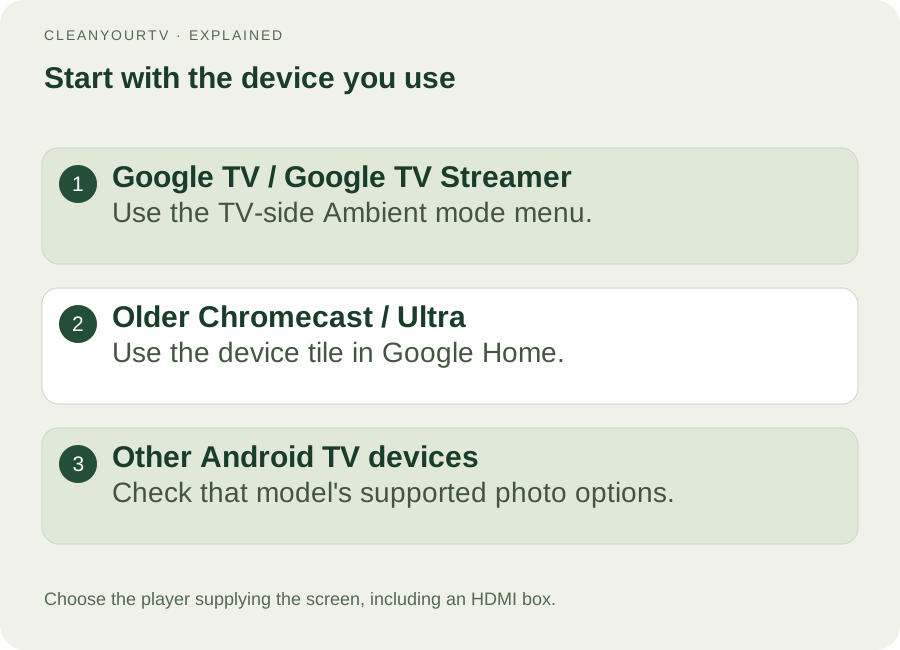
The Google TV screensaver route depends on the player attached to your screen. If an HDMI box supplies the interface, use its settings. Your television's own picture menu controls something different.
| Your device | Start here |
|---|---|
| Google TV television, Chromecast with Google TV, or Google TV Streamer | Use the television-side Ambient mode instructions below. |
| Older Chromecast or Chromecast Ultra without Google TV | Use the Google Home route in the next section. |
| Another Android TV television or box | Check that model's supported screensaver options; do not assume every Google TV menu exists. |
Google explicitly separates older Chromecast devices from its Google TV products. Record the model before following a tutorial. An Android TV screensaver article for a different brand may use menu names your device never had.
Set up a Google TV screensaver with your photos
Google's current setup instructions give this route:
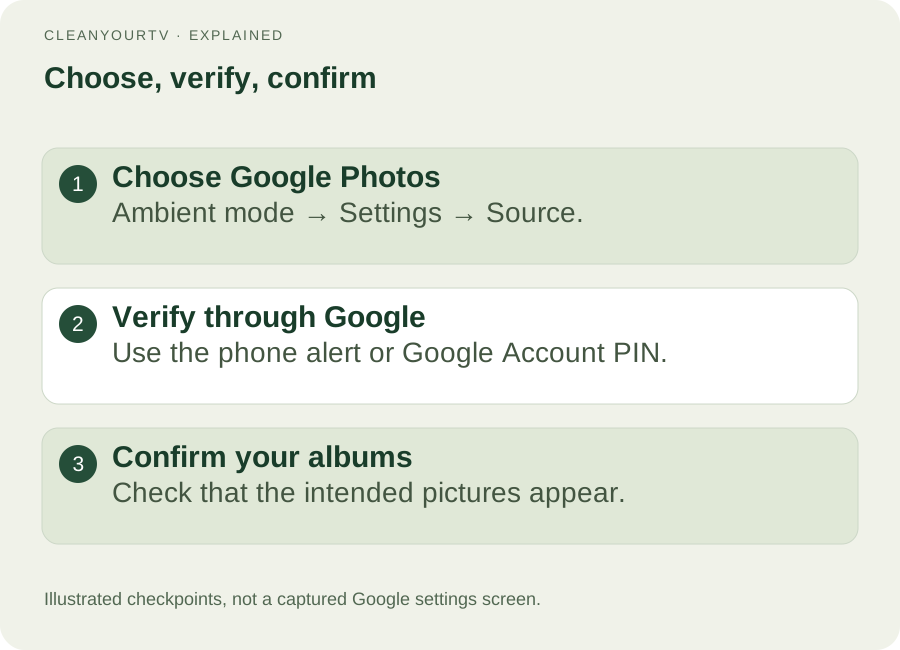
- From Home, open Settings → System → Ambient mode.
- Enter Settings → Source, then choose Google Photos.
- Verify your identity using the phone alert or your Google Account PIN.
- Select the albums you want and choose Confirm.
If Google presents an account-linking QR code or approval screen, complete its instructions yourself. Check the selected account before approving access. Never enter a PIN or verification code into this website.
Return from settings and observe the idle display. Success means seeing a photo from the intended album. A selected checkbox alone cannot show that the correct television received the change. Use a recognisable, non-sensitive photo so the result is easy to distinguish from gallery artwork.
Menu wording can vary. TCL's instructions also describe a phone route on its supported televisions; start with the current TV controls when available rather than switching between tutorials midway.
Use Google Home for an older Chromecast
For a legacy Chromecast or Chromecast Ultra, open Google Home → Home → All devices, hold the correct device tile, and enter Settings → Ambient mode → Google Photos. Select the albums for that device. Google's legacy-device guide requires a Google account and distinguishes this from the Google TV screensaver process above.
Check the device name carefully if your home contains several screens. A useful test is to change one album selection on one player, then look at that specific screen. If legacy preferences have not taken effect, Google's guide suggests trying a restart. Do not confuse restarting with a factory reset, which removes settings and accounts.
Choose your Google TV screensaver style
For a Google TV screensaver without personal images, choose Art gallery. Where offered, Custom AI Art creates images from a description or suggested template; TCL documents that separate option. You can choose artwork without first making a private family album suitable for visitors.
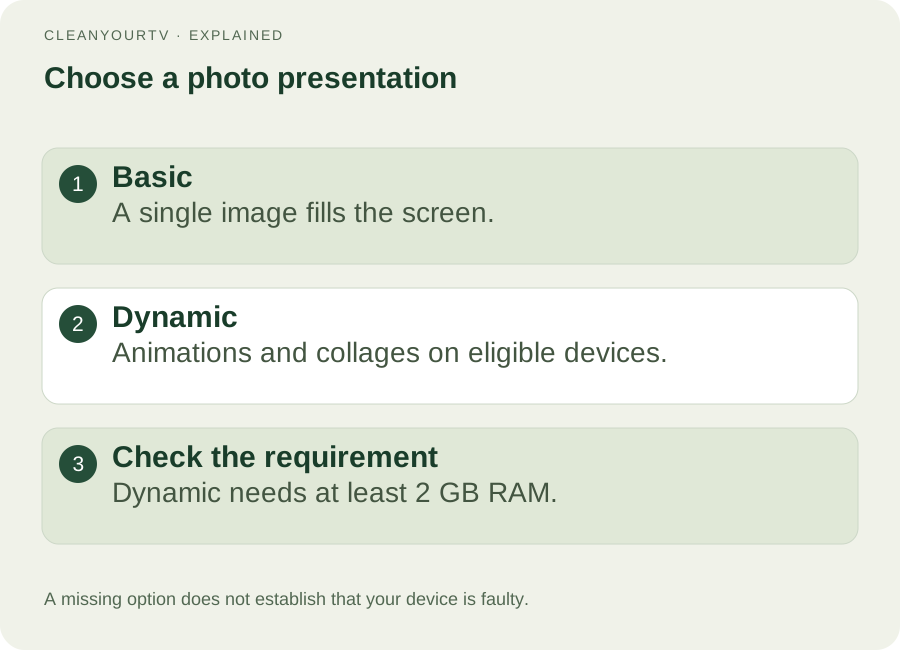
For photos, Basic uses a full-screen presentation. Dynamic adds animation and collages. Google's 2026 feature announcement and current help limit Dynamic to eligible Google TV devices with at least 2 GB RAM. Missing that choice does not establish a fault.
Select a presentation for the room: a single landscape for a quiet background, or a collage when you prefer several memories together. Availability matters more than copying every option in a promotional image. Gemini photo creation and search have their own requirements; Android TV OS 14 is not stated as a universal requirement for the ordinary photo screensaver.
Separate slideshow speed from sleep settings
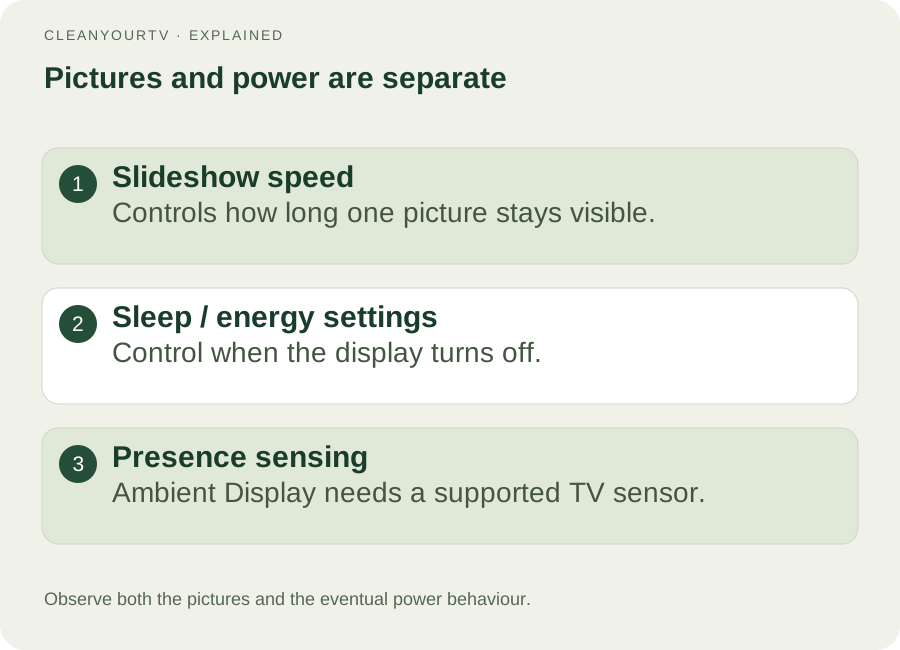
A Google TV screensaver changes the idle picture. Slideshow speed changes how long an individual image stays visible. A Sleep Timer switches the television off, while Energy Saver can turn off an inactive display. TCL's system settings guide explains those separate controls and notes model differences.
If photos appear and the screen later becomes black, investigate power settings before repeating account approval. Choose the viewing period you actually want, test it, and keep the power-saving behaviour appropriate for your household.
Some televisions also have presence-sensing Ambient Display. Google's Ambient Display help requires a presence sensor; this is not a universal Chromecast feature. On supported models, movement and room conditions can affect whether the screen stays on. Follow that model's instructions instead of assuming the photo selection failed.
Fix Google TV screensaver photos and missing albums
When a Google TV screensaver shows unexpected pictures, check four things in order: the actual player, the selected account, the source, and the confirmed album. Change one item at a time so you can identify what worked.
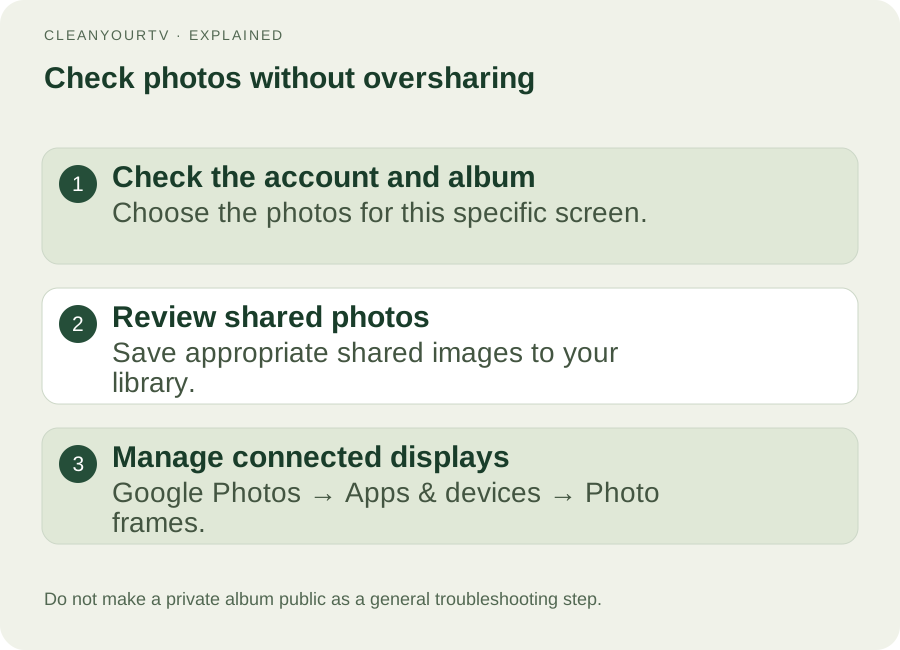
For a missing shared album, Google's photo-frame privacy guidance explains that hidden people or pets can prevent unsaved shared photos from appearing. Its suggested route is to open the shared album in Google Photos and use Save photos. Do not make the album public or remove all privacy protections as a general fix.
Only some images appearing can reflect curation or image source. The legacy Chromecast guide also excludes archived photos. Try a small private test album with three to five clear, ordinary landscape photos. That number is our troubleshooting suggestion, not a Google requirement or a promise that every picture will play.
If an image is sensitive, switch to artwork while investigating. Google says removal from ambient displays after deletion, archiving or moving to Locked Folder can take hours. In Google Photos, Settings → Apps & devices → Photo frames lets you manage or remove a connected device.
Check the finished result and your next task
Finish the Google TV screensaver setup by checking the correct player, intended photos and expected idle-to-sleep behaviour. Leave the Google TV screensaver running long enough to observe your chosen settings. This page cannot detect or certify those settings remotely.
If your goal is the app row or Home background, use our Google TV home screen customisation guide. A screensaver changes idle time; launcher layout is a separate task. The US$19 CleanYourTV installation kit is a separate launcher product and cannot unlock unsupported Google photo features or fix system power settings through purchase.
Frequently asked questions
Where are Google TV screensaver settings?
Start with Settings, System and Ambient mode on Google TV. An older Chromecast uses Google Home instead. If labels differ, identify the model before applying another device's instructions.
Why is Dynamic missing?
Check eligibility and the 2 GB RAM requirement. Available options depend on the device; reinstalling an unrelated launcher does not establish support.
Can I use artwork instead of private photos?
Yes, choose Art gallery where offered. This gives you an idle image without displaying your family albums to everyone in the room.
Does a Google TV screensaver change my Home wallpaper?
No. Selecting idle photos does not replace the app layout. Follow the controls for the launcher drawing your active Home screen.
Does a Google TV screensaver need an installation kit?
No purchase from CleanYourTV is required for the native steps here. Device support and Google account access determine which built-in photo options you can use.
INDEPENDENT READING
Working on the Home layout instead?
The active app layout and idle photos use different controls. Use the Home guide if your next task is arranging apps or choosing a launcher.
Customise the Google TV Home screen →Check TV compatibilityUnsuccessful use? Discuss a refund by email.
Sources and review notes
Google: current screensaver settings and photo verification ↗Google Photos: photo frames, shared albums and privacy ↗Google: legacy Chromecast Ambient mode ↗Google: Dynamic slideshows and 2026 feature eligibility ↗Google: presence-sensing Ambient Display ↗TCL: screensaver setup and artwork ↗TCL: Ambient Mode, Energy Saver and Sleep Timer ↗Reviewed October 22, 2026 against current Google and manufacturer guidance. Illustrations explain the settings; availability and labels depend on the device and software.