 CleanYourTV
CLEANYOURTV · TV installation
ADB screenshot Android TV: export a PNG you can open
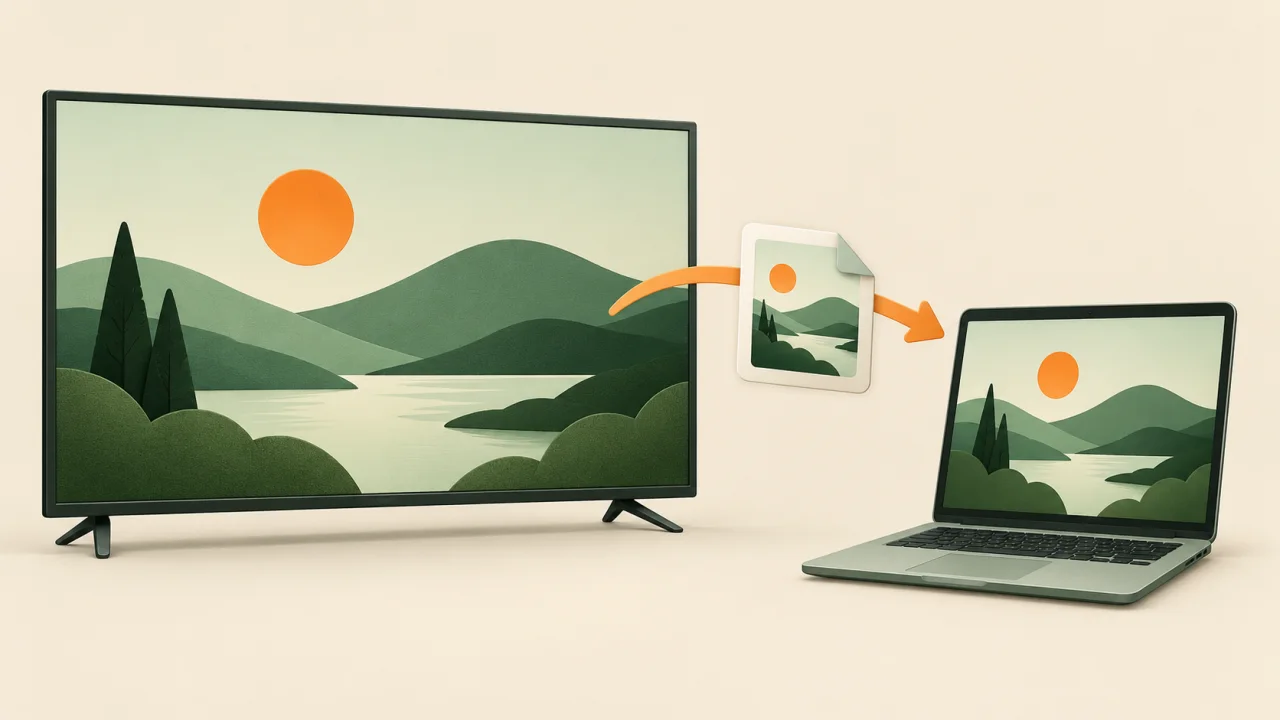
This ADB screenshot Android TV walkthrough captures an ordinary television interface, saves it on the selected device and copies the PNG to a known folder on your computer. You will check the file and open it before removing the temporary TV copy. It does not require changing your launcher or purchasing CleanYourTV.
Tested on 1 November 2026: macOS zsh 5.9, Platform-Tools 37.0.1 and two official Android TV 12, API 31, ARM64 emulators. The selected emulator produced a PNG that we exported, checked and opened in a browser. The second emulator did not receive the file. This is emulator evidence, not a physical-TV test. PowerShell arguments were checked separately on macOS; Windows-to-TV capture was not tested.
Jump to preparation, device selection, Mac commands, Windows commands, PNG verification, errors or FAQ.
Prepare the tools and an ordinary TV screen
Download your computer's package from Google's official Platform-Tools page and extract the whole folder. Keep its accompanying files together. The examples use the executable's explicit path, so adding it to your system PATH is unnecessary.
An ADB screenshot Android TV session needs an already authorized debugging connection. Follow the wireless-debugging guide or your model's documented method first. A pairing code and a connection endpoint serve different purposes; do not assume every television accepts port 5555.
Show a normal Home screen or a settings page that you are allowed to capture. Close account, payment and password screens. Keep the television awake until capture finishes. These commands run on the computer, not inside the TV's search box or a phone remote app.
If you are documenting a setup problem, first bring the relevant message into view and note what you did immediately before it appeared. A screenshot records the current frame, not the earlier interaction. Keep a brief written description alongside it so a support reader can distinguish a connection error from an application problem.
CleanYourTV's desktop assistant handles its own installation workflow. It is not the screenshot-export tool described here. For that product's installation steps, use the installation guide.
ADB screenshot Android TV: select one device
First set the executable path for your own computer and list connected targets.
Mac Terminal:
adbPath='/Users/yourname/Downloads/platform-tools/adb'
tvSerial='SERIAL_FROM_ADB_DEVICES'
"$adbPath" devices -l
Windows PowerShell:
$adbPath = 'C:\Tools\platform-tools\adb.exe'
$tvSerial = 'SERIAL_FROM_ADB_DEVICES'
& $adbPath devices -l
Replace the serial placeholder with the exact first-column value belonging to your TV. A network target and an emulator can have different-looking identifiers. Confirm the model and intended screen rather than choosing the first row.
The state must be device. If it is unauthorized, approve your own computer through the TV's authorization flow. If it is offline, absent or not fully started, fix that before capturing. The connection guide separates those problems.
Keep the same serial in every later device command. Our run selected emulator-5592 while emulator-5594 remained unchanged. Those identifiers describe our test, not values to copy for your television.
Capture and export on a Mac
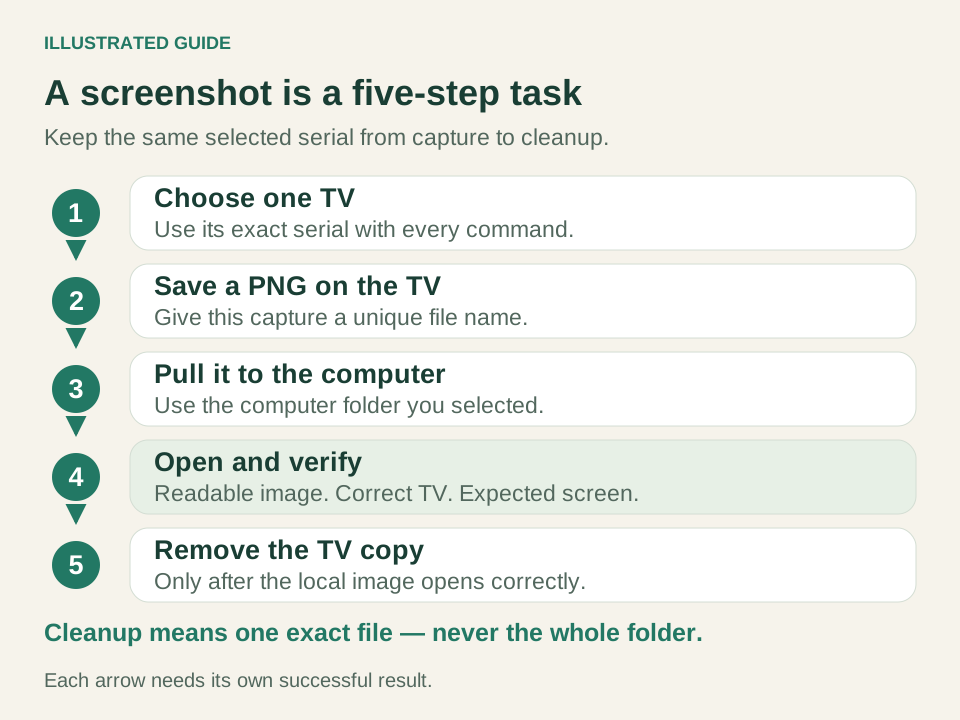
For ADB screenshot Android TV on macOS, retain the variables from the preceding Mac block. Create a new capture identifier once, then reuse it through verification and cleanup. The device filename deliberately contains no spaces or shell punctuation; your computer folder may contain spaces.
captureId=$(uuidgen)
devicePng="/sdcard/cleanyourtv-${captureId}.png"
outputDir="$HOME/Pictures/TV Captures"
localPng="${outputDir}/tv-${captureId}.png"
mkdir -p "$outputDir"
Now capture, then copy the file. The second line runs only if the first succeeds:
"$adbPath" -s "$tvSerial" shell screencap -p "$devicePng" &&
"$adbPath" -s "$tvSerial" pull "$devicePng" "$localPng"
The first command writes on the TV. The second retrieves that exact file to the computer path stored in localPng. Google's ADB screenshot documentation describes device-file capture and subsequent retrieval.
The computer folder is created before transfer, and the destination includes a filename rather than just a directory. This makes the result's location explicit even when your terminal started somewhere unexpected. If you choose another folder, change its variable before capture and keep the later commands consistent. Quoting protects spaces; it does not grant permission to an inaccessible folder.
If capture fails, stop and preserve the error. If only copying fails, keep the TV file and correct the destination before repeating the pull. Do not generate a new identifier halfway through retrieving an existing capture.
Capture and export with Windows PowerShell
The ADB screenshot Android TV PowerShell example uses a quoted executable and separate arguments. Replace the executable and serial values in the earlier Windows block. Run these commands in PowerShell, rather than pasting them into Command Prompt.
$captureId = [Guid]::NewGuid().ToString('N')
$devicePng = "/sdcard/cleanyourtv-$captureId.png"
$outputDir = Join-Path $env:USERPROFILE 'Pictures\TV Captures'
$localPng = Join-Path $outputDir "tv-$captureId.png"
[void][System.IO.Directory]::CreateDirectory($outputDir)
Check each native command's exit code:
& $adbPath -s $tvSerial shell screencap -p $devicePng
if ($LASTEXITCODE -eq 0) {
    & $adbPath -s $tvSerial pull $devicePng $localPng
    if ($LASTEXITCODE -ne 0) { throw 'Pull failed. Keep the device file.' }
} else {
    throw 'Capture failed. Do not reuse an older PNG.'
}
This route transfers a file instead of redirecting PNG bytes through the host shell. PowerShell 7.4 and later preserve native stdout bytes during redirection, so it would be inaccurate to say every PowerShell version corrupts screenshots. The two-step method keeps the main workflow consistent without relying on that distinction.
Our PowerShell argument checks passed on macOS, including executable and destination paths containing spaces. They did not execute adb.exe on Windows or validate a Windows connection to a TV.
Find, inspect and actually open the PNG
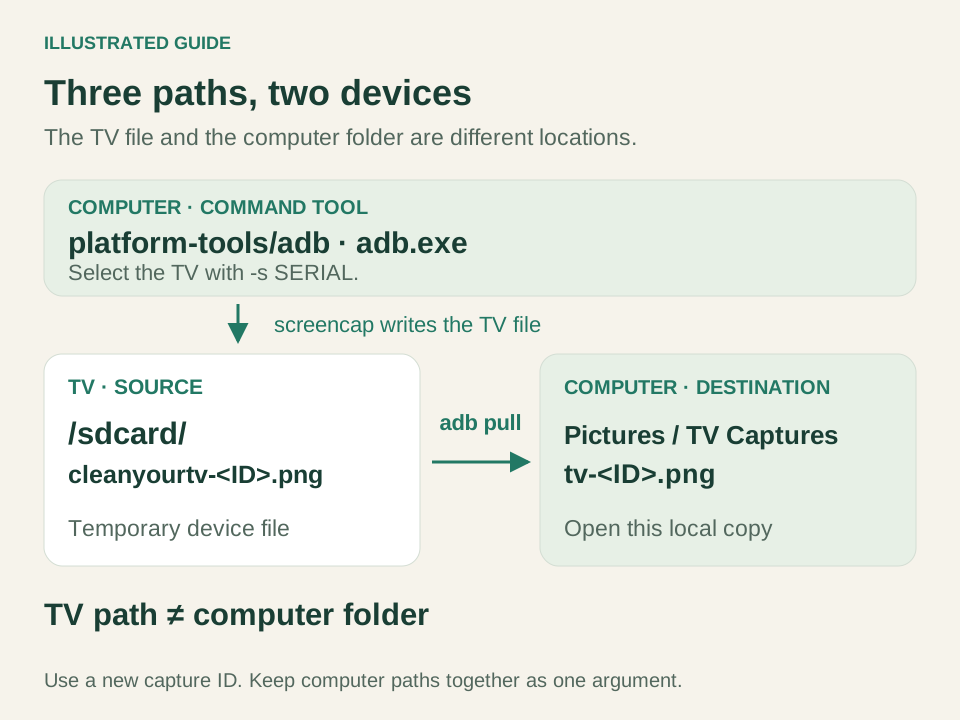
An ADB screenshot Android TV result is complete only when the exported image opens and shows the intended interface. A successful transfer message, a .png extension or a nonzero file size is insufficient by itself.
Mac Terminal:
file "$localPng"
sips -g pixelWidth -g pixelHeight "$localPng"
open "$localPng"
The type should be PNG. Check the reported dimensions, then inspect the picture in your viewer. Your television's output need not match our emulator's resolution. Confirm the current screen, readable text and the correct device before sharing it.
PowerShell:
Get-Item -LiteralPath $localPng | Select-Object FullName, Length
Invoke-Item -LiteralPath $localPng
Check the image's actual dimensions in your viewer or file properties. The length command reports file information; it does not decode the PNG or establish that the picture is readable.
For another capture, return to initialization and create a new identifier, then run both steps again. Do not judge freshness from the file extension alone. Compare the visible screen with the interface you intended to record. If it shows a different device or an old state, stop and recheck the selected serial before gathering more images or deleting anything.
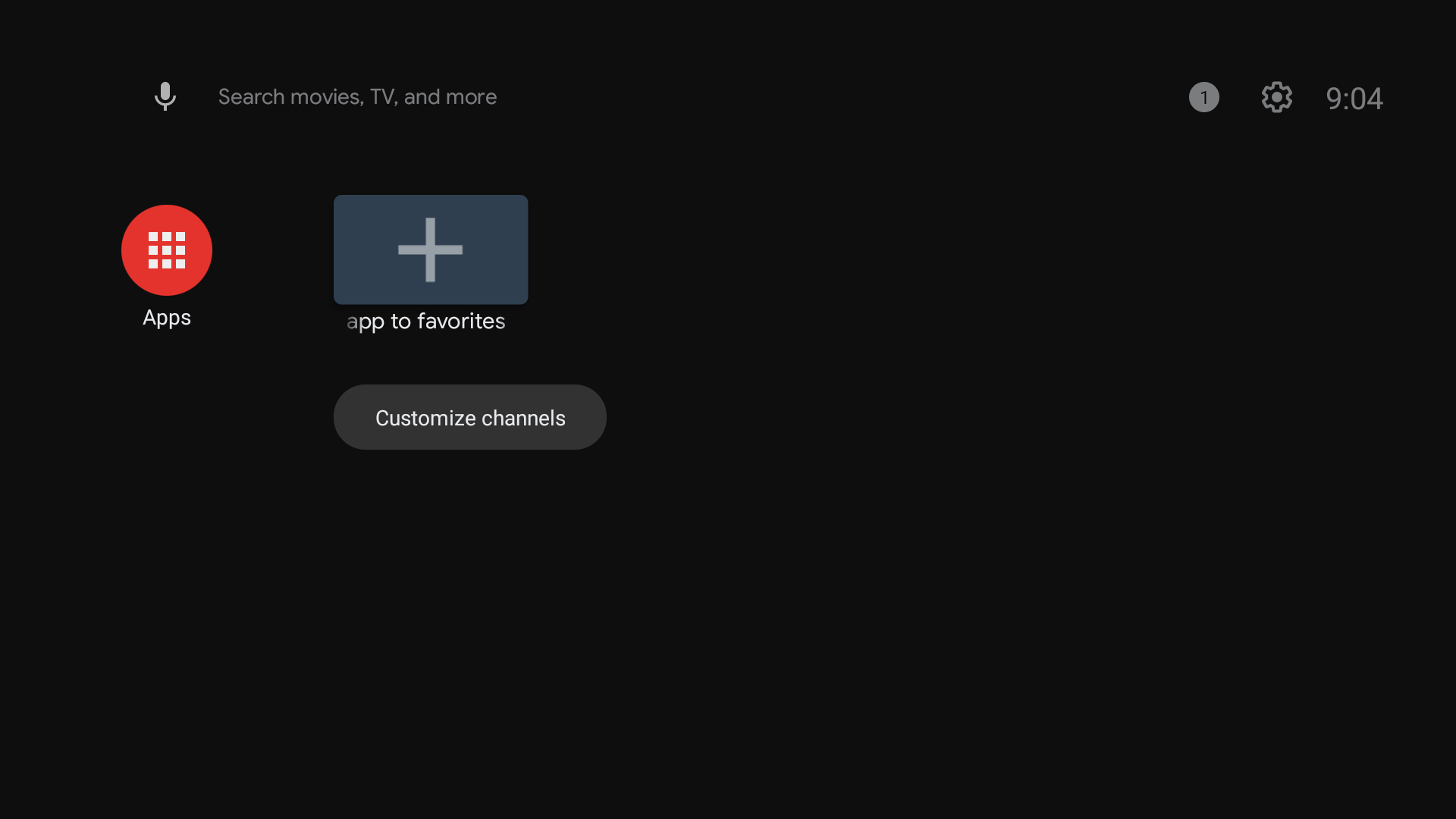
Our ADB screenshot Android TV run exported a 1920×1080 PNG of 42,463 bytes. Device and computer SHA256 checks matched, decoding succeeded, and opening the actual file displayed the initial Home screen with Apps and Customize channels. There was no private account on that screen. The second emulator had no corresponding file. Your capture will have its own content, size and checksum.
Match the failure to the failed step
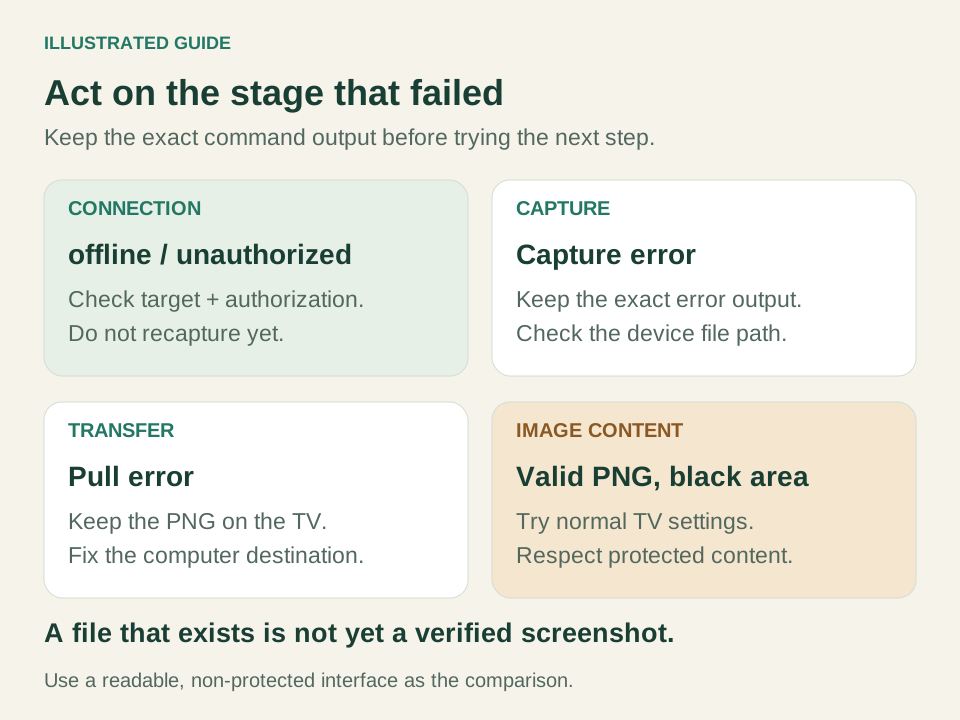
When an ADB screenshot Android TV attempt fails, record which command failed and keep its complete output. Connection, capture, transfer and image content are separate checkpoints.
| Observation | Next check |
|---|---|
| Unauthorized, offline or missing target | Restore the authorized connection before capturing. |
| More than one device | Supply the intended serial with every device command. |
| Capture reports a path or permission error | Confirm the selected device and writable destination; retain the error. |
| Capture succeeds, pull fails | Check the same serial, exact remote filename and computer folder permissions. |
| Export is empty or cannot open | Treat it as failed; investigate before creating a fresh capture. |
| Image opens but the target area is black | Test an ordinary permitted screen; content protection is one possible limit. |
Do not fix an unknown error by rooting the TV, disabling device protections or deleting unrelated files. If you return later, verify that your variables still describe the same capture. A new file identifier helps distinguish a fresh result from yesterday's screenshot.
Understand private and protected screens
The ADB screenshot Android TV method cannot promise a readable picture of every application. Android's FLAG_SECURE documentation explains that secure window content can be kept out of screenshots and nonsecure displays.
A valid PNG may therefore contain a black or blank region. That is not evidence that downloading another launcher will unlock the content, and it does not justify bypassing protection. Our ordinary emulator Home capture did not test streaming applications or protected video.
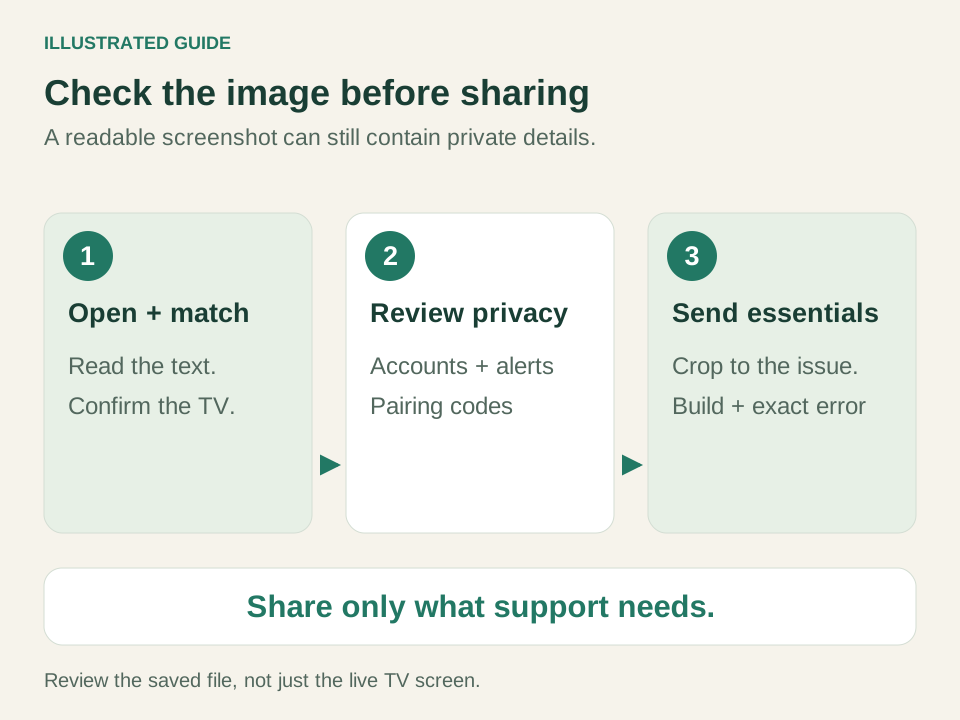
Before sending an image to support, inspect the whole frame for account names, email addresses, network details, notifications and personal recommendations. Redact sensitive information in a copy when necessary. Keep the original privately if you need it for your own diagnosis.
Clean up only this capture
Once the ADB screenshot Android TV output is readable on your computer, remove only the temporary file named by this session. Keep its variables unchanged until cleanup finishes.
Mac Terminal:
"$adbPath" -s "$tvSerial" shell rm "$devicePng"
PowerShell:
& $adbPath -s $tvSerial shell rm $devicePng
if ($LASTEXITCODE -ne 0) { throw 'Device-file cleanup failed.' }
These commands do not delete the computer copy. Our exported PNG remained available after its temporary device file was removed. If cleanup fails, record that separately and retry only the exact file when appropriate. Do not replace its name with a wildcard or delete the containing directory.
Optional: a short screen recording
An ADB screenshot Android TV support request sometimes needs movement rather than one frame. Android also documents screenrecord; keep it a separate, optional task with a new filename.
Our selected emulator ran screenrecord --time-limit 3 and exported an H.264 MP4. Its inspected duration was 2.257489 seconds, at 1920×1080, with no audio track. A three-second limit did not guarantee an exactly three-second result. The exported file played to the end in a browser and showed the ordinary Home interface.
The sampled utility's help lists a 180-second maximum and requires dimensions supported by its AVC encoder. Check your device's help before relying on a longer report; these limits are not a promise about every firmware. A successful PNG does not prove a working recording encoder, audio capture or protected-content recording.
Phone remote control is a different task
For this ADB screenshot Android TV workflow, the computer retrieves the file from the television. Taking a screenshot on your phone captures the phone's own display; it does not perform the commands above.
Google's phone-remote instructions describe playback, power, volume and text-entry controls. They do not document this PNG-export procedure. Use a model-specific capture feature only when its manufacturer actually documents one; do not infer it from a working virtual remote or casting connection.
ADB screenshot Android TV FAQ
Do I need to install a screenshot app on the TV?
Not for the documented ADB method, provided the authorized device supports the required shell utility. If the command is unavailable, consult that model's documentation instead of assuming a phone app or undocumented package will solve it.
Can I use these commands before debugging works?
No. Establish the authorized connection first. The developer-options guide explains that preparation; enabling the menu alone does not establish a connection or complete a capture.
Where is the finished screenshot?
The ADB screenshot Android TV export is the computer file stored in localPng, inside the selected Pictures folder. Open that path, confirm the expected screen and retain that copy. The temporary /sdcard/ file is a different file on the selected TV.
INDEPENDENT READING
Restore the connection before retrying capture
If the TV is absent, unauthorized or offline, fix that connection state before repeating screenshot commands.
Check the TV connection →Sources and review notes
Official ADB screenshot, file transfer and recording documentation ↗Official standalone Platform-Tools downloads ↗Zebra: Create a Screenshot with ADB, article 000021675 ↗Android secure-window screenshot limitation ↗Microsoft PowerShell redirection and byte-stream behavior ↗Microsoft Windows PowerShell call operator ↗Google TV app remote-control functions ↗Checked November 1, 2026 using macOS zsh 5.9, Platform-Tools 37.0.1 and two official Android TV 12 API 31 ARM64 emulators. The selected emulator produced a 1920×1080, 42,463-byte PNG; device/local SHA256 matched, decoding passed and the actual Home image was opened in a browser. The other emulator had no corresponding file, and the computer copy survived remote cleanup. PowerShell argument checks passed on macOS; Windows-to-TV execution and physical-TV capture were not tested. A bounded short MP4 export was inspected and played to the end in a browser; its ordinary Home frame was readable.