 CleanYourTV
CLEANYOURTV · Launcher customisation
Projectivy Launcher setup: layout, wallpaper, icons and backup
A useful Projectivy Launcher setup starts with three familiar apps, a readable background and a saved configuration. Build that small arrangement first, then add categories or custom artwork. You will have a clear result to check instead of changing several settings and wondering which one caused a problem.
This guide begins with Projectivy already installed and opening normally. It covers organisation inside the app; installing it and changing the system's default Home are separate tasks. The instructions were checked against official documentation and the developer's 4.72 release on October 22, 2026. We have not tested them on your television. English labels can differ with version or language.
Prepare one small layout before changing everything
Write down the three applications you open most, the background you want and whether other people share the remote. For example: a streaming service, a local player and a music app, with tools in a separate group. These choices give your Projectivy Launcher setup a practical target: everyone can find the regular apps without searching through maintenance shortcuts.
Keep an easy route to Projectivy's settings while experimenting. Photograph your current arrangement for your own reference, and export existing settings before replacing a layout you like. A photograph helps you remember positions; an exported configuration serves a different recovery purpose.
The official Play listing confirms categories, channels, adjustable spacing and app shortcuts. It also identifies custom wallpapers and advanced icon customisation as Premium features. Check our Projectivy Premium guide before planning changes that require that upgrade.
Arrange categories and the apps inside them
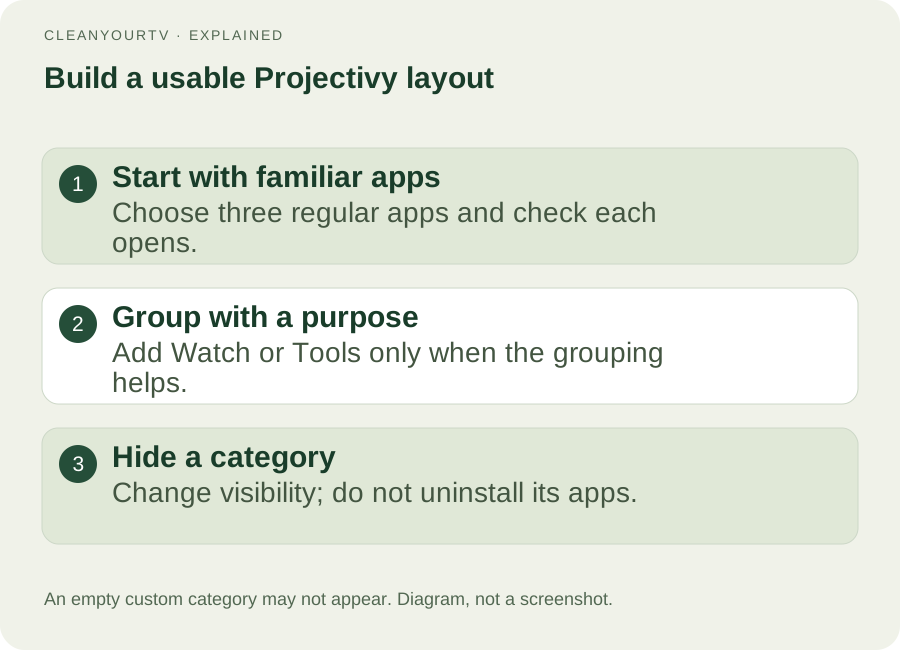
For a first Projectivy Launcher setup, start with one main row. Open the settings control in Projectivy and find Edit categories. Select the category you want to change. Its controls include visibility, app management, sorting and layout settings; the options available depend on the category type.
Use Manage apps for the selected custom category to choose its members. Add the applications that belong together, then return to the launcher and check that each opens the intended service. Create another category only when the distinction helps: “Watch” and “Tools” are useful examples, whereas several nearly empty groups add navigation.
To make a group, choose New category, give it a recognisable name and add applications. An empty category may stay out of view; the current app explicitly warns about this. If your new group disappears, check its membership and visibility before creating another copy.
Use the available reordering or sorting controls to put frequent choices first. Hide an unwanted category with its visibility control rather than uninstalling its applications. This Projectivy Launcher setup changes what the launcher shows; removing software through Android's uninstall dialogue is a separate action.
Keep your Projectivy Launcher setup readable from the sofa
Finish the basic Projectivy Launcher setup before adjusting every appearance value. Sit at your usual viewing distance and move focus across the main row. Can you recognise a selected app, read its name and reach the last card without guessing where the selection went?
Inside appearance settings, adjust card size and spacing gradually. Category controls can also offer a grid, cards per row and row count. Change one value, leave the menu and navigate again. A dense grid can display more apps, but that does not automatically make it easier for another person to use.
The official 4.70 notes document category margins, grid backgrounds and limits on visible rows. The 4.72 notes describe further grid and row behaviour changes. An older screenshot may therefore show different spacing. Judge the result on your screen instead of copying someone else's numbers.
Choose a wallpaper and check file access
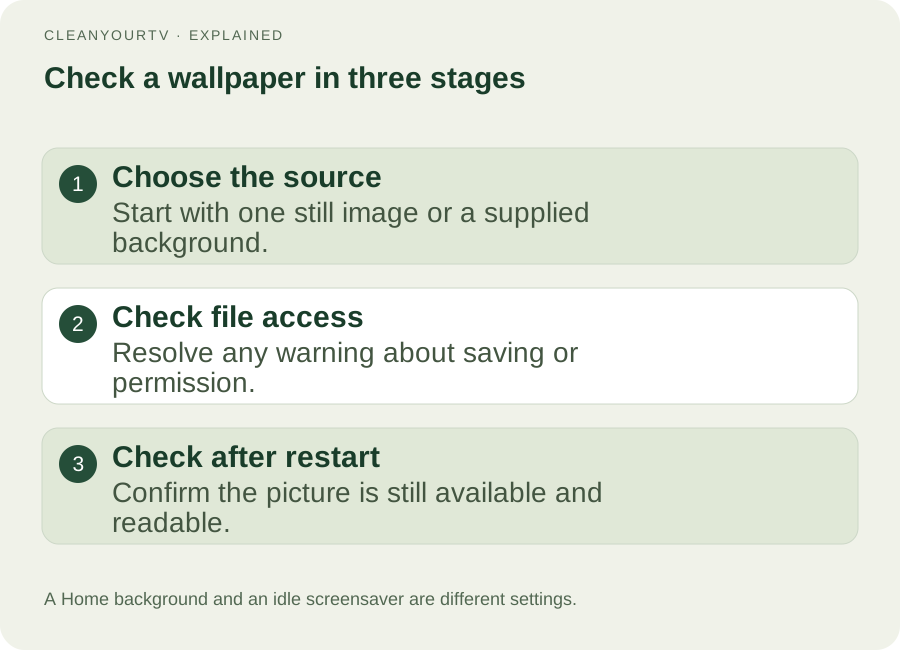
For wallpaper in your Projectivy Launcher setup, open the app's appearance settings and find the wallpaper provider. Choose the source you intend to use, then configure that source. Begin with a still image or a simple supplied background before trying video or an additional provider.
For a personal image, select the media-file source and use its image/video picker. In 4.72 the developer added a built-in image browser and a preview of provider results. Its release explanation makes one limitation clear: the browser can show only media Android makes available to it. An external file manager remains an alternative, rather than a guarantee of access to every folder.
Keep the chosen file available. The app warns when it cannot save a local copy or retain permission, because the image may become unavailable after reboot. If that warning appears, resolve the file selection before trusting the result. Then reopen Projectivy and restart the device when convenient to check persistence.
For a readable Projectivy Launcher setup, check bright and dark areas behind app names. Reduce visual distraction before adding motion. A background visible behind your apps is also different from the screensaver that appears when the device is idle.
Add icons to your Projectivy Launcher setup
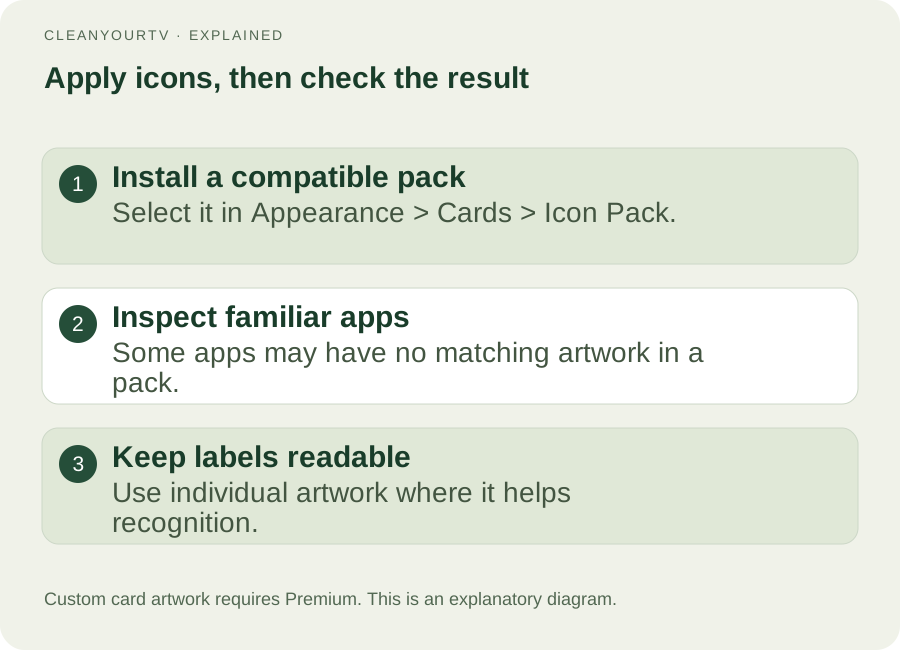
The documented icon-pack route is Projectivy Settings → Appearance → Cards → Icon Pack. Install a compatible pack first, select it there and return to the launcher. For this part of Projectivy Launcher setup, check the apps you actually use before choosing a matching style for everything else.
The official plugin directory explains two uses: applying a pack across matching cards, or choosing individual artwork from its library. A pack may lack artwork for an app, and standard square icons can look different on wide TV cards. Keep readable labels where an unfamiliar symbol would confuse another viewer.
If an expected pack or image is missing, check that the pack is installed and review the current picker options. Version 4.72 adds an icon browser with filtering and improves pack detection. Avoid repeatedly resetting the whole launcher to solve one missing card image.
Test Home separately from appearance
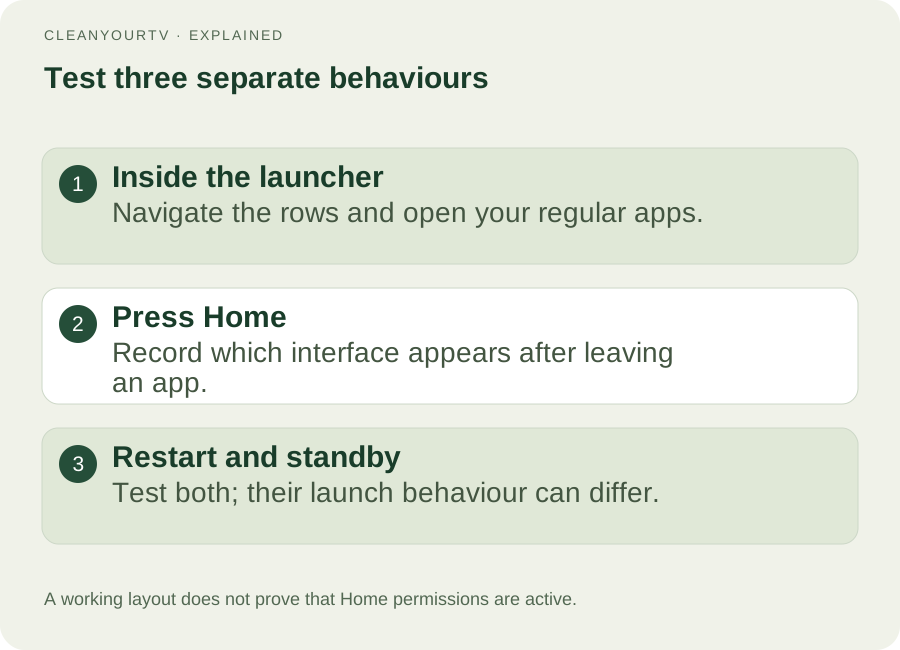
A finished-looking Projectivy Launcher setup does not prove that pressing Home or waking the TV will open it. First navigate inside Projectivy, launch a regular application and return. Then press Home and record which interface appears. Test a restart separately from waking from standby.
If Home returns to the stock interface, review Projectivy's launcher override and the system's accessibility status using the developer's current guidance. Menu availability and behaviour can depend on the device and firmware. Premium artwork does not grant system permissions or fix every Home-button problem.
Keep these checks separate from layout changes. If your goal is only rearranging the original Google TV interface, the Google TV home customisation guide offers that route. CleanYourTV's installation tools operate their own launcher workflow; they are not Projectivy's settings controls.
Export your Projectivy Launcher setup and understand restoration
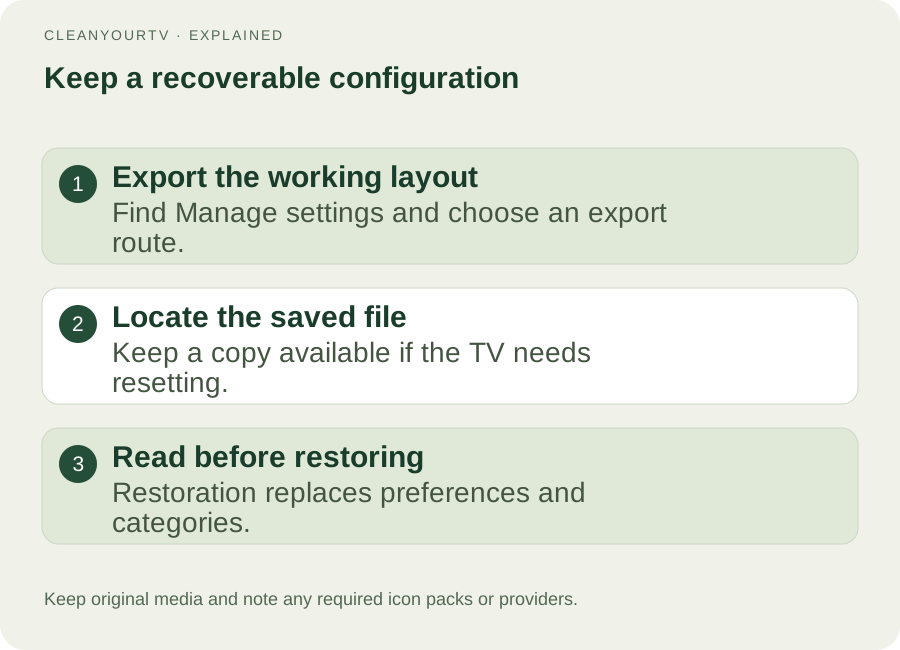
Save your Projectivy Launcher setup once the useful layout is working. In Projectivy settings, find Manage settings, choose Export, and select an available local-save or sharing route. Note where the file went and confirm you can find it again. Keep a copy somewhere accessible if the TV needs resetting.
Current versions can also browse automatic backups. In the import controls, look for the automatic-backup option and select an appropriate saved version. Read the confirmation before continuing: restoring replaces current preferences and categories. Export your present arrangement first if you might want to return to it.
A restored configuration can reference an icon pack or wallpaper plugin that is absent on another device. The official release history documents dependency prompts; it does not mean a settings file contains every external component. Keep your original media and a note of the providers you used.
Your final Projectivy Launcher setup check is simple: open the regular apps, read the focused cards, confirm the background survives reopening, test Home and locate the backup. Record any device-specific failure before adding more customisation. That leaves you with a usable arrangement and a clear next step if one part behaves differently.
Questions before you finish
Does changing a theme require Premium?
The developer marks theme import and export as Premium features in the 4.70 release notes. That does not mean every basic layout adjustment needs payment. Check the specific feature you want rather than treating “theme” as a name for all appearance settings.
Does a backup contain my pictures and plugins?
Do not rely on that. Keep your original media and note the icon packs or wallpaper providers you installed. A restored configuration can reference missing dependencies. Theme export can include available local wallpaper, but that is not a promise to preserve every external file, plugin or permission.
Why does my Projectivy Launcher setup return to the stock Home?
The appearance settings can work while Home routing behaves differently. Check Projectivy's override and accessibility status against the current official guidance for your device. Record whether the change happens after pressing Home, restarting or waking from standby. Those observations help identify the problem without discarding a working layout.
INDEPENDENT READING
Choose the next step for your TV.
Projectivy, Google TV and CleanYourTV are separate products. Follow the relevant official instructions; a CleanYourTV purchase does not include a third-party licence.
Compare TV launcher options →Check TV compatibilityUnsuccessful use? Discuss a refund by email.
Sources and review notes
Projectivy: official features and Premium FAQ ↗Projectivy: official Google Play listing ↗Projectivy 4.72: image browser and automatic backups ↗Projectivy 4.70: category layout and themes ↗Projectivy: icon packs and wallpaper providers ↗Reviewed October 22, 2026 against official documentation, release 4.72 and its published resources. Diagrams explain the workflow; these checks are not a physical-device installation test.