 CleanYourTV
CLEANYOURTV · Startup and app automation
Launch app on boot Android TV: set up, test and undo
For “launch app on boot Android TV,” first decide whether you mean a full startup, waking from standby, or pressing Home. They are different events. A startup rule can open a viewing app without making that app your Home screen, and a successful wake-up does not prove that the rule survives a restart.
Projectivy offers a direct-launch feature for supported app or input targets. This guide uses its verified English controls, separates the three tests, and keeps a cancellation route. Begin with Projectivy and your viewing app already installed and opening normally. No CleanYourTV purchase is required.
Launch app on boot Android TV: identify the trigger
Write down the player, model, system version, Projectivy version and target app. If an HDMI box draws the interface, configure that box. Turning the television panel on does not necessarily restart the attached player.
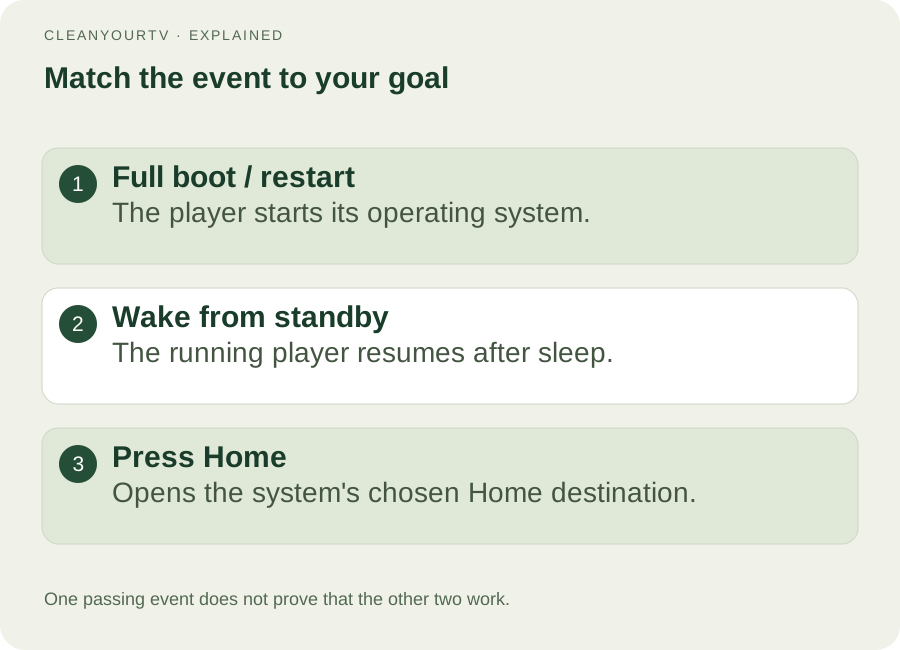
| Event | What to observe |
|---|---|
| Full boot or restart | The player starts its operating system, then your chosen app should open. |
| Standby wake-up | The already-running player resumes; a separate wake rule may apply. |
| Pressing Home | The system opens its selected Home destination. This is a launcher-routing task. |
For example, a household may want a television app after every morning restart but want the last-used app when briefly returning from standby. Enable only the trigger that matches that routine. For Home-button behaviour, use the separate Projectivy default launcher guide.
Choose one startup route and a working target
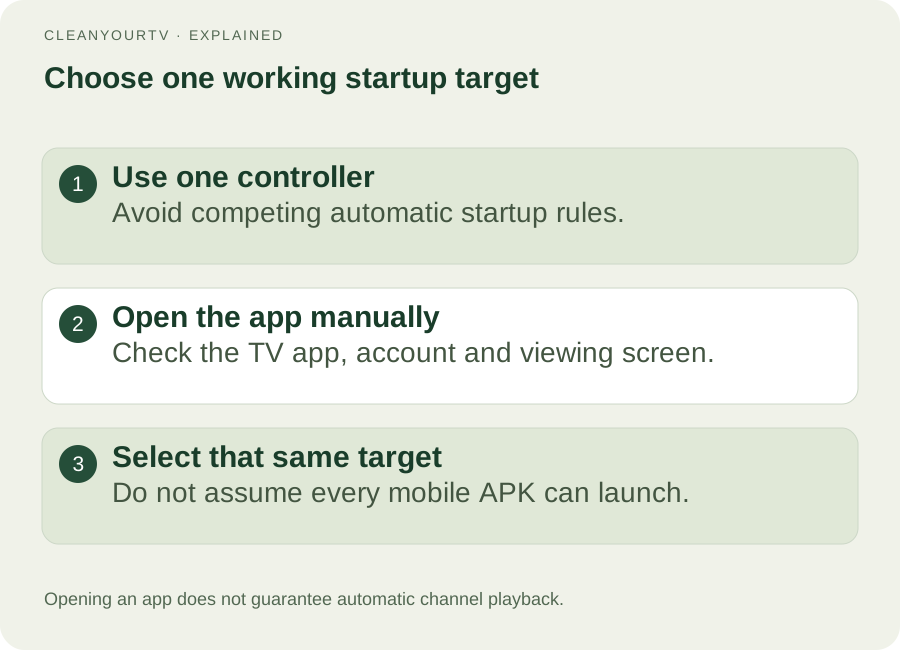
First check whether the viewing app has its own documented startup option. If it meets your need, test that route before adding another controller. Avoid having several utilities compete to open different apps at the same moment.
For a Projectivy route, its official feature description identifies Direct Launch for a favourite app on boot. The developer's repository also describes app and input targets. These are developer-supported capabilities, with device-dependent results.
Before configuring anything, open your intended TV app manually, sign in if required, and reach the screen you normally watch. Then leave it and reopen it. If manual opening fails, fix that first. Automation cannot supply a missing subscription, answer a profile picker or guarantee that a live channel starts playing.
Treat a “launch app on boot Android TV” setup as one specific player-and-app combination. A phone APK without a usable TV entry point is not equivalent to an installed TV app. For missing tiles, follow installed apps not showing before trying startup automation.
Configure Projectivy's startup controls
The English labels below were checked in the official Projectivy 4.72 release asset. They describe that version; they are not a promise of identical menus on every older installation. Open Projectivy settings and locate Power.
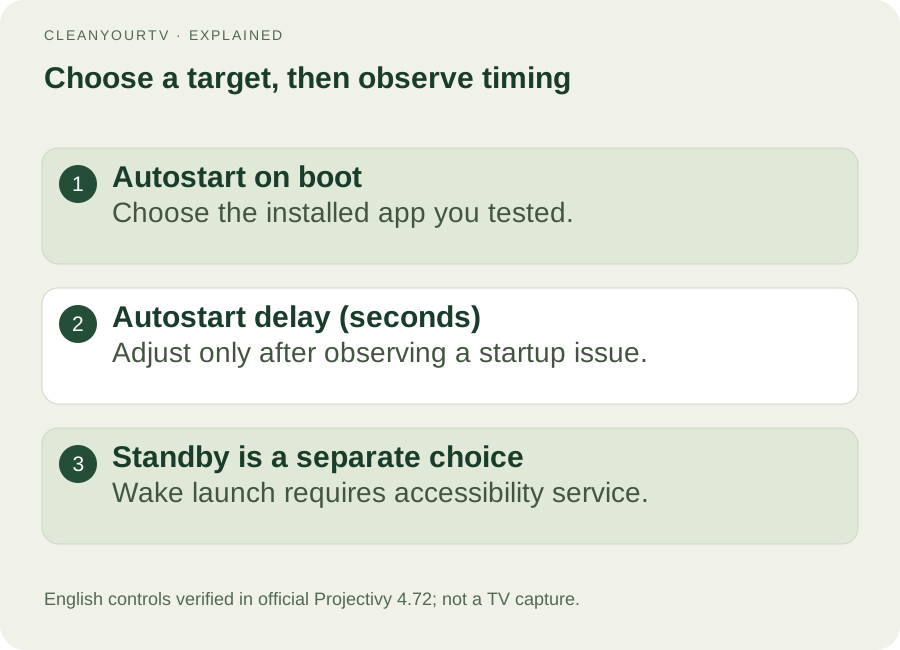
- Open Autostart on boot and select the installed target you intend to open.
- Record the selected target before changing other controls.
- Find Autostart delay (seconds). Keep the initial value for your first test, then adjust it only if the observed startup needs extra time.
- Leave …and upon resuming from standby off while checking full startup. Enable it later only if wake-up is part of your goal.
The official release history explains that the optional delay gives the system time to finish booting. It also states that launching on return from standby requires Projectivy's accessibility service.
If wake-up is needed, open the player's Android Accessibility settings, find Projectivy, read the system's permission description and enable its service. Return to Projectivy and check the wake option again. Menu paths depend on the device. Do not grant unrelated permissions or remove the original launcher simply to make this test possible.
Test restart, standby and normal exit separately
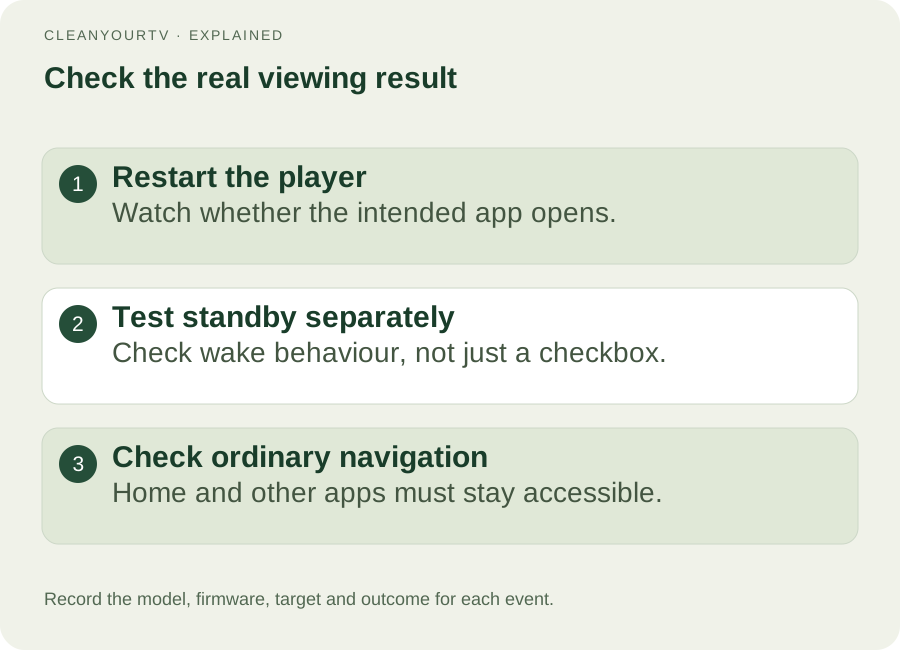
Use the player's documented Restart control for the first boot test. Save any work in open apps first. Watch which screen appears after the system finishes starting, whether the chosen app opens, and whether it reaches a usable viewing screen. Do not label a quick remote Power press a full reboot without checking what that device actually does.
Next, exit the app and open something else. Press Home and verify that you can still reach the expected launcher and its settings. A useful startup rule should not prevent you from choosing another app later.
Only then test standby: put the player to sleep through its normal controls, wake it, and observe the destination. Repeat the intended everyday event to check consistency. Note whether the app was already open before sleep, since merely seeing the same app resume does not establish that a wake rule launched it.
Your “launch app on boot Android TV” result should name the event and outcome: “After Restart, the player opens my selected TV app and I can return Home.” Record a separate outcome for wake-up. A settings checkbox is not the final result.
Diagnose a failed or delayed launch
When launch on boot is not working, keep the same target and change one condition at a time.
- Nothing opens after restart: confirm the saved target, correct player and installed versions; manually open the app again.
- Restart works but wake-up fails: check the standby option and accessibility service. Those results are separate.
- The app opens too early or stalls: try a modest increase in startup delay, restart again and compare. There is no universal delay value that proves compatibility.
- The app opens but playback stops at a menu: handle login, profile or playback choices inside that app. Opening and autoplay are different outcomes.
- The wrong app appears or focus changes twice: disable other startup utilities and retest one controller.
If the supported controls still fail, keep the ordinary launcher usable and report the model, firmware, Projectivy version, target and failing event to the developer. More startup utilities or a launcher purchase do not establish that the firmware permits the action.
Disable the rule and confirm recovery
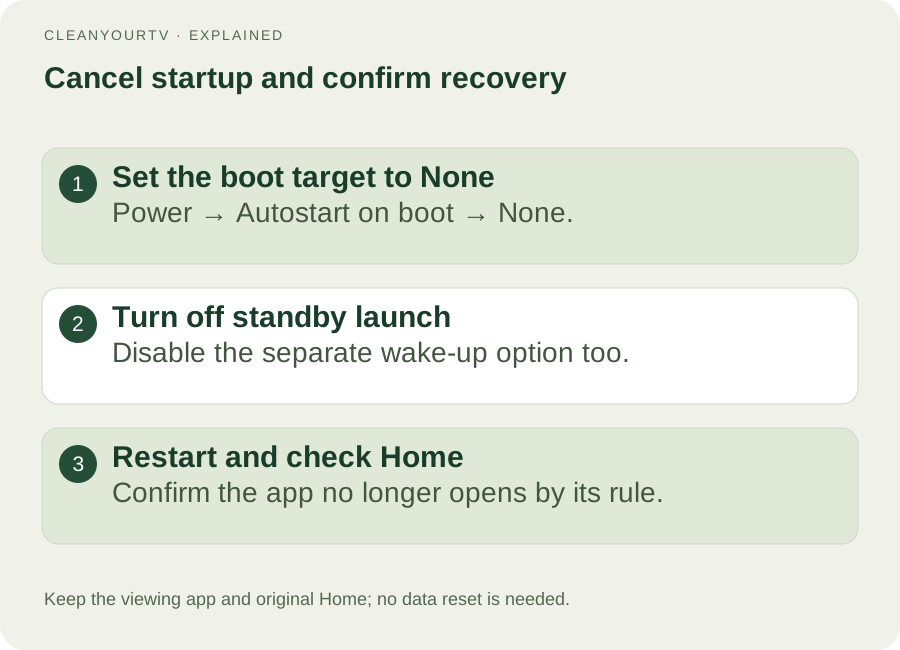
Before considering the setup finished, return to Power, open Autostart on boot, and choose None to cancel the automatic target. Also turn off …and upon resuming from standby if you enabled it. Verify the selected startup state before leaving settings.
Restart again and check that the target is no longer forced open. Then test Home and open your usual apps manually. If another controller still launches something, disable its rule separately. Cancelling startup should not require uninstalling your viewing app, clearing Projectivy data or removing the stock Home app.
Understand the older Launch-On-Boot utility
Search results for “launch app on boot Android TV” also show ITVlab's Launch-On-Boot repository. Its historical README describes choosing a Leanback-enabled app. The F-Droid listing shows version 1.1.3 added in January 2020 and describes a wake-up option.
Those records explain the utility's purpose. They do not prove compatibility with every 2026 television, arbitrary mobile app or firmware. Use original project sources when evaluating it; a similarly named download is not automatically the same application. This guide does not require installing the legacy tool alongside Projectivy.
For categories, app ordering or wallpapers after startup, continue with Projectivy setup. That is a separate task from arranging a startup action. Treat a “launch app on boot Android TV” success as specific to your tested event and firmware, and repeat the checks after relevant updates.
Frequently asked questions
Does “launch app on boot Android TV” also mean wake from standby?
No. Test them separately. Projectivy's standby option requires its accessibility service; a cold-start result does not confirm wake behaviour.
Will opening an app automatically play its last channel?
Not necessarily. The target app controls profiles, authentication and playback. Test the exact viewing result rather than only its splash screen.
Can a streaming box select any HDMI input on my television?
Do not assume so. Opening an app on a box and controlling the host television's inputs are different capabilities. Follow the actual device's supported input controls.
Has this setup been tested on my TV?
No physical television was tested for this guide. The controls and requirements were checked against official release material; your model, firmware, remote and target app still need the tests above.
INDEPENDENT READING
Check Home separately from startup.
An app opening at boot does not assign the system Home role. Use the default-Home guide if the remote returns to the wrong launcher.
Check Projectivy default Home →Sources and review notes
Projectivy: Direct Launch feature ↗Projectivy: official repository and support ↗Projectivy: official releases, startup delay and standby service ↗Projectivy4.72: official release asset for English control labels ↗ITVlab: original Launch-On-Boot README ↗F-Droid: legacy Launch on Boot package record ↗Reviewed October 23, 2026 against official release notes and published Projectivy 4.72 controls. Startup, standby wake and Home are separate tests. The article does not certify physical-device behaviour.