 CleanYourTV
CLEANYOURTV · Launcher setup
How to make Projectivy Launcher default: Home, restart and recovery
Here is how to make Projectivy Launcher default on a supported Android TV or Google TV device: open Projectivy's General settings and try Change default launcher if it is available. If the device offers no usable Home choice, Projectivy also provides Override current launcher, which works with its accessibility service. These are different routes, and either needs checks with your remote.
Begin with Projectivy installed and opening normally. The result you want is specific: pressing Home from another app reaches Projectivy, normal app exit behaves acceptably, and the arrangement still works after a restart. Source checks below reflect the official 4.72 build and developer reports reviewed on October 23, 2026. We have not performed these steps on your television.
Identify the player and preserve a route back
Before following instructions on how to make Projectivy Launcher default, identify the device producing the interface. An HDMI streaming box and the television around it have separate settings. Record the player's model, Android TV OS or firmware, Projectivy version and whether it came from Google Play or the developer's GitHub releases.
Open a familiar app through Projectivy and check the remote. Find the system settings and original Home interface while both remain available. If you already use a button mapper or another launcher-management tool, note its role before adding a second mechanism.
Save a configuration you want to keep using the Projectivy layout and backup guide. That export preserves relevant app settings; it is not a complete television backup or a saved system Home assignment. Keep the stock launcher installed and enabled throughout the routes described here.
Understand system Home, override and startup
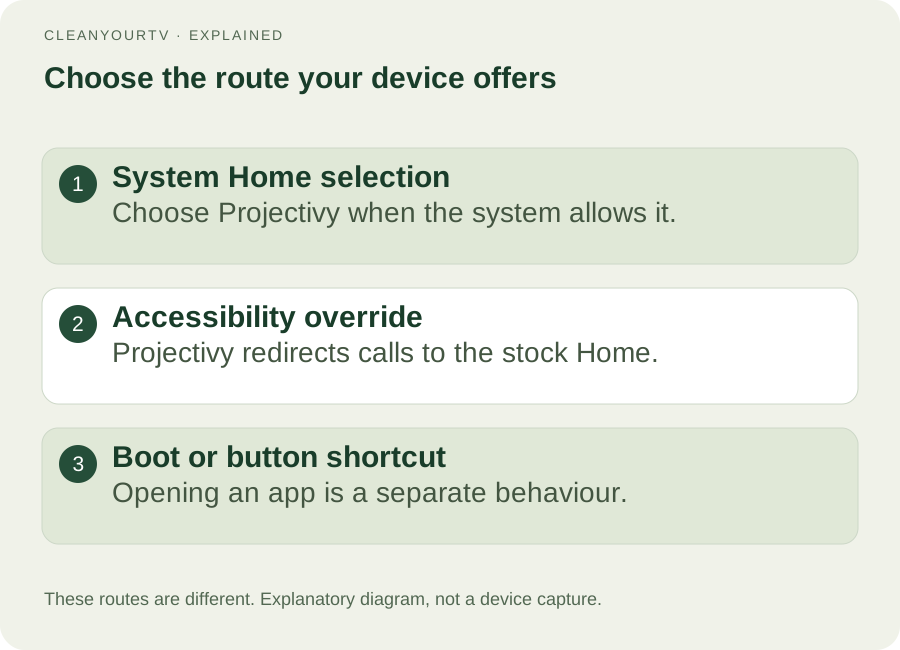
Android defines a Home role. When a device exposes a supported Home selector, you can ask the system to use Projectivy for that role. An accessibility override instead watches the relevant navigation behaviour and brings Projectivy forward. A shortcut that opens Projectivy, or an action that starts it at boot, answers another question.
This distinction explains why the app can look correct while Home still reaches the original interface. It also explains why seeing Projectivy immediately after switching on the TV does not prove that Home or Back behaves as intended. Make one change at a time so you can identify which route you are testing.
How to make Projectivy Launcher default with a system choice
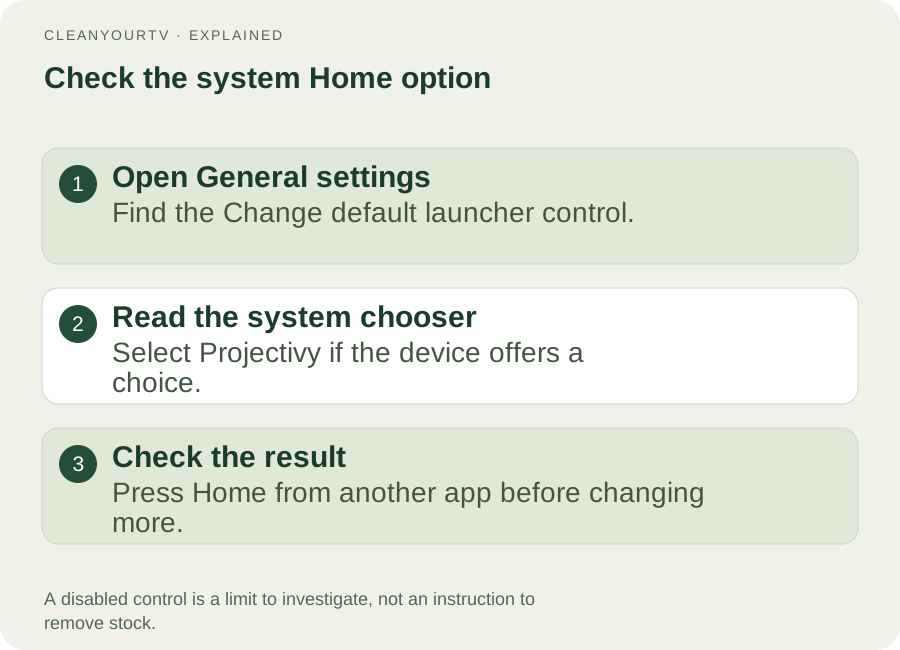
Open Projectivy, select its settings control, enter Projectivy Launcher settings, and open General. Find Change default launcher. These English control names are present in the official 4.72 application resources; the device decides whether a compatible system selector is available.
If the control opens a Home selection screen, read the application names and choose Projectivy Launcher. Confirm a persistent-choice option if the system presents one. The wording and available choices can vary, so follow the screen your device actually provides.
Leave the settings, open a regular application, and press Home once. Record the destination before changing anything else. If you selected Projectivy but the original Home still appears, the practical handover has not passed its first check.
A greyed-out control is not proof that Projectivy failed to install, nor a reason to buy Premium. It means this selection route is unavailable in the current context. Keep the working interface available and inspect the separate override route below.
Use the accessibility override when appropriate
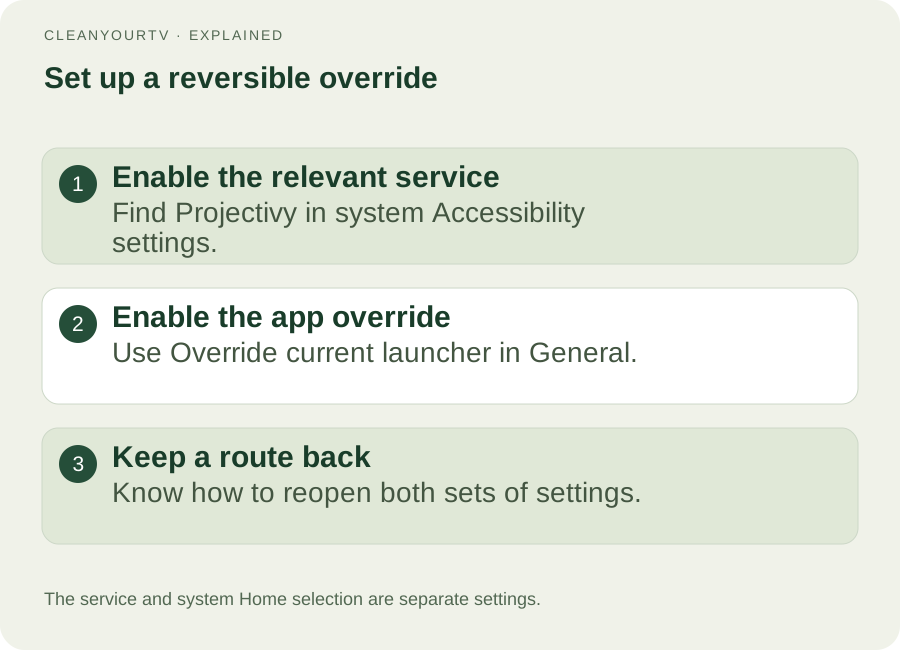
If you are checking how to make Projectivy Launcher default without a usable system chooser, inspect Override current launcher in the same General section. Its official description identifies it as intercepting calls to the current launcher. The Play listing describes Projectivy's accessibility service as optional navigation and remote-shortcut support.
Use Projectivy's accessibility shortcut if it opens the correct system page. Otherwise, open the player's Android settings and locate Accessibility manually. The app's documented fallback names Device Preferences → Accessibility; manufacturer menus can differ. Find the service named Projectivy Launcher, read the permission explanation and enable it if you want that behaviour.
Return to Projectivy and enable its override. Keep a note of both controls so you can undo this route. If the system will not let you enable the service, stop this route and consult the developer's current device guidance. A tutorial for another model cannot establish that your firmware exposes the same permission.
The service deals with hardware button events and foreground-app information for its navigation features. Changing this service can also affect other Projectivy automation. Leave unrelated accessibility tools that you depend on unchanged.
Check Home, app exit, restart and standby separately
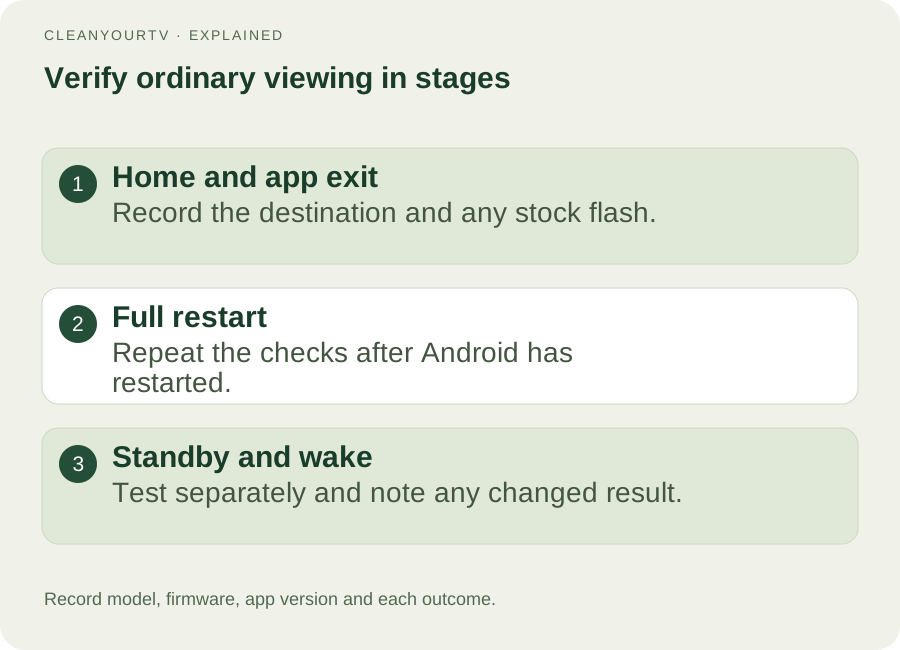
Test the result during ordinary viewing. Use your normal remote for these checks:
- Open an app from Projectivy and press Home. Record which interface appears and whether the stock screen briefly flashes.
- Reopen an app and use its normal exit or Back behaviour. Some apps navigate through their own screens first; observe the destination when the app actually exits.
- Perform the player's normal restart, let Android finish starting, and repeat both checks.
- Put the device into standby and wake it, then repeat. Standby is a separate condition from restarting Android.
Also check familiar remote functions and your usual input. A short, repeatable report is useful: “Home works before restart; after restart, Back briefly shows Google TV.” Record that result instead of repeatedly reinstalling an app that already opens.
If the original launcher returns or flashes
Reopen Projectivy and check whether its override is still enabled. Inspect the named accessibility service in Android settings. If the app reports a service problem, its resources recommend disabling and re-enabling that service; repeat the same remote checks afterwards. A temporary recovery does not establish that the underlying issue is permanently fixed.
There is a current, specific example in the developer's issue 605. A Google TV Streamer user reported stock-Home flashing after reboot. The developer requested testing of a GitHub 4.72 change, the reporter still reproduced the reboot case, and on October 6 the developer acknowledged an incomplete fallback and planned another fix for 4.73. The latest official release checked for this article remained 4.72.
That sequence matters when researching how to make Projectivy Launcher default after every restart. It supports a remaining version-specific problem, not a claim that 4.72 fixed every device or that the planned update is already proven. Keep your device details and observations when asking for help through official support links.
Return to the original Home
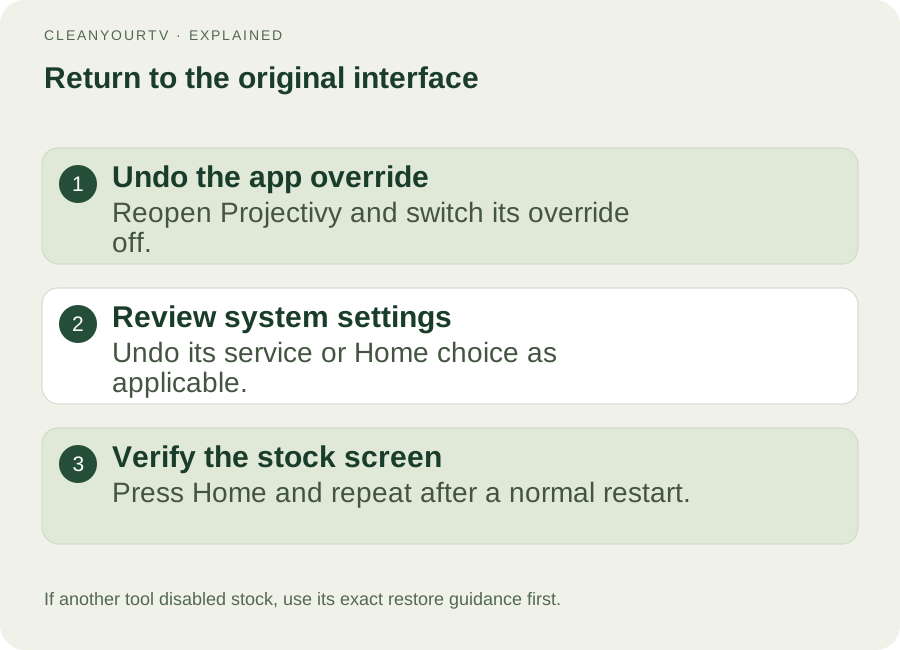
Knowing how to make Projectivy Launcher default includes knowing how to reverse your changes. If you used the override, open Projectivy's General settings and switch it off. If you enabled its accessibility service solely for that route, turn that service off in system settings as well. Review any other Projectivy features that depended on it.
If you changed the system Home selection, reopen the supported selector and choose the original interface. Press Home from another app and repeat after a normal restart. Keep Projectivy installed until the original Home is working, so you retain access to its controls during recovery.
If another tool previously disabled the stock launcher, these toggles alone may not restore it. Use that tool's exact device-specific restoration record or guidance. A guessed package command or a factory reset is not the next step in this reversible workflow.
Questions about making the change
Does this require Projectivy Premium?
Premium adds documented personalisation and family features; it does not grant Android's Home role or override a manufacturer's firmware restrictions. The Projectivy Premium guide explains the purchase boundary. Paying is not a troubleshooting step for a greyed-out Home selector.
How to make Projectivy Launcher default without ADB?
The system-selector and accessibility routes here use the device's menus. If neither is available or reliable, this guide reaches a documented limit. Advanced device-management methods need their own verified recovery plan; they are not an automatic continuation of these steps.
Is the change permanent after every update?
There is no all-device guarantee. Keep the original interface available, retain your settings backup and repeat the remote checks after a firmware or launcher update. Once Home works, use the setup guide for layout changes rather than changing several launch mechanisms together.
INDEPENDENT READING
Arrange your Home screen after routing works.
Once Home reaches Projectivy reliably, organise categories, wallpaper and icons, then export a working layout.
Set up the Projectivy layout →Sources and review notes
Projectivy: official app and feature information ↗Projectivy: official Google Play listing ↗Projectivy 4.72 release ↗Projectivy issue 605: remaining reboot fallback case ↗Android Developers: Home role ↗Reviewed October 23, 2026 against official Projectivy 4.72 resources and developer reports. Menu availability depends on firmware. Illustrations explain the workflow; physical-TV execution has not been verified.