 CleanYourTV
CLEANYOURTV · TV installation
ADB install APK Android TV: choose one TV, then install
This ADB install APK Android TV walkthrough takes a legitimate, compatible APK on your computer and installs it on one explicitly selected television. You will check the connection, quote the file path, confirm the installed package and separately try opening the app. A successful installation alone does not prove remote-control compatibility.
Tested scope, 31 October 2026: we ran the installation on macOS zsh with Platform-Tools 37.0.1 and two Android TV 12, API 31, ARM64 emulators. Our own small TV app installed on the selected instance, opened and was uninstalled; the other instance remained unchanged. Launch was checked through Android's activity report. Windows installation, physical-TV controls and network pairing were not tested. PowerShell quoting follows Microsoft documentation and passed a separate argument-parsing check on macOS.
Jump to tools, target selection, installation, verification, split packages, errors or FAQ.
Start with one legitimate APK
Before an ADB install APK Android TV session, obtain the app from its developer or another authorized distributor. Choose a release intended for your TV's Android version and architecture. A phone app may install yet depend on touch input, portrait screens or services your television lacks.
Keep the original filename and release details. Confirm that the publisher supplies a standalone APK; a file named “base” may belong to a larger split set. If the publisher provides a checksum, compare it with your download before using it.
Before proceeding, note whether this app is already installed and whether it holds settings or saved work. This walkthrough uses a new, disposable app for its execution evidence. An update to an existing package introduces signing and version requirements that the fresh-install example cannot settle for you.
This is the computer-based Android Debug Bridge workflow. CleanYourTV's desktop assistant installs its own entitled, matching APK; it is not an arbitrary third-party APK manager. Use the CleanYourTV installation guide when installing that product.
Get the official tools for your computer
Download the Windows or Mac ZIP from Google's SDK Platform-Tools page, then extract the entire folder. You do not need Homebrew or a full Android Studio installation for these commands. Keep the accompanying files beside the executable.
The ADB install APK Android TV commands here use an explicit executable path, so they do not depend on an existing PATH configuration. Replace the example location with the extracted folder on your computer. Open Terminal on macOS or PowerShell on Windows; these are separate shell examples.
Mac Terminal, using zsh:
'/Users/yourname/Downloads/platform-tools/adb' version
'/Users/yourname/Downloads/platform-tools/adb' devices -l
Windows PowerShell:
& 'C:\Tools\platform-tools\adb.exe' version
& 'C:\Tools\platform-tools\adb.exe' devices -l
The version command should identify Android Debug Bridge. If the executable cannot be found, correct its local path before troubleshooting the TV. In PowerShell, the call operator runs the quoted executable; its arguments remain separate. Do not paste the PowerShell line into Command Prompt.
There are two local paths to distinguish: the program you run and the APK you give it. Neither is the TV's network address. Use the extracted executable, not its ZIP download, and the APK file, not its containing folder. Replace the example username and directories; quoting does not make a missing file exist.
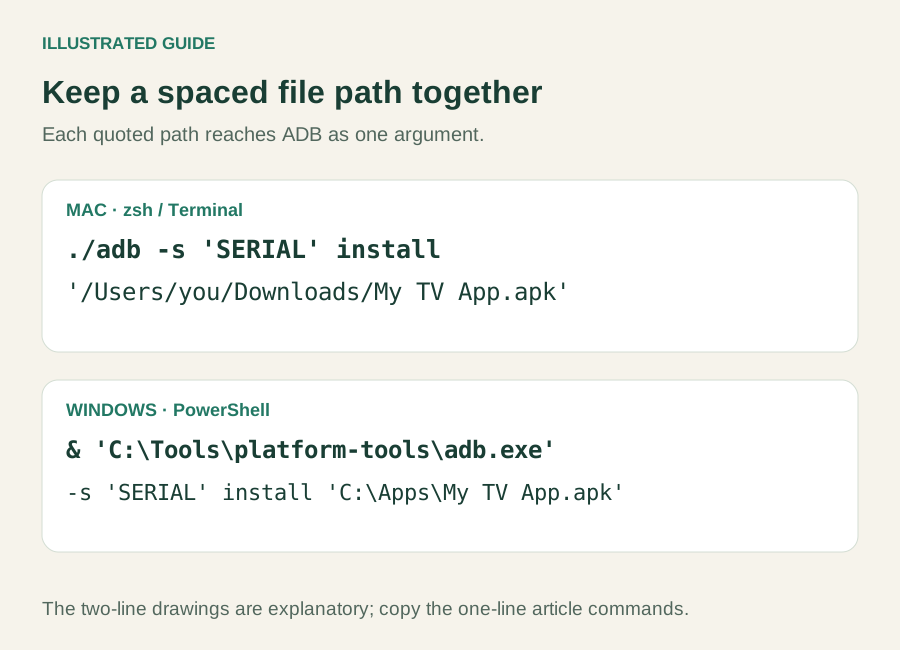
ADB install APK Android TV: choose one target
Installation begins after your computer has an authorized connection to the intended TV. Follow the connection guide first if it is missing from the list. Pairing, connecting and installing are separate actions. Use the TV's documented debugging method and actual connection port; do not assume every model uses port 5555.
Read the first column and state returned by the devices command. A serial can resemble a network address or an emulator identifier. Copy the exact value for your intended target, rather than choosing whichever row appears first.
| State | What to do next |
|---|---|
| device | Confirm the target's identity and wait for the TV to finish starting. |
| unauthorized | Approve your own computer through the TV's debugging authorization flow. |
| offline | Restore a working connection before sending an installation. |
| No target | Recheck the connection method, address and device settings. |
Google's ADB connection documentation distinguishes these states; being listed as a device does not guarantee Android has finished booting. Recheck the list after reconnecting or restarting anything.
Our controlled run listed two online emulators. Installation without a selected serial returned “more than one device/emulator,” and neither received the package. Supplying the target explicitly then installed it on only that instance. Keep the same serial in every later device command.
Install the single APK from your computer
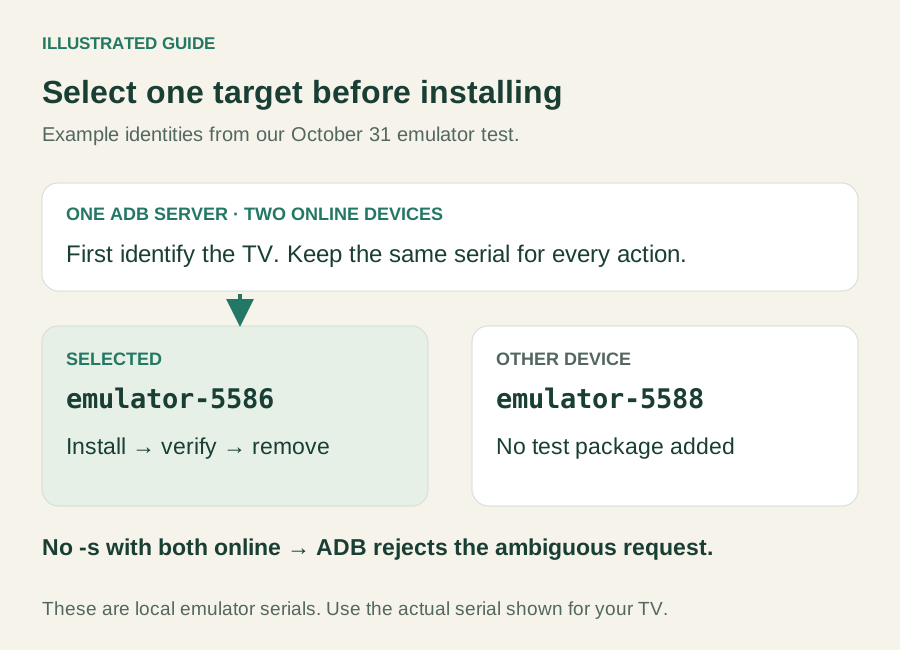
For ADB install APK Android TV on a MacBook, use the Mac line below. For Windows, use the PowerShell line. Replace SERIAL, the executable location and the APK's absolute path with your own values. Keep the path inside quotes, including when folder or file names contain spaces.
Mac Terminal:
'/Users/yourname/Downloads/platform-tools/adb' -s 'SERIAL' install '/Users/yourname/Downloads/My TV App.apk'
Windows PowerShell:
& 'C:\Tools\platform-tools\adb.exe' -s 'SERIAL' install 'C:\Apps\My TV App.apk'
Wait for the final result. In our zsh test, an absolute APK path containing spaces arrived correctly and installation returned Success. The transfer method's introductory message can differ; keep the complete output when reporting a failure.
Start with this plain single-package command. The official ADB manual gives additional flags different purposes: -r replaces an existing application, -g grants runtime permissions, and installation's -d allows a version-code downgrade for debuggable packages. Do not append them automatically to make an unexplained error disappear. Replacement does not bypass signing compatibility.
Verify the package, then open the app
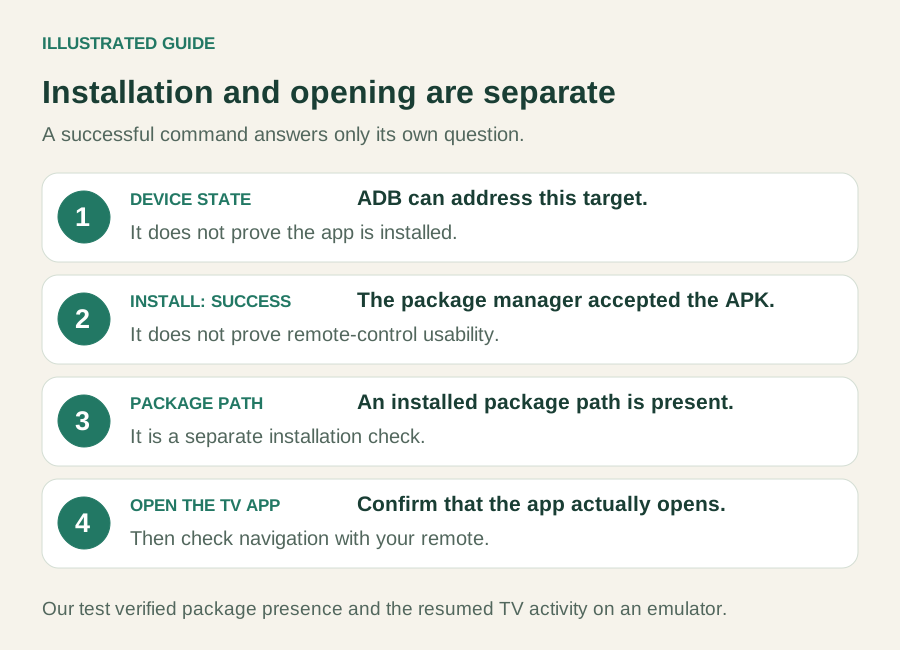
An ADB install APK Android TV result needs two checks: Android has the intended package, and the app actually opens. Obtain the exact package name/application ID from the APK publisher's documentation or release instructions. It is not the display name or filename; different editions can have different identifiers. Confirm the identity with the publisher if it is unclear.
Replace PACKAGE_NAME below as well as the serial and executable path:
'/Users/yourname/Downloads/platform-tools/adb' -s 'SERIAL' shell pm path 'PACKAGE_NAME'
& 'C:\Tools\platform-tools\adb.exe' -s 'SERIAL' shell pm path 'PACKAGE_NAME'
A returned package path confirms installation for the queried package on that target. Empty output is not confirmation: recheck the identifier, serial and preceding installation result. It does not by itself tell you why installation failed.
To check opening through ADB, obtain a launchable COMPONENT from the app's author. This is a package/activity pair, not just the package name. Substitute that exact component; do not guess it.
Mac Terminal:
'/Users/yourname/Downloads/platform-tools/adb' -s 'SERIAL' shell am start -W -n 'COMPONENT'
Windows PowerShell:
& 'C:\Tools\platform-tools\adb.exe' -s 'SERIAL' shell am start -W -n 'COMPONENT'
Look for Status: ok and the intended Activity. An error, missing Activity or different component is not a passed launch check. Our owned package org.cleanyourtv.qa.installguide used its known .MainActivity; Android's activity report separately confirmed it was resumed. The sample app is not a reader download.
A model-dependent alternative is Settings → Apps → Open, if offered. That menu route and physical remote navigation were not exercised here. Check the app on your own screen before relying on it. For a missing Home tile, use the app-visibility guide. Android's TV app requirements explain the separate launcher-entry requirement.
Recognize split packages and archives
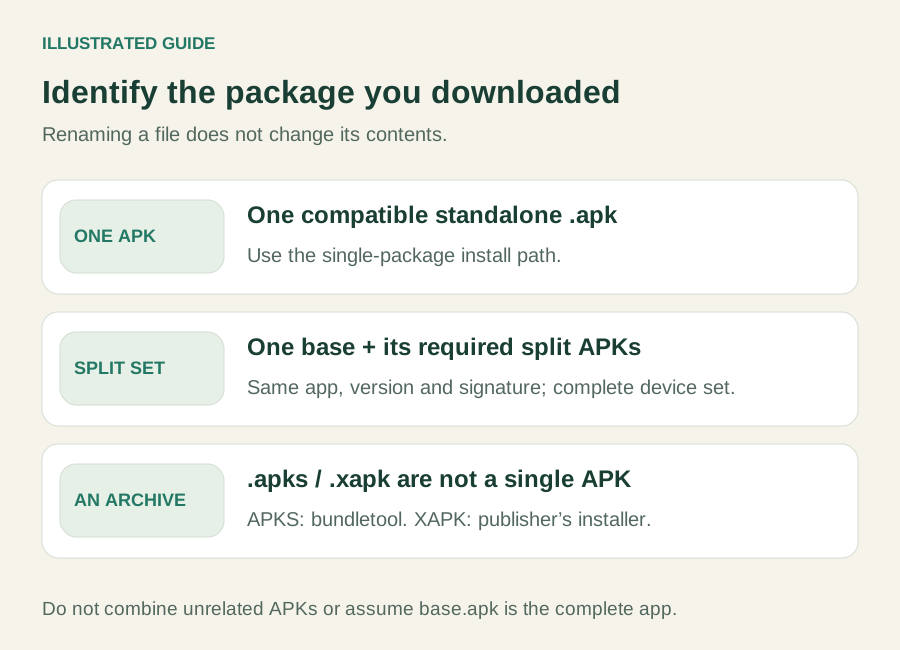
An ADB install APK Android TV command expects the file type it was designed for. Renaming an archive does not turn it into a standalone APK.
| Download | Appropriate next step |
|---|---|
| Standalone APK | Use this single-package workflow after checking compatibility. |
| Base plus split APKs | Obtain the complete, matching set and follow its publisher's instructions. |
| APKS archive | Use the publisher's documented APK-set workflow. |
| Other container | Confirm the format and supported installer with its publisher. |
The official adb install-multiple command concerns multiple APKs belonging to one application. Android's PackageInstaller requirements include matching package identity, version and signing certificates, with the required base and splits. Mixing releases is not a substitute for obtaining the correct set.
Google's bundletool documentation describes APKS archives and device-specific selection. Split-set installation was not exercised in our test; the successful standalone APK result does not validate an incomplete set.
Match the exact error
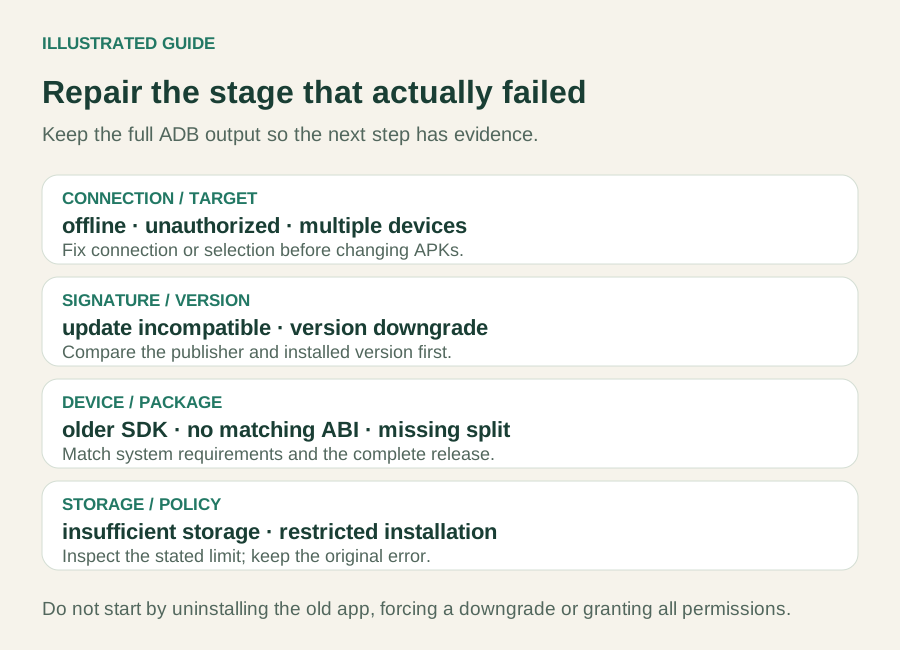
When an ADB install APK Android TV attempt fails, preserve the complete message. Connection and target-selection failures happen before Android can assess the APK. Installation errors require a different check.
| Installation output | Check and diagnosis |
|---|---|
| INSTALL_FAILED_UPDATE_INCOMPATIBLE | Existing package and signing compatibility: app conflicts. |
| INSTALL_FAILED_VERSION_DOWNGRADE | Installed and requested version codes: app conflicts. |
| INSTALL_FAILED_OLDER_SDK | App minimum Android version: system requirements. |
| INSTALL_FAILED_NO_MATCHING_ABIS | Native-library architecture: complete compatible file. |
| INSTALL_FAILED_MISSING_SPLIT | Required matching components: complete file. |
| INSTALL_FAILED_INSUFFICIENT_STORAGE | Available internal space: storage checks. |
These diagnoses follow Android's package-manager error definitions, not deliberately reproduced failures. A processor advertised as 64-bit does not establish which app ABI its installed Android system supports. Follow the release's requirements. For policy or verifier rejection, use the permission and policy section, rather than disabling protections as a general fix.
Remove only a disposable test app
Treat cleanup as a separate decision. Normal uninstallation removes the app and its local data; it is not a harmless rollback for an existing application you use.
Our test's uninstall command explicitly selected emulator-5586 and only the disposable package org.cleanyourtv.qa.installguide. After uninstalling, both package-path and package-list checks showed that package absent. The second emulator never contained it. Preserve any data you need before choosing to remove your own app through its TV settings.
ADB install APK Android TV FAQ
Do I need Homebrew on a Mac?
No. Google's standalone Mac Platform-Tools ZIP includes the executable used by this workflow. Extract it and supply its real path. Windows has a separate official package.
Does Success mean the app works with my remote?
No. It confirms the installation result. Open the app separately and test navigation; touch-only controls or missing TV services can still prevent useful operation.
Is adb sideload another way to run these steps?
No. That command serves recovery-mode update packages. It is not the normal application-installation command described here.
INDEPENDENT READING
Use the exact error to choose the next check
If Android rejected the APK, preserve the full output and check the package, installed version and TV requirements before retrying.
Diagnose an installation error →Sources and review notes
Official Android Debug Bridge documentation ↗Official standalone Platform-Tools downloads ↗ADB command manual ↗Android package installation and split requirements ↗APK sets and bundletool ↗TV application manifest requirements ↗Microsoft PowerShell call operator ↗Android package-manager error definitions ↗Checked October 31, 2026 using Platform-Tools 37.0.1 on macOS zsh and two Android TV API 31 ARM64 emulators with an owned APK. Installation, explicit target selection, package lookup, Activity launch state and removal were executed. PowerShell argument parsing was checked on macOS; Windows-to-TV installation, physical-TV controls and network pairing were not tested.