 CleanYourTV
CLEANYOURTV · Launcher customisation
Projectivy Launcher wallpaper: pictures, providers and fixes
Start your Projectivy Launcher wallpaper with one still image you can recognise. Apply it, return to the app grid and check it again after reopening the launcher. Once that baseline works, a folder or a wallpaper provider becomes much easier to troubleshoot: you already know what a working background looks like on your device.
This guide covers wallpaper inside Projectivy. It assumes the launcher already opens normally. For categories and app rows, use the Projectivy setup guide; for pictures that appear while the TV is idle, use the Google TV screensaver guide.
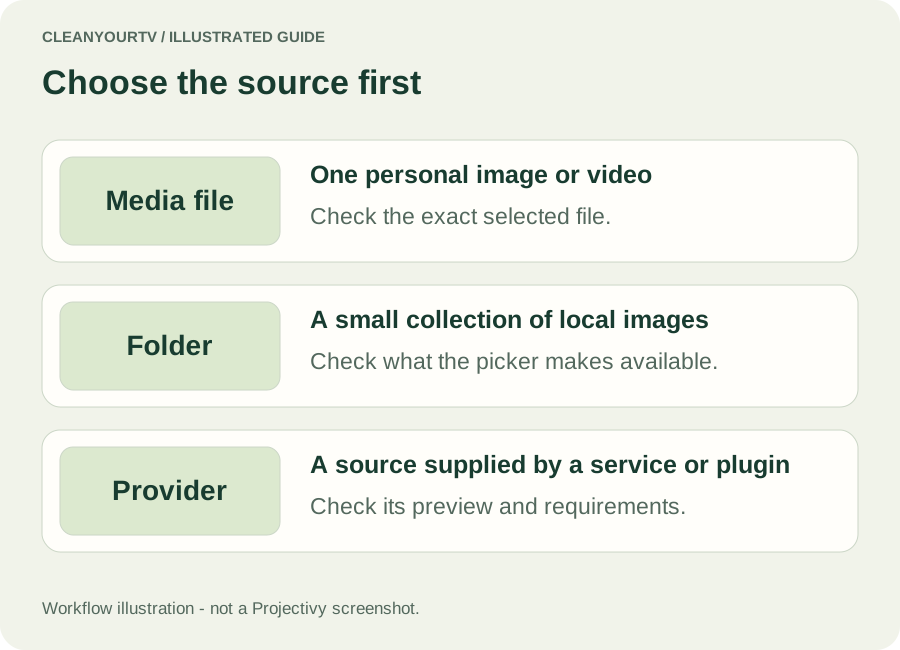
Choose the source for your Projectivy Launcher wallpaper
In Projectivy 4.72, open Projectivy Settings → Appearance → Wallpaper, then find Wallpaper provider. The current options include local media, a folder and providers that supply their own pictures or videos. Choose the source that matches your goal before changing brightness, animation or rotation settings.
| Your goal | Start with | What to check |
|---|---|---|
| Keep one personal picture | Media file | The file opens and remains accessible after restart |
| Rotate your own pictures | Folder | More than one usable image is available to the launcher |
| Receive images from another service | A built-in or installed provider | Its preview returns pictures from the intended source |
| Play a moving background | A supported media file or video provider | The media loads, decodes and leaves app navigation readable |
For a Projectivy Launcher custom wallpaper, check Premium before transferring a large collection. The developer's FAQ lists custom pictures, GIFs and videos among paid features. A free image download does not unlock those controls. CleanYourTV and Projectivy are separate products; a CleanYourTV purchase does not include a Projectivy licence.
Apply one still picture first
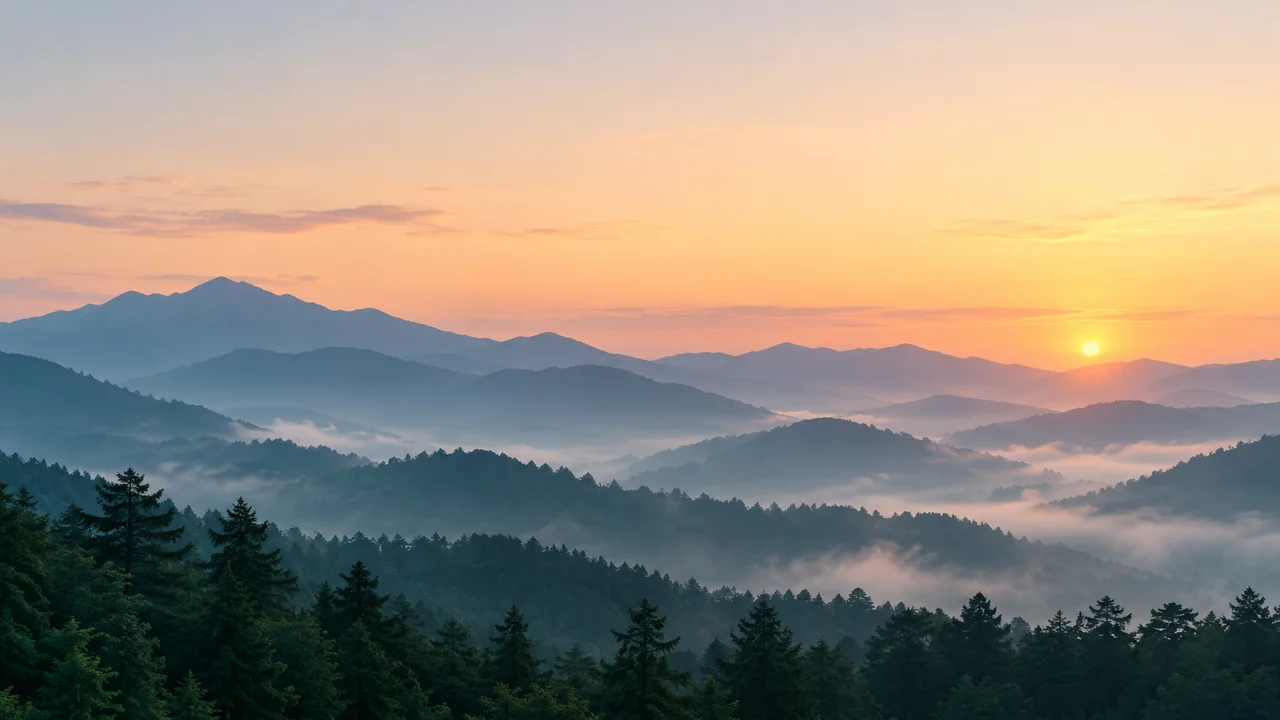
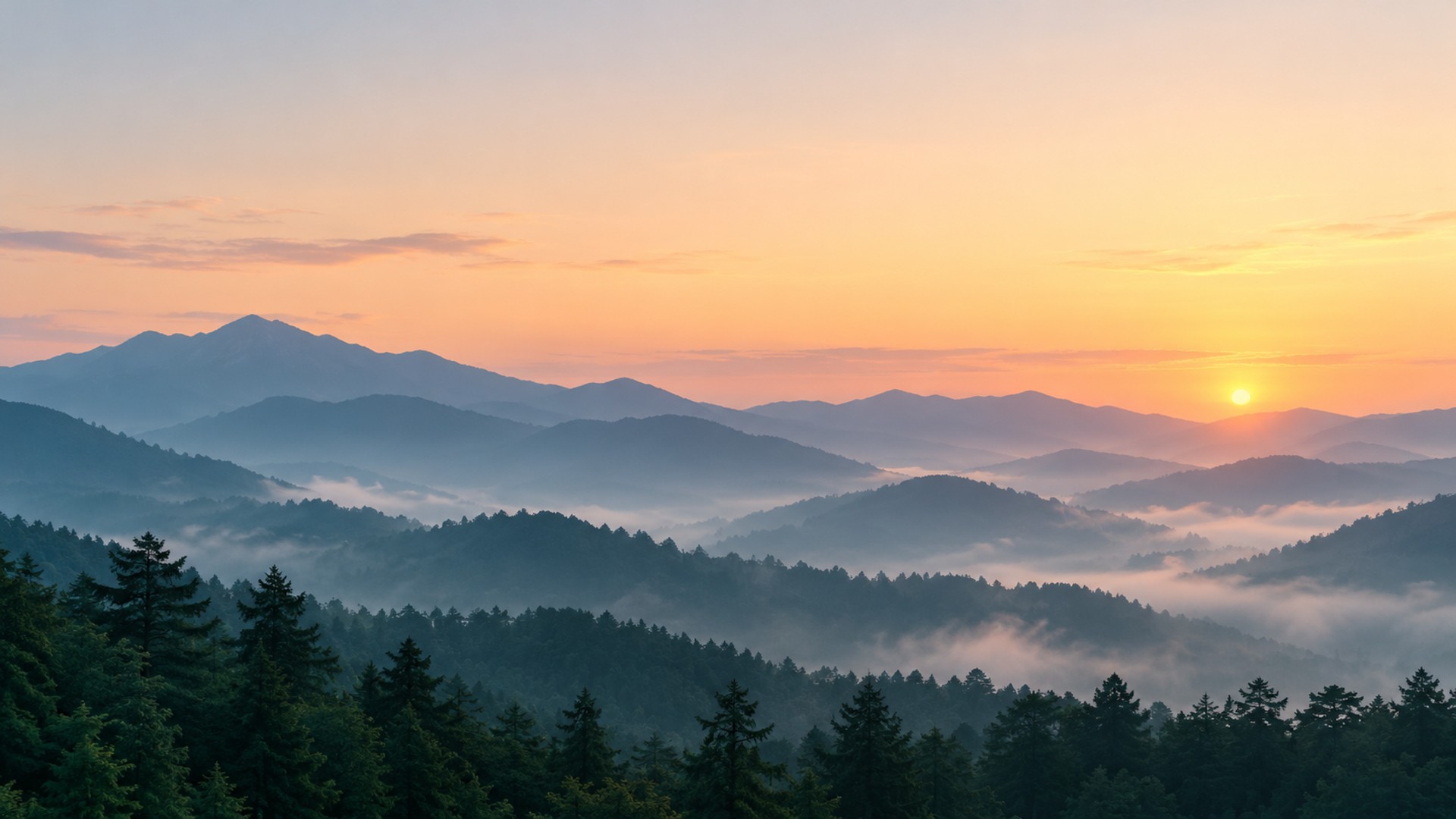
To establish a Projectivy Launcher wallpaper baseline, save a picture you own or are allowed to use in a location the TV can access. You can download our original 1920 x 1080 JPEG and save an image copy, or use a small personal JPEG. Transfer it using your existing file-transfer method or a USB drive; a picture remaining only on your phone is not automatically available to the TV.
Select Media file, then Pick image/video, and choose the picture. Version 4.72 includes an internal image browser. If it cannot show your file, try the available external file-picker route instead. The release notes explain that the internal browser is limited to media Android exposes to it; an empty picker does not prove that your file is corrupt.
Return to the app grid. The expected result is the selected picture behind the cards. If another background remains, reopen the wallpaper settings and check the selected source before changing unrelated Home or accessibility settings. Keep the previous provider or image noted so you can switch back without resetting the launcher.
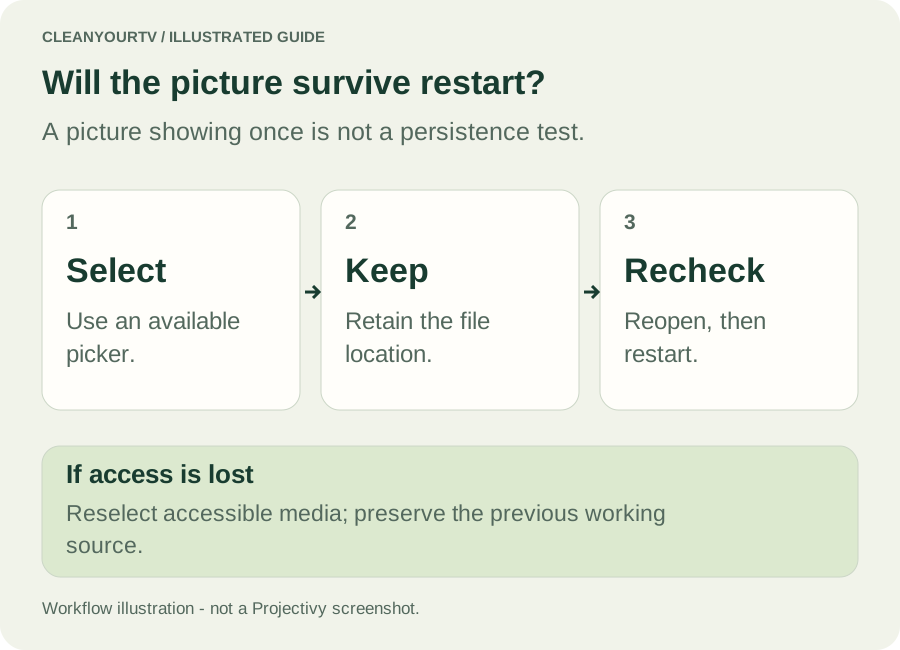
Reopen Projectivy, then check after a normal device restart when convenient. Your Projectivy Launcher wallpaper should still appear. A successful first selection and a persistent selection are two separate observations.
Keep file access after reopening and rebooting
If your Projectivy Launcher wallpaper disappears after reboot, look for the app's warning about failing to save the file locally or retain permission. The published 4.72 resources contain that warning. It describes an access problem; choosing the same picture repeatedly without resolving access may reproduce it.
Keep the file in its selected location and keep removable storage connected while testing. If you move or replace it, select it again through the picker. Android's document-access guidance explains that a saved URI permission can still become unusable when its underlying document moves or is deleted. Permission to one location is not a permanent copy of its contents.
Try an accessible local copy or a different available file-picker route, then repeat the reopen and restart checks. If the warning remains, return to the previous working source and record the storage location and picker used. Avoid clearing Projectivy's app data to solve one image problem: that also affects settings and can affect an external Premium activation.
Check a folder before expecting rotation
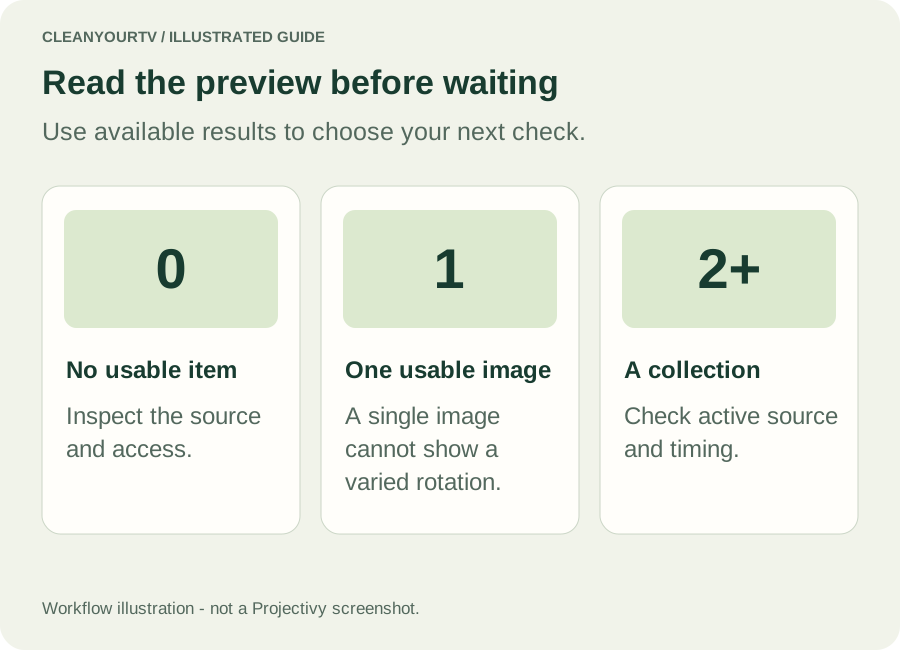
For a Projectivy Launcher wallpaper collection, select Folder and use Pick folder. Start with two noticeably different still pictures. Grant access through the picker shown on your device, return to the wallpaper controls and inspect the available preview. Check any timing or ordering options offered by your installed version.
A Projectivy Launcher wallpaper folder containing many files may still expose only one usable image. Confirm that the preview contains both test pictures before waiting for rotation. If only one appears, inspect file access and supported media first. If both appear, examine the source's rotation settings. Do not infer a timer failure from two almost identical photographs.
The Projectivy Launcher wallpaper preview added in 4.72 also helps separate selection from display. An empty preview suggests investigating the source or its access. A populated preview with an unchanged Home background points you toward the active provider and display settings instead.
Add a wallpaper provider when you need another source
A Projectivy Launcher wallpaper plugin supplies media to the launcher. The official provider directory lists Overflight for video sources, Daily Photos for a daily picture and Aerial Views, whose screensaver application can also supply Home backgrounds. Follow each developer's own installation and configuration instructions; their sources and requirements differ.
Overflight is selected from the wallpaper controls after installation. Its official Play description says it requires Projectivy Premium and does not appear as a normal launcher icon. A missing tile therefore does not establish that installation failed.
In Overflight's configuration, inspect the resulting wallpaper count before troubleshooting the launcher. Its source can use JSON or M3U; M3U requires Projectivy 4.70-beta02 or newer. The developer repository documents the expected format. A webpage containing a video is not necessarily a direct media URL or a valid list. Start with a documented source, and only substitute your own list when you know its media addresses and permission to use them.
For Reddit or another remote Projectivy Launcher wallpaper source, a missing image can also originate upstream. Try a known local still image to check the launcher separately. Installing another provider cannot restore deleted posts or guarantee access to a blocked server.
Diagnose a black or stuttering video background
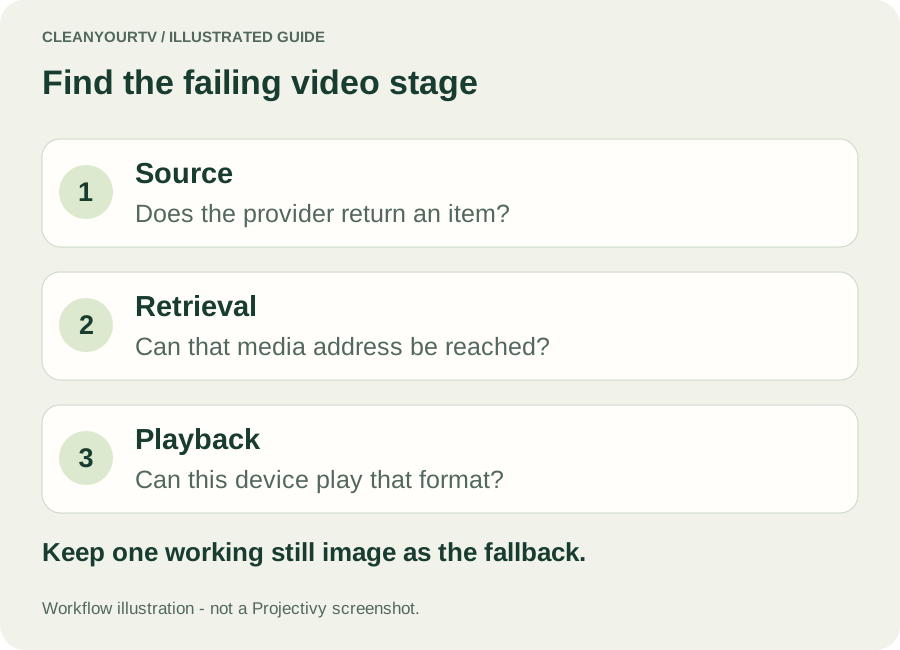
A Projectivy Launcher live wallpaper adds retrieval and video playback to the file-access problem. First switch back to your known still image. If it displays, the basic Home background works; that narrows the investigation but does not identify the video failure by itself.
For the next video-background test, choose one video rather than a long rotation. Where the provider offers format choices, try a lower-resolution SDR option before 4K or HDR. Compare what changes, keeping the source and other settings constant. A working alternative is a useful fallback, not proof that every larger file is unsupported.
Check whether the provider returns an item, whether that item's media address is reachable through the intended connection, and whether the device supports its encoding. Avoid pasting private camera or signed media URLs into public support posts. If your Projectivy Launcher wallpaper remains black, keep the still background and report the provider version, selected format and failure stage. Do not clear all launcher settings to test a single codec.
Make the background readable and keep screensavers separate
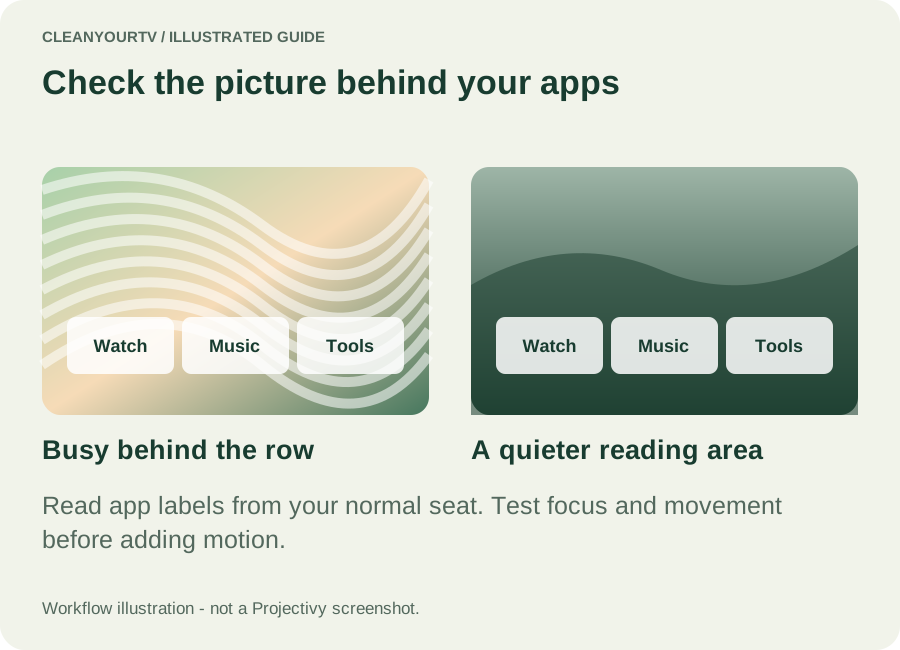
Your Projectivy Launcher wallpaper sits behind information people need to read. Check it from the usual seating position, moving focus across familiar apps. A bright cloud behind a white label or busy detail around the focused card can make an attractive image inconvenient. Try the available brightness, contrast or blur controls one at a time, and compare against the original.
Use a quiet area of the picture behind the main app row. If motion makes selection harder, keep a still image. These are practical viewing checks, not a claim that a particular background improves performance or saves a measured amount of memory.
A Projectivy Launcher wallpaper is visible while using Home. A screensaver appears during idle time and has its own activation settings. Overflight's repository explicitly identifies it as a wallpaper provider, not a screensaver. If your desired picture appears only after inactivity, follow the screensaver controls rather than changing the Home source again.
Questions about Projectivy Launcher wallpaper
Can I use a free wallpaper image?
Yes, if its licence permits your intended use. The file's cost and Projectivy's feature entitlement are separate: custom media still needs the appropriate Premium capability. Our original example is provided for personal wallpaper use. We do not redistribute third-party movie artwork, aerial-video libraries or wallpaper packs.
Why is my Projectivy Launcher wallpaper not changing?
Check the selected source, then the preview or provider result count. Zero usable items, one available picture, a rotation setting and lost file access are different situations. Follow the corresponding section above and keep one known still image as a comparison instead of resetting everything.
Does a weather wallpaper add an Android widget?
Not necessarily. The directory's weather provider draws weather information into the background. That does not establish support for arbitrary Android widgets, and its positioning must suit your app rows. Use the provider's documentation for location and layout controls.
What should I record if the problem remains?
For a Projectivy Launcher wallpaper support request, note the version, TV model and OS, provider, storage location or non-private source, and whether failure occurs immediately, after reopening or after reboot. Add the preview result and a working alternative if you have one. These observations make a support request more useful without claiming a universal fix.
INDEPENDENT READING
Continue setting up your Home screen
Use the wider Projectivy guide for app categories, icons and configuration backups. Home-button behaviour has its own troubleshooting path.
Open the Projectivy setup guide →Sources and review notes
Projectivy: Premium features and licences ↗Projectivy 4.72: image browser and wallpaper preview ↗Projectivy: official wallpaper provider directory ↗Overflight: official Play listing and requirements ↗Overflight: source formats and usage ↗Android: document access and persistent permissions ↗Checked October 28, 2026 against official Projectivy 4.72 release notes, published app resources and provider documentation. Diagrams explain the workflow; hardware behaviour and third-party playback depend on your device.