 CleanYourTV
CLEANYOURTV · Launcher customisation
Projectivy Launcher icon pack: download, apply and fix icons
A Projectivy Launcher icon pack changes the artwork on your app cards. Start with the original pack download, check that Projectivy's icon customisation is unlocked, and apply it under Projectivy Launcher Settings → Appearance → Cards → Icon Pack. If only some cards change, investigate those cards before replacing the whole launcher.
This guide uses Projectivy 4.72 and SicMundus86's Projectivy Icon Pack 1.1.9, checked on October 29, 2026. The steps are based on developer documentation and published APK resources; they are not a claim of testing on your TV.
Choose the original Projectivy Launcher icon pack
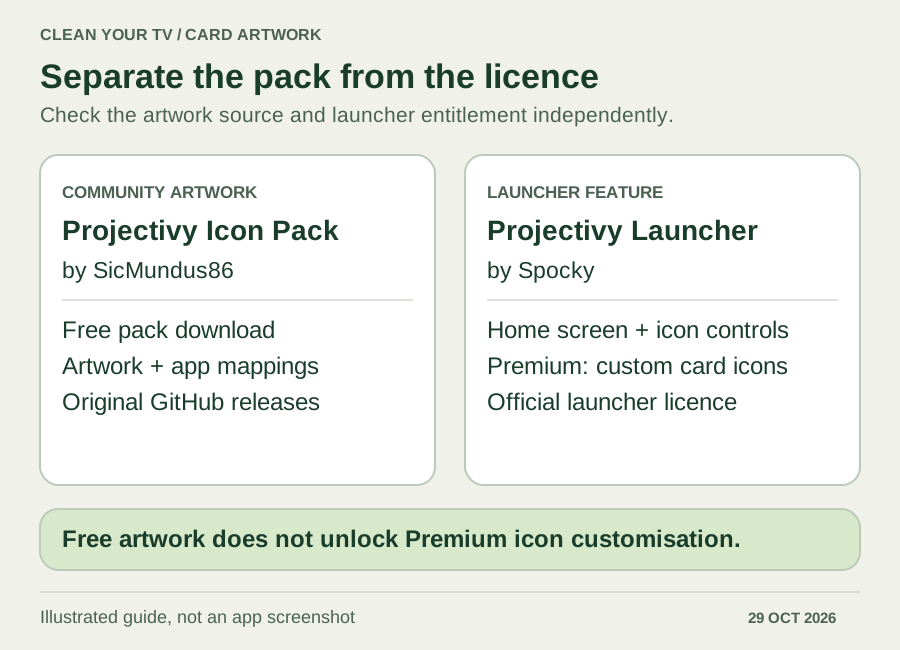
The names describe two separate products. Projectivy Launcher is developed by Spocky. Projectivy Icon Pack is a community project by SicMundus86, featured in the launcher's official plugin directory. The pack author explicitly states that the project is not affiliated with the launcher developer.
| Item | What it supplies | Current checked version |
|---|---|---|
| Projectivy Launcher, by Spocky | Home screen, card layout and icon controls | 4.72 |
| Projectivy Icon Pack, by SicMundus86 | Artwork and automatic app mappings | 1.1.9 |
| Projectivy Premium | Access to the launcher's paid appearance features | Check your installed launcher's entitlement |
For a Projectivy Launcher icon pack download, use the author's GitHub release page. Our checked release contains Projectivy_Icon_Pack_1.1.9.apk. Check the publisher and release notes before installing a newer version; a similarly named APK on a mirror is not the same source.
The pack author says the pack is free, with optional donations. Separately, Projectivy's current Premium feature list includes custom card images and icon packs. Downloading free artwork does not unlock that launcher feature. A CleanYourTV purchase also does not include Projectivy Premium. Review the Projectivy Premium guide if the icon controls are locked.
Choose artwork that suits your cards
Compare styles before customising every row. The official directory describes SicMundus86's pack as TV-focused artwork with transparent backgrounds. Its author recommends a dark card background. Core Builds uses simple geometry, a shared grid and transparent backgrounds, while Android TV Minimalist emphasises recognisable symbols with a consistent background colour.
Use the directory's original links to inspect alternatives. A large icon catalogue does not establish that every app on your TV has an automatic match. Also compare the actual card shape: a square phone icon and a wide TV card can leave very different margins. Preview a familiar video app, a utility and a less common regional app before committing to a complete visual style.
Install the pack and apply it across cards
Download the chosen pack from its author, transfer the APK to the TV using your usual method, and follow the Android installation prompts shown on that device. Keep the launcher and pack versions noted separately. Installing the pack adds an artwork source; you still need to select it in Projectivy.
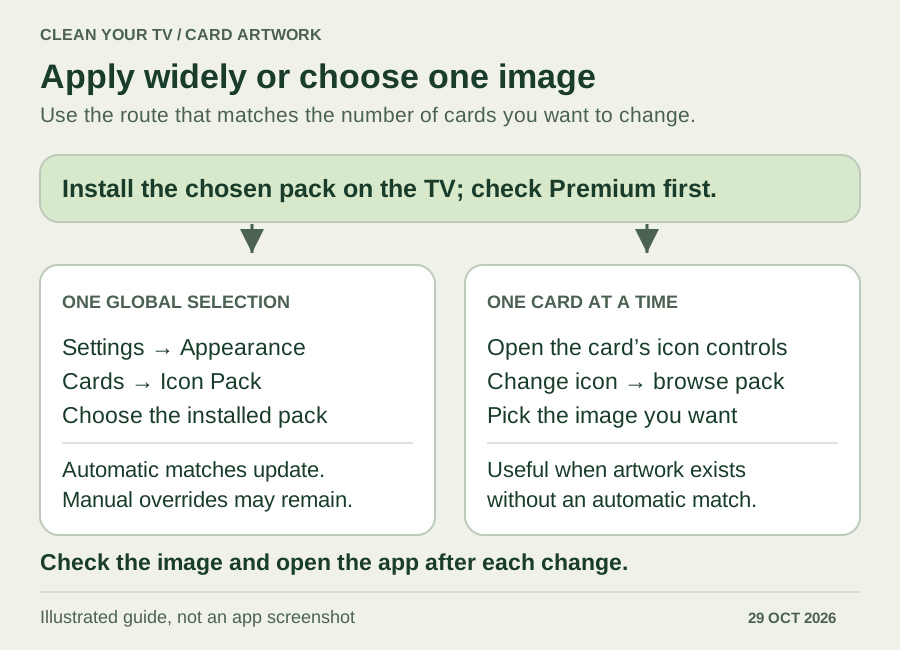
For this Projectivy Launcher icon pack, the author's instructions give two routes: use the pack's Apply action, or open Projectivy Launcher Settings → Appearance → Cards → Icon Pack and select Projectivy Icon Pack. The settings route is useful when you want to confirm which pack is active.
Return to the app grid and examine three familiar cards. Record which changed, which stayed the same, and whether each still opens its intended app. An unchanged card can be a deliberate manual override or an unsupported mapping; it does not automatically mean installation failed. If the pack is absent from the chooser, confirm installation on this TV and reopen Projectivy before diagnosing individual icons.
Pick one icon without changing every card
You can also use a Projectivy Launcher icon pack as an image library. The official directory explicitly supports choosing artwork for an individual card without replacing all icons. This is useful for a regional app variant that has suitable artwork but no automatic mapping.
Open the affected card's icon controls and look for Change icon. Choose the installed pack and browse for the artwork you want. Projectivy 4.72 introduced a built-in icon browser with filtering; its release notes also describe the alternative of opening the icon pack's own browser. Menu placement can differ by context, so follow the choices your installed version presents.
After selecting an image, return to the grid and open that card. The picture should identify the app correctly. Remember this manual choice: it can continue taking priority when you later switch the global pack, which matters when troubleshooting mixed styles.
Fix a Projectivy Launcher icon pack that only partly applies
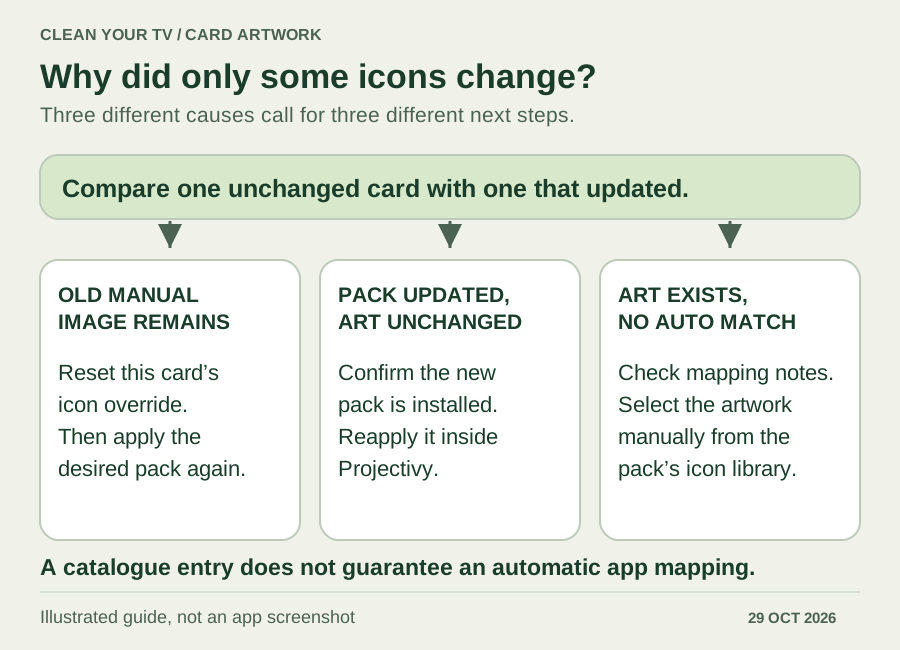
Start by comparing one affected card with one that updated correctly. Keep the same pack selected while investigating; changing several settings at once hides which change helped.
| What you observe | First distinction to check | Next action |
|---|---|---|
| A previously customised card keeps its old image | A manual override may take priority | Reset that card's icon, then apply the pack again |
| Newly added artwork is missing after a pack update | Installed version versus applied selection | Confirm the update, then reapply the pack |
| Artwork exists in the pack but never assigns itself | Automatic package/activity mapping | Select the image manually and check the author's mapping notes |
The pack README explains all three cases. For a manual override, look for the affected card's Reset icon option. Reset that card's artwork, not all launcher preferences. Apply the desired pack again and compare the result.
After updating a Projectivy Launcher icon pack, reapply it even if its name is already selected. If an older revision of an image persists, the author also suggests restarting the device. Treat that as a troubleshooting step, not a guaranteed fix for every cache or rendering problem.
For missing mappings, check the release notes and icon catalogue. In release 1.1.9, starred additions such as Plezy explicitly require manual assignment. The artwork exists, but the pack cannot automatically associate it with the app. Regional package names and different launch activities can cause similar mismatches. Search existing requests before reporting an app's name, package/activity details if known, and installed versions; a request is not a promise of future support.
Make transparent icons readable
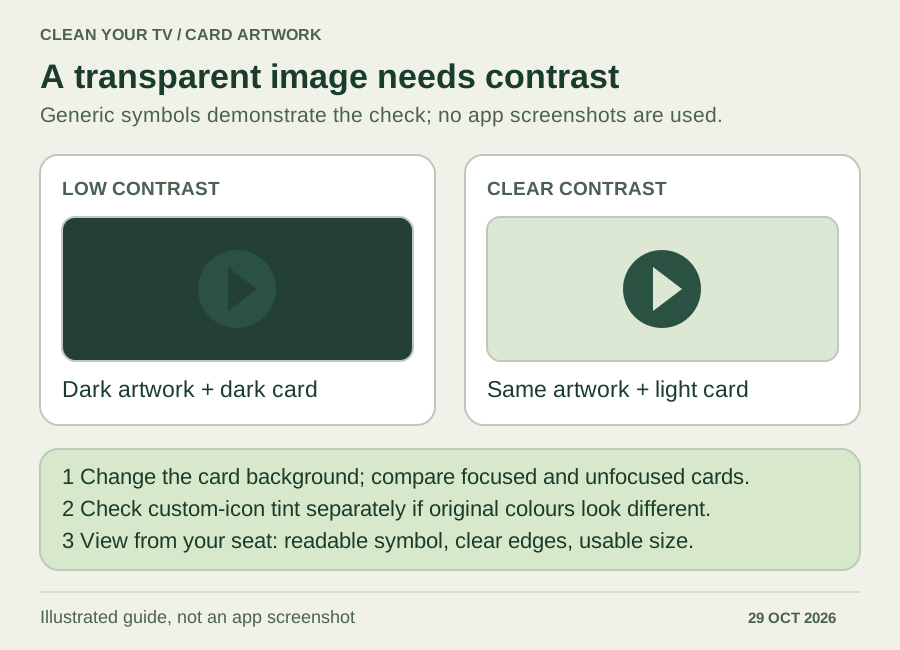
A Projectivy Launcher icon pack with transparent artwork lets the card colour show through. That can create a consistent row, but a dark symbol on a dark card can disappear. Open Projectivy Launcher Settings → Appearance → Cards → Background color, then compare a contrasting background with your previous choice.
The current launcher also has custom-icon tint controls. If original logo colours matter, inspect those settings before assuming the downloaded artwork is wrong. Change background and tint separately, checking the focused and unfocused cards from your usual seating position. Watch for clipped edges, tiny wordmarks and symbols that become indistinguishable at TV distance.
Restore previous icons and prepare another TV
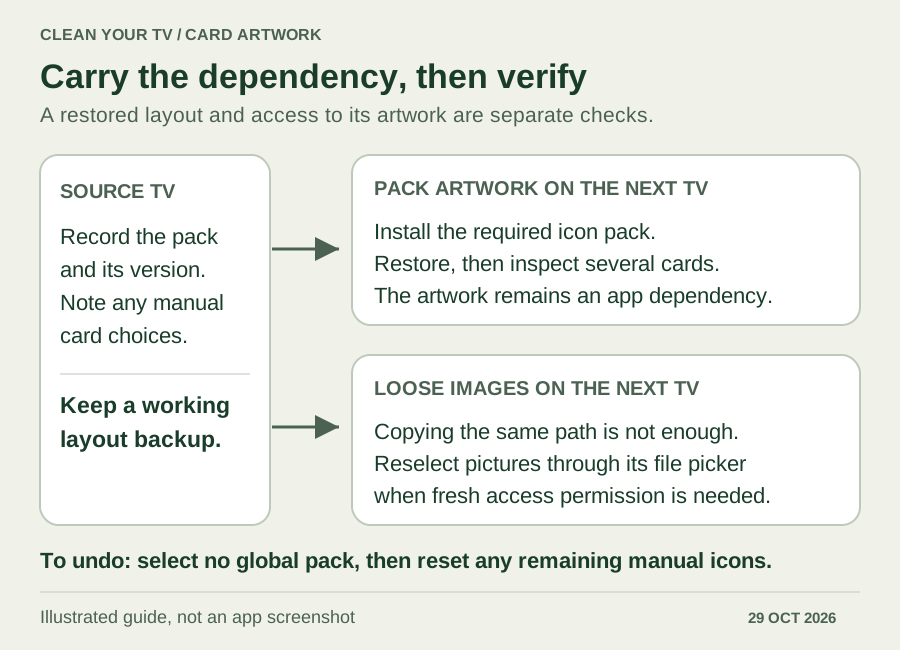
Before experimenting, note the active pack and any cards you customised individually. To stop using the global pack, return to Icon pack and select None. Inspect the result, then use the individual card's Reset option for remaining manual artwork. A single-card change does not require clearing Projectivy's app data or rebuilding every category.
A Projectivy Launcher icon pack also creates a dependency when moving a layout. Install the required pack on the destination TV before checking restored cards. In the developer's explanation, pack resource references can be recognised on another device when the pack is installed there. That is conditional guidance, not a guarantee that every backup transfers perfectly.
Loose image files have another dependency: Android file access. Copying a picture to an identical folder on a second TV does not transfer the original device's permission to read it. Reselect local pictures through the destination device's picker if necessary. Keep a working backup and verify several cards before replacing your previous layout.
Questions about a Projectivy Launcher icon pack
Is the pack free if Projectivy requires Premium?
Yes. The community pack's download price and the launcher's feature entitlement are separate. Check Premium before spending time customising a Projectivy Launcher icon pack. Optional support for the pack author does not activate the launcher's paid controls.
Does an icon pack change my Home button or install apps?
Applying a Projectivy Launcher icon pack changes card artwork. It does not install the apps pictured in the catalogue. It also does not configure the system's Home-button route. Use the Projectivy setup guide for the wider launcher setup.
What if an app updates and its card stops opening?
First check whether the installed app opens elsewhere. The pack author documents changed launch activities as one possible cause of stale category entries. If that matches your case, remove the affected entry from its category and add it again. Remove from a category is different from Uninstall; keep the app installed. If it fails outside Projectivy too, investigate the app itself before changing its artwork.
INDEPENDENT READING
Continue your Projectivy setup
Use the main setup guide for app categories, layout and backups once your card icons are consistent.
Open the Projectivy setup guide →Sources and review notes
Projectivy: current Premium feature list ↗Projectivy: official icon-pack directory ↗Projectivy 4.72: icon browser and pack detection ↗SicMundus86: pack installation, mappings and troubleshooting ↗Projectivy Icon Pack 1.1.9: original release ↗Projectivy developer: cross-device image and pack references ↗Checked October 29, 2026 against Projectivy 4.72, Projectivy Icon Pack 1.1.9, original developer documentation and published APK resources. Illustrations explain the workflow; no TV or emulator execution was performed.