 CleanYourTV
CLEANYOURTV · Google TV settings
Google TV basic mode: choose the right setup for your television
Google TV basic mode suits a television used mainly for live TV or connected inputs, when you can accept losing new app installation and the TV's casting features. If you still want streaming apps and casting with fewer recommendations, consider Apps only mode first.
This guide checks Google and TCL documentation on October 31, 2026. It is a document-based decision guide; we have not reset a television or tested a mode change on hardware. The purpose is to help you choose a suitable setup, understand its consequences and keep a clear return path.
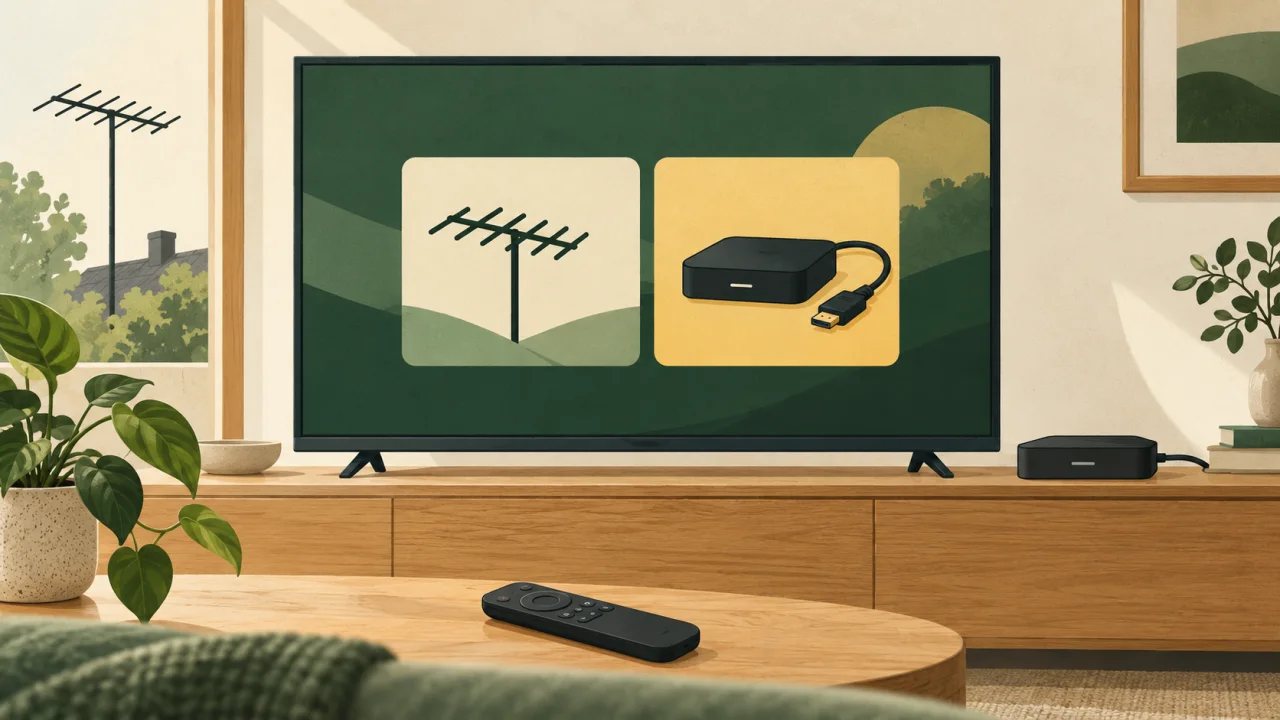
Check whether your television supports Basic TV
The first Google TV basic mode check is the device itself. Google's Basic TV documentation limits the feature to televisions with Google TV built in. A Chromecast with Google TV or Google TV Streamer connected through HDMI does not gain this television setup option.
Record your TV's model, software version and current setup state. Is it awaiting initial setup, already using Basic TV, or already configured with full Google TV? Find the model's current manual through its manufacturer. These facts decide which route is relevant before you touch a setting.
Separate the screen from any attached player. A television can have its own operating system while an HDMI device supplies a different Home screen. Check which device's settings you are viewing. If your goal is simply rearranging the existing screen, begin with Google TV Home customisation.
What Google TV basic mode keeps and removes
Google lists three retained uses: live television through the TV app, media from connected inputs, and a limited selection of preinstalled apps. TCL's official guidance confirms these categories for its Google TV televisions. The exact preinstalled selection depends on the device.
Basic TV does not provide new app installation, Google Account-dependent services, the Play Library, Assistant content search or casting from another device to the television. Finding one preinstalled streaming app does not mean you can add every other service you want.
You can set up Basic TV without a Google Account or an internet connection. Offline use also means missing important security updates. Check the requirements of any preinstalled app you intend to use; the television's offline capability does not establish that every app can work offline.
Treat Google TV basic mode as a change in available functions. It is not a promise that every advertisement disappears, that the television becomes anonymous, or that navigation becomes faster. None of those outcomes follows from the documented feature list.
Choose Basic, Apps only or full Google TV
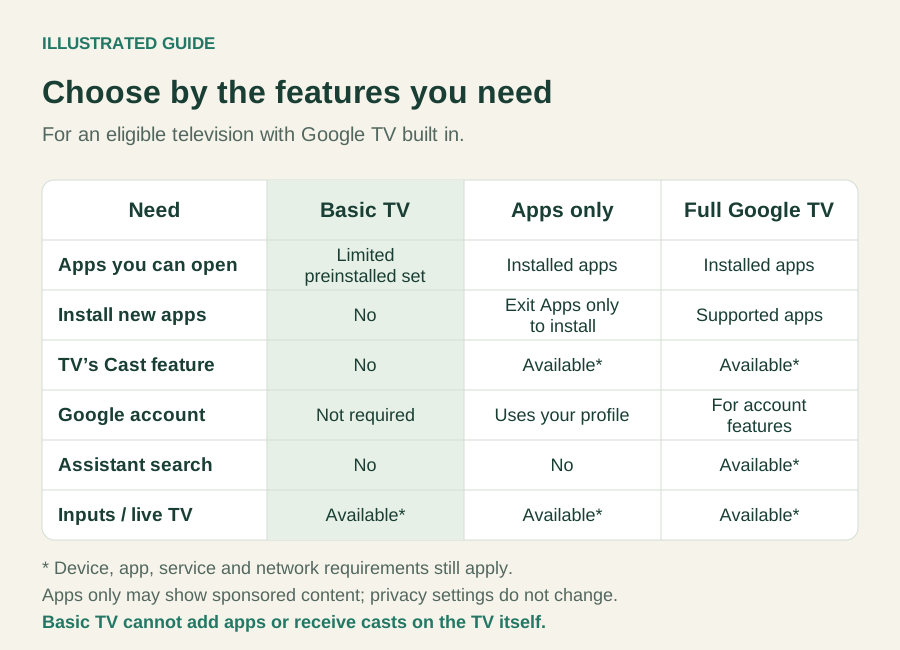
Choose Google TV basic mode by the functions your household needs. Make the decision before planning a reset.
| Requirement | Basic TV | Apps only | Full Google TV |
|---|---|---|---|
| Main purpose | TV and connected inputs | Open installed apps with fewer recommendations | Use the full Google TV experience |
| Google Account | Not needed for Basic setup | A setting for your profile | Needed for account-based services |
| Apps | Limited preinstalled selection; no new installs | Installed apps remain accessible | Install available apps |
| TV casting | Unavailable | Available under Google's casting conditions | Available under Google's casting conditions |
| Search and Assistant | Assistant content search unavailable | Unavailable | Available where supported |
| Change back | Set up Google TV from the banner | Turn the profile setting off | Basic requires returning to initial setup |
Google describes Apps only as a profile setting. It hides personalised Home recommendations, but sponsored content and teasers can remain. Privacy settings do not change, and apps can still make their own recommendations. Casting remains available.
If you need additional apps, keep access to the normal Google TV interface. The official installation guide describes its search and Apps routes. Do not assume every device presents those same controls while Apps only is enabled; you can turn that profile setting off to return to the normal interface.
For a household using an external player for streaming and the television for antenna channels, Google TV basic mode may fit. First check any required soundbar, remote-control or smart-home integration against the relevant manuals. An external player's casting or automation features are separate from the television's own capabilities; this guide does not certify either device's behaviour together.
Changing modes in either direction
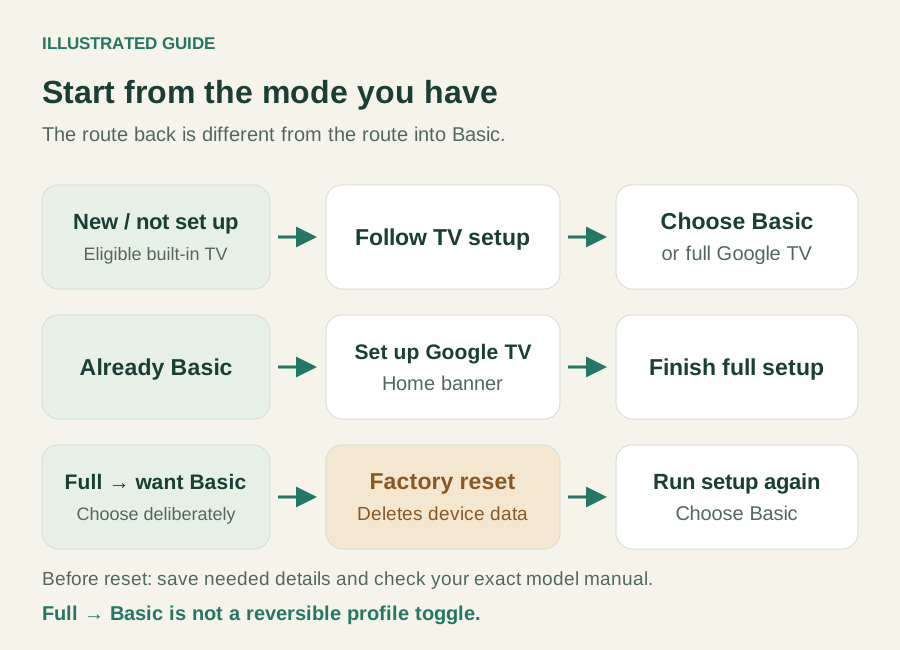
Your starting state determines the Google TV basic mode route. The two directions have different consequences.
A television awaiting setup: if the supported TV offers Basic TV during initial setup, choose it only after checking your required functions. Follow that model's setup instructions for the connection, input and channel choices. Menu wording and available steps can differ by manufacturer.
A television already using Basic TV: Google and TCL direct you to the Google TV banner on Home. Select Set up Google TV and follow the on-screen process using the Home app or remote. This is the documented route to add full Google TV capabilities; it is not a hidden launcher or developer setting.
A television already using full Google TV: Google's Basic TV help says you cannot directly switch to Basic from the completed setup. Returning to setup requires a factory reset. Google's reset guidance states that this erases data on the device.
Do not reset merely to experiment with a cleaner Home screen. First decide whether the loss of functions and local setup is acceptable. If you deliberately choose Google TV basic mode, consult the current model instructions for resetting and setting up again. Do not reuse another brand's remote-button sequence.
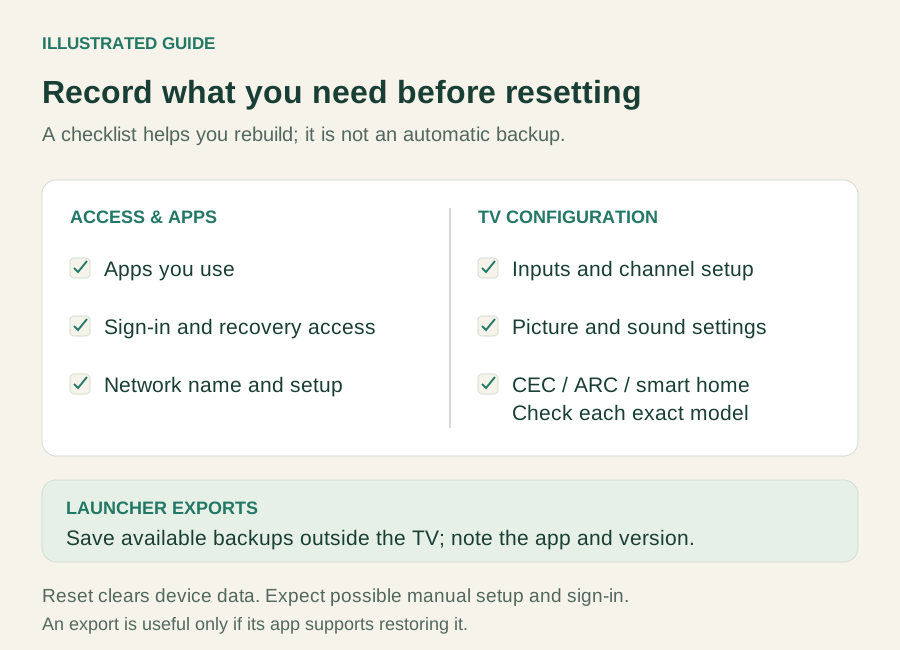
Before a reset, record the setup you need
A Google TV basic mode decision should include the work of rebuilding your setup. A written record helps you plan that work; it is not a full backup or a guarantee of automatic restoration.
Before proceeding, record:
- Apps and accounts: the services you use, their sign-in requirements and any local downloads or preferences you need. Confirm you can sign in again.
- Inputs and channels: the devices connected to each HDMI input, input names, antenna or cable setup and any channel arrangements you want to recreate.
- Network: the connection method and details needed to reconnect. Decide how you will obtain updates if you intend to use the TV offline.
- Picture and sound: preferred settings, input-specific adjustments and soundbar or receiver connections.
- Launcher customisation: export settings where your launcher offers that function, and store the export somewhere that will remain accessible after the reset. Note required apps and artwork separately.
A launcher export does not preserve the entire television, installed apps or account sessions. Some settings may need manual reconstruction. If a feature cannot be backed up, decide whether recreating it is acceptable before authorising a reset.
Use the manufacturer support directory to reach the appropriate instructions. There is no universal reset-button sequence for every Google TV television.
Check the result and keep a way back
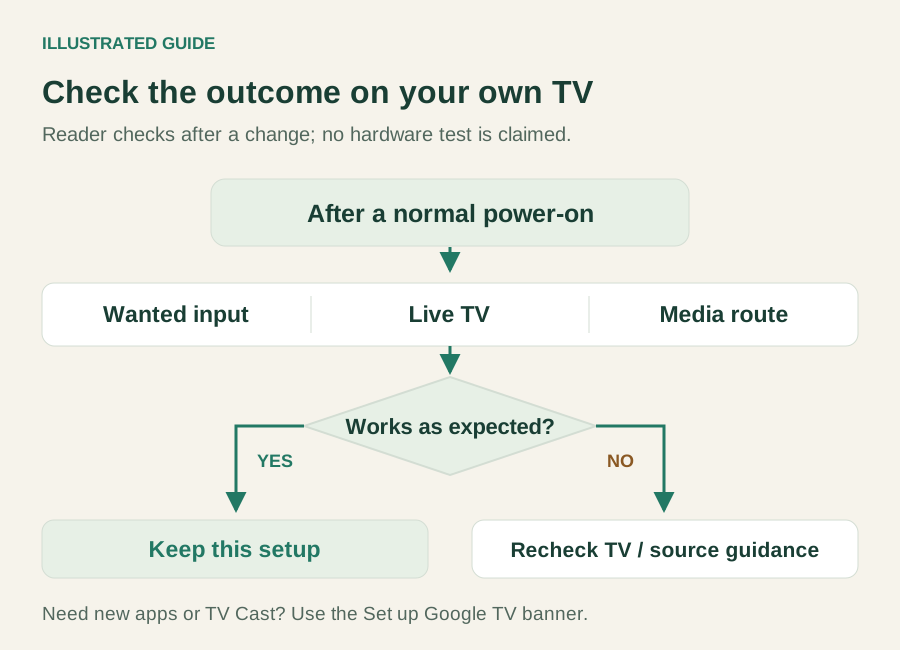
After choosing Google TV basic mode, check the activity that justified the change. Use your normal power-on routine, select the intended input or TV app, and confirm that the wanted channel or media source opens. Test the remote navigation and sound you actually need.
If something is missing, distinguish a wrong input or unfinished channel setup from a function Basic TV does not provide. Repeatedly searching for an app-install control will not resolve the mode's documented installation limit.
When you need full Google TV again, return to Home and use Set up Google TV on the banner. Complete setup, sign back into required services and recheck the same viewing task. Do not assume every previous app or preference has returned automatically.
If settings revert after power-on, consult Google's settings-not-saving guidance. It distinguishes retail or store mode from home use and identifies Basic TV's feature limits. Google TV basic mode is not another name for a shop's demo mode.
Google TV basic mode questions
Can I enable it on a Chromecast or Google TV Streamer?
Google TV basic mode is restricted to supported televisions with Google TV built in. For an HDMI streamer, consider the existing Apps only guide if your aim is fewer personalised Home recommendations while retaining installed apps and casting.
Can I install an APK while using Basic TV?
Google lists app installation as unavailable. This guide does not offer a sideloading workaround. Use the setup banner to move to full Google TV if installing apps is essential. A preinstalled app is not evidence that arbitrary new apps are supported.
Will Basic TV improve performance or privacy?
No speed improvement was measured here. Using Basic without a Google Account or internet connection does not establish that every manufacturer privacy choice changes or that all advertising disappears. Apps only also leaves privacy settings unchanged. Choose by the documented functions and review privacy controls separately.
Do I need to buy CleanYourTV to use Basic TV?
No. Basic TV is a supported television's built-in setup choice. A CleanYourTV purchase does not unlock it or restore the app-installation and casting functions that Basic TV omits.
INDEPENDENT READING
Keep the functions your household needs
If you need installed apps and casting with fewer personalised Home recommendations, review Apps only mode before planning a reset.
Compare Apps only mode →Sources and review notes
Google: Basic TV eligibility and functions ↗TCL: using Basic TV on a Google TV television ↗Google: Apps only mode ↗Google: factory reset consequences ↗Google: settings and store mode ↗Google: install apps ↗Google: casting conditions ↗Google TV manufacturer support ↗Document-based decision guide checked October 31, 2026 against Google and TCL support. No television was reset and no mode change was tested on hardware. Availability, menu labels and connected-device behaviour depend on the model.