 CleanYourTV
CLEANYOURTV · Family TV setup
Android TV parental controls: profiles, PINs and time limits
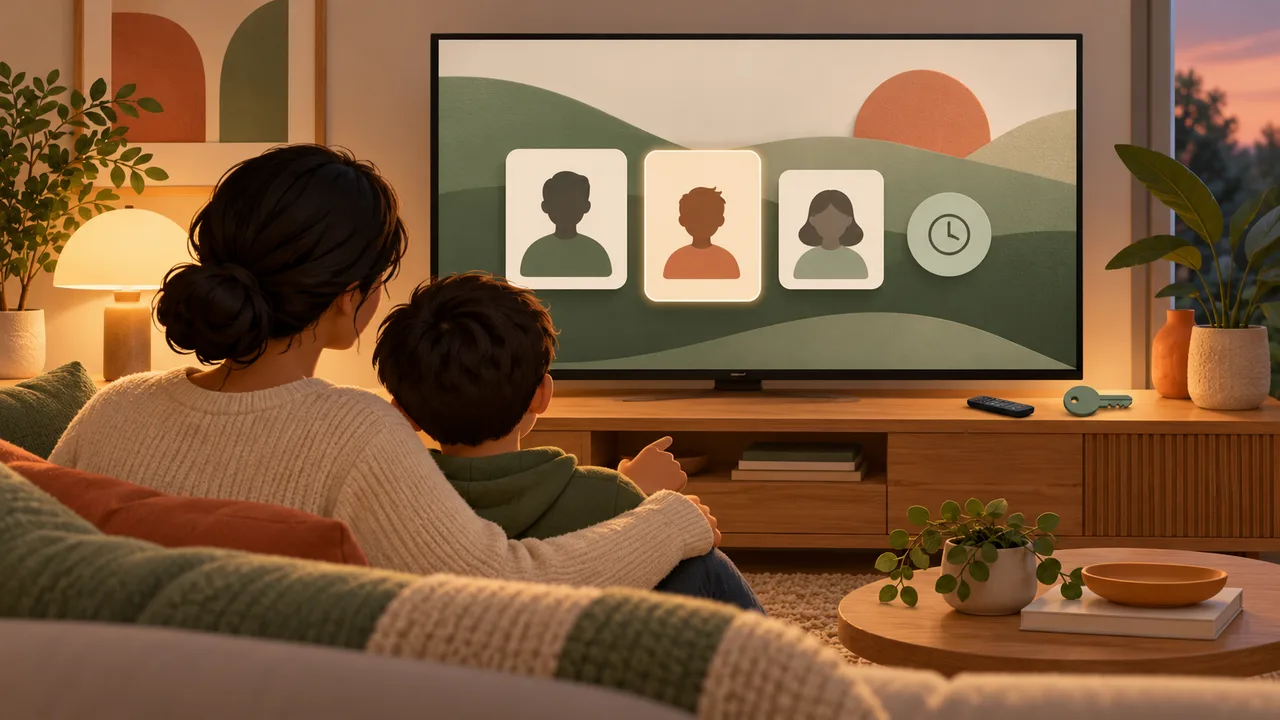
Android TV parental controls start with the profile and operating system on your television. Use a Google TV Kids profile when your device offers it, or the restricted-profile controls on older Android TV systems. Then choose allowed apps, protect adult access and set viewing time through the controls that actually support those tasks.
A cleaner home screen can help a family find suitable apps, but hiding a tile is not proof that the app is blocked. This guide was checked against official documentation on October 29, 2026. The illustrations explain the choices; we have not tested these controls on a physical TV or verified protection across every entry route.
Choose the right Android TV parental controls
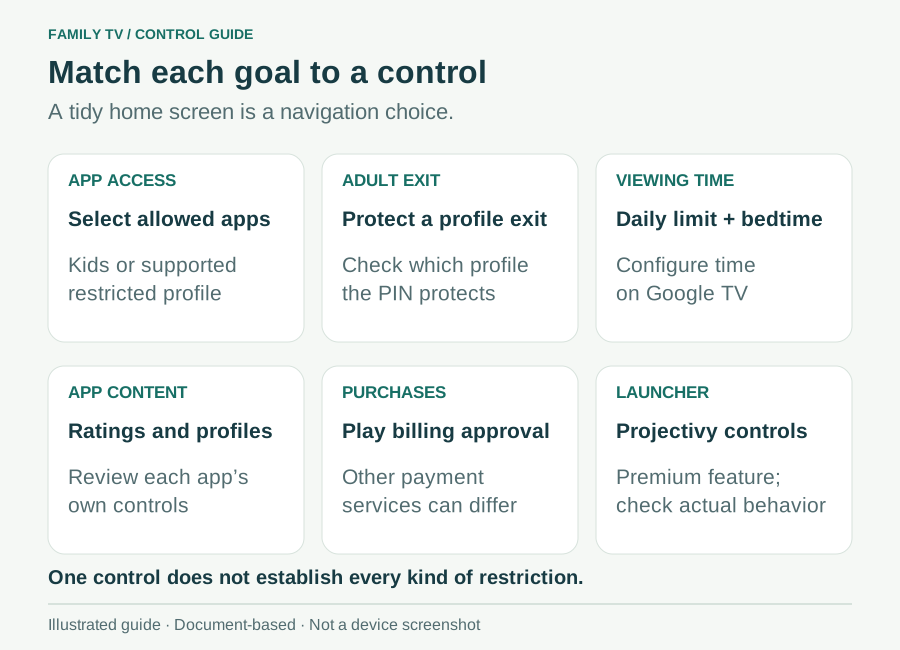
Begin with the task you want a control to perform. Keeping a child inside a profile, limiting a film's rating and preventing a purchase are separate requirements. Write down which matters in your household before changing settings.
| Requirement | Control to investigate | Scope to check |
|---|---|---|
| Choose accessible apps | Kids or supported restricted profile | Which installed apps appear and can open |
| Require adult access | Kids lock or the applicable profile PIN | Which profile and exit it protects |
| Limit viewing time | Google TV Kids screen-time settings | Daily allowance and bedtime on that TV |
| Filter titles | Profile ratings and each app's own controls | Recommendations, search and playback may differ |
| Approve purchases | Google Play purchase verification | Play billing on the configured device |
| Add launcher protection | Projectivy parental features | Premium entitlement and actual app behavior |
Google's profile-lock documentation says a lock applies to the selected profile. It does not automatically lock every account. The separate device lock described for Basic TV has its own scope; do not assume its input restrictions apply to a Kids profile or another launcher.
Good Android TV parental controls begin with this distinction: identify the control responsible for each requirement, then observe that requirement on your equipment.
Set up a Google TV Kids profile
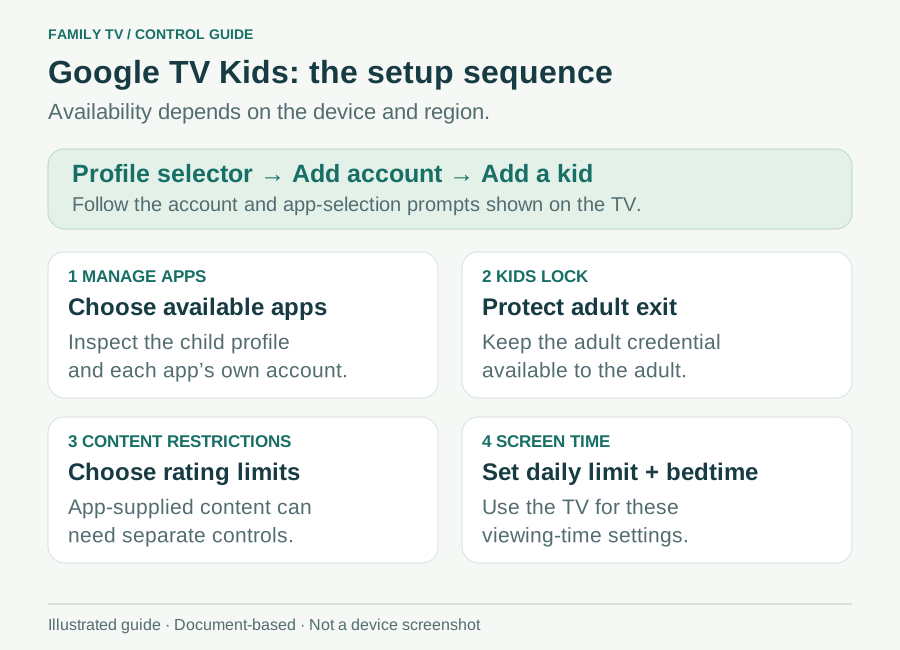
For Android TV parental controls on a Google TV device, first look for the supported Kids option. Google notes that availability depends on device and region. From the home profile selector, choose Add account → Add a kid, then follow the account and app-selection prompts.
Google's Kids setup guide places the controls under All settings → Accounts & Profiles → your child:
- Manage apps chooses the apps available in the profile.
- Kids lock requires adult verification to leave it.
- Content restrictions selects movie and TV rating limits.
- Screen time contains the daily allowance and bedtime settings.
Keep the adult credential available to the adult setting this up. After selecting apps, enter the child's profile and inspect what appears. A familiar icon is only the start: open the app and review its own account, profile and content settings too.
Google's rating restrictions cover its movie/show recommendations and shared Family Library. They do not filter every recommendation or search result supplied directly by another app. Treat the app's own controls as a separate setup task.
Divide tasks between the TV and Family Link
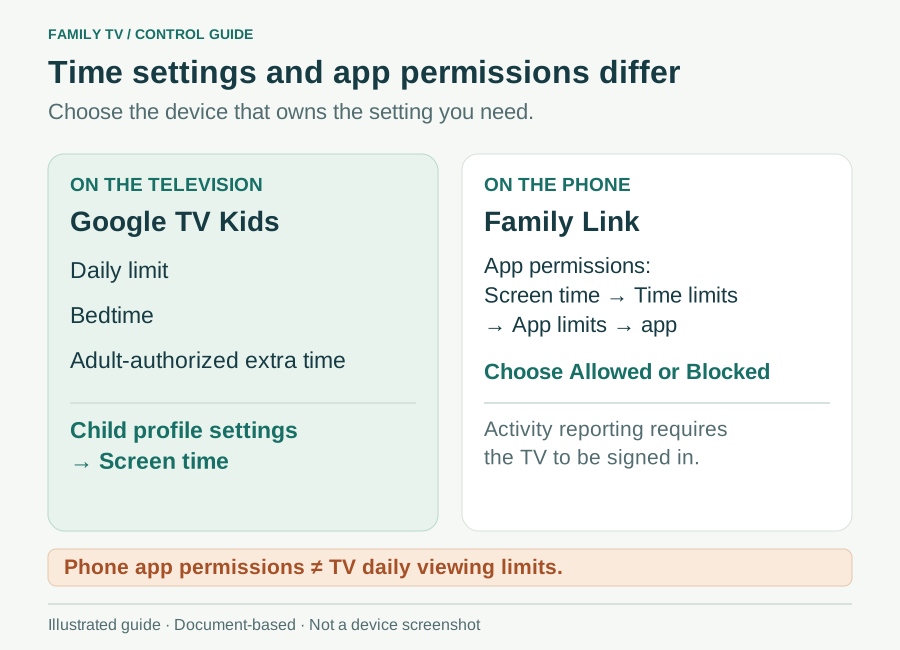
Use the television for Daily limit and Bedtime under the child's Screen time settings. Adult-authorized extra time is also handled on the TV. Google's Family Link and Google TV guide explicitly says TV daily limits and downtime cannot be configured through Family Link.
The phone app still has useful roles. To review reported activity, select the child in Family Link, then Controls → Signed-in devices → Google TV → Activity. The TV must be signed in for this reporting.
For app permissions, the documented phone route is Screen time → Time limits → App limits → app, followed by the Allowed/Blocked choice and Done. If the service has separate mobile and television app versions, Google's instructions say to block both.
The phone menu's Screen time label is easy to misread. For Android TV parental controls, it does not mean every phone or Chromebook time-limit instruction also applies to the TV. Write down where you changed each setting so you can find it again.
Use a legacy Android TV restricted profile
On older systems, Android TV parental controls may use a restricted profile instead of a Google TV Kids profile. Google's legacy instructions show Settings → Personal → Security & Restrictions → Create restricted profile. Set the exit PIN, choose allowed apps and return with Back.
The documented profile menu offers Enter restricted profile, Allowed apps and Exit restricted profile. It also describes restrictions on Play Store access and third-party apps that do not use Google sign-in. These are instructions for that Android TV feature, not evidence that every recent TV exposes it.
If the menu is absent, identify your device model, software and profile system before following another tutorial. Installing a new home-screen app does not establish that the operating system supports this profile type.
Forgotten restricted-profile PINs have a serious recovery cost. Google documents a factory data reset, which erases saved information including apps and channels. Read the official recovery guidance and your manufacturer's instructions before choosing that action. A missing menu or an app problem is not a reason to reset the television automatically.
Understand Projectivy's parental-control limits
Projectivy can be one part of Android TV parental controls, but its launcher features have a different boundary from an operating-system profile. The developer's current feature list places parental controls in Projectivy Premium and describes family scheduling and guest/settings protection.
That establishes the developer's advertised features and entitlement, not their reliability on your setup. A CleanYourTV purchase does not include the separate Projectivy Premium license. Use the controls exposed by your installed version and follow its current help; menu labels and available options can vary.
Likewise, hiding an app from a row or changing the layout is not evidence of blocking access through other routes. We have not established that Projectivy or CleanYourTV works inside a particular Kids or restricted profile. Keep those integration claims separate from ordinary home-screen customization.
Diagnose missing controls and reported problems
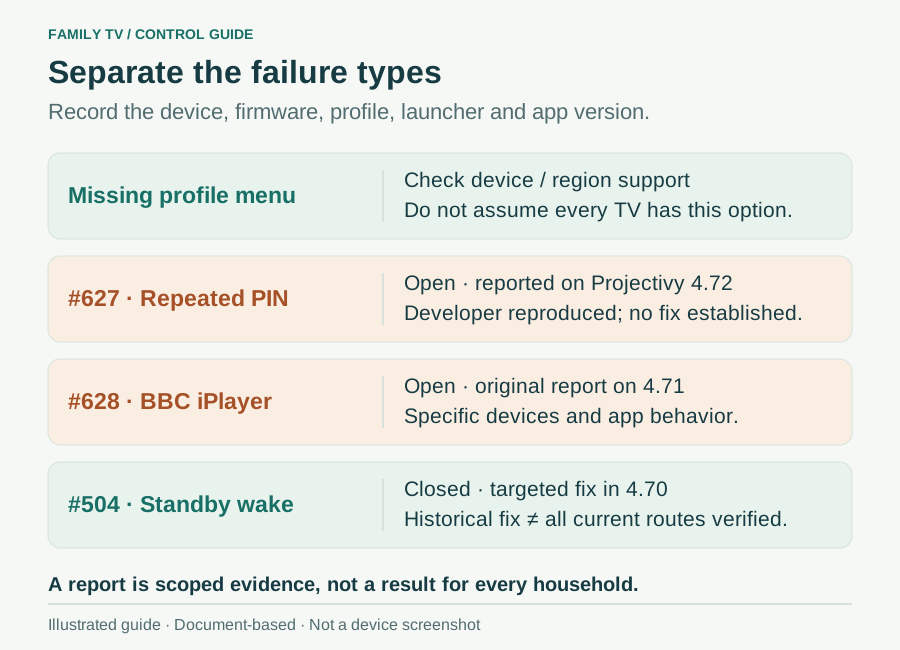
When Android TV parental controls behave unexpectedly, record the device, firmware, profile type, launcher version and affected app first. Those details distinguish an unavailable feature from an app-specific problem.
Projectivy's latest stable release resolved to 4.72 when checked. The following reports need different interpretations:
| Official issue | Checked status | What the evidence supports |
|---|---|---|
| #627: repeated padlock | Open; reported on 4.72 | PIN prompts can recur inside protected apps in reported setups; the developer confirmed reproduction |
| #628: BBC iPlayer | Open; original report on 4.71 | Specific Shield/iPlayer and Chromecast behavior, not a confirmed failure on every device |
| #504: standby resume | Closed; fixed in 4.70 | A historical wake-without-PIN issue with a documented targeted fix |
The 4.70 release notes corroborate the standby change. They do not prove that newer reports are resolved. An open issue also does not show that every household will encounter it.
Avoid changing several controls at once. If a protected app hangs or repeatedly asks for a PIN, keep your observations and consult its matching report. Disabling protection for diagnosis removes that protection; it is not a protected workaround. No rollback is presented here as a verified fix.
Check your household's actual routes
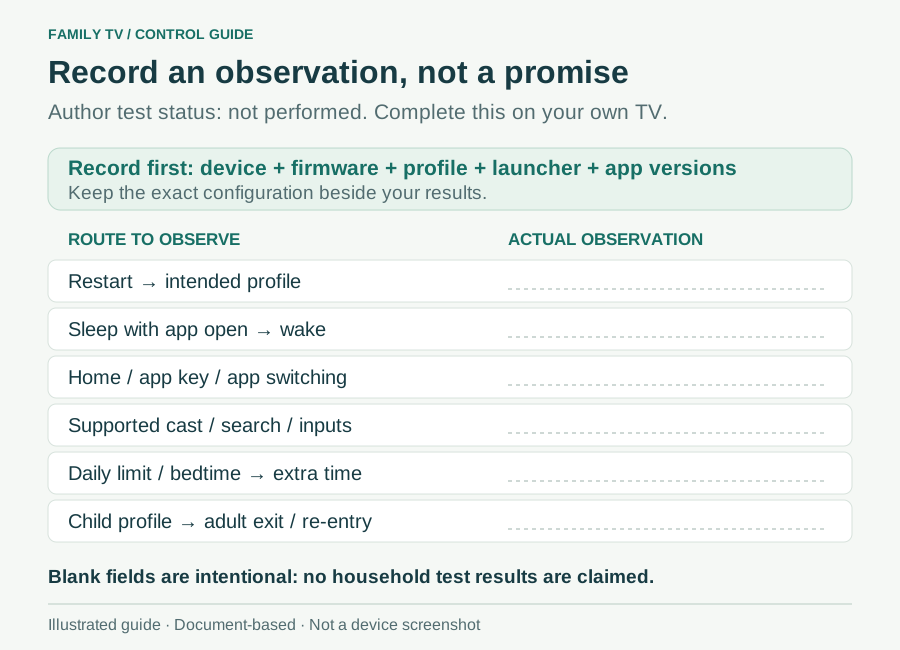
Before relying on Android TV parental controls, use a short observation sheet for your own configuration. The checks below have not been performed by us. Record an actual result beside each applicable route instead of assuming a PIN seen once covers every situation.
| Check to perform with an adult present | Observation to record |
|---|---|
| Restart, then enter the intended profile | Which profile opens; which verification appears |
| Leave an app open, sleep the TV, then wake it | Whether the expected control appears on return |
| Use Home, a dedicated app key and normal app switching | Which app or screen opens from each route |
| Try supported search, casting or external inputs | Whether that route belongs to the control's scope |
| Reach the configured time limit or bedtime | What happens and how adult extra time works |
| Leave and re-enter the child/adult profiles | Which credential is requested and for which profile |
Add the app version to any unexpected result. Check separate TV/mobile app variants where relevant, and repeat the affected route after a meaningful software update or control change. Keep observations specific: one successful test on one device cannot establish universal protection.
For purchases, review the configured verification rules without making a real purchase just to test this checklist. Google Play verification applies to its billing system on the configured device; other services may have their own account rules.
Questions about Android TV parental controls
Can I block an app by removing its home-screen tile?
Removing a tile changes navigation. For Android TV parental controls, select allowed apps in a supported profile, then check the routes relevant to your device. Do not describe a hidden shortcut as an operating-system block.
What if my television has no Kids or restricted profile?
Check the manufacturer and Google's documented availability first. App-owned child profiles or ratings may cover a narrower need. If considering a third-party subscription, evaluate supported devices, exit protection, recovery and current reports before paying; a store description is not a test result.
Should I customize the family home screen afterward?
Yes, once you understand the controls you are using. Read our Google TV home-screen customization guide to make everyday navigation clearer. Keep that visual organization separate from your Android TV parental controls and retain your observation notes.
INDEPENDENT READING
Make everyday TV navigation clearer
Once you understand your profile and control settings, organize the home screen around the apps your household uses.
Open the Google TV customization guide →Sources and review notes
Google TV: Kids profile setup and parental controls ↗Google: Family Link features supported on Google TV ↗Android TV: legacy restricted profiles and PIN recovery ↗Google TV: profile lock and Basic TV device lock ↗Google Play: purchase verification scope ↗Projectivy: official Premium feature list ↗Projectivy 4.72: checked stable release ↗Projectivy issue 627: repeated parental lock prompts ↗Projectivy issue 628: reported BBC iPlayer behavior ↗Projectivy issue 504: historical standby-resume report ↗Projectivy 4.70: standby parental-control fix ↗Official Google controls, Projectivy 4.72 and issues 627, 628 and 504 checked October 29, 2026. Illustrations are explanatory; no TV, emulator or household enforcement test was performed.